Search

eLearning Frenzy

eLearning is like a sewer, what you get out of it depends on what you put into it.

Month

April 2013

Want to Improve your Online Course? Ask your students!

Keep Calm and Ask Your StudentsIn previous posts we have discussed the importance of feedback in your online course.  We’ve looked at how students obtain feedback from student/course, student/instructor and student/student interactions.  There is however another important type of feedback that can be gathered in your online course(s)…….Student Opinion!

We can all be a little touchy when it comes to something that we have put measurable effort into, but if something is worth your effort, it is also worth you finding ways to improve it.  Here are a few suggestions for getting feedback from your students:

Blog – Week in Review
Have your students do a reflective blog post each week that charts the highs, lows and in-betweens of their activity in your online course.  Start them off letting them know that you are looking for honest/candid observations of their experience that week.

Trying Something New? – Do a Post assignment Survey
Maybe you are using a wiki for the first time in class, or maybe you are trying out synchronous web meetings.  Whatever you are doing, ask your students how it went, how it could be better and what they got out of it.

Three Letter Acronym for Success – KWL
What do you know?  What do you want to know?  What have you learned?  These three questions are key to ensuring that your students know you are listening.  By asking the first two questions you can, with the help of your students’ answers, drive learning toward their needs.  By asking the last question you can be sure that any objectives you set are met by reading their answers.

Be Formative and Summative
It is nice to find out what your students think when they finish your course, but wouldn’t it be nicer to know if they are really enjoying a certain aspect of your course or have problems with another while they are doing it?

There are other ways to gauge your students’ feelings on your course through discussions, assignments, surveys and synchronous “touching base” online meetings, but hopefully these few can you get started and allow you to improve your course and your students’ online experience.

Best New Thing in Blackboard – Video Everywhere

Possibly the best new thing in Blackboard Learn is the Video Everywhere tool and leverages Youtube so that students can post video in your Blackboard courses.  In days of yore, recorded video for students inside a Blackboard course was like searching for that ever elusive Bigfoot in the Adirondacks.  Seldom seen and only in the hard to reach (hard to teach) places. Students were relegated to using third party tools and hoping that the embed code they would use worked within the rusty environs of the old text editor.

Now students and faculty can easily present, share and communicate inside blackboard via the Video Everywhere tool.  First let me show you a great over view from Blackboard’s own “Quick-Hit” master; Vivek Ramgopal.  His videos are a must use resource for faculty and students.

Now we will look at the steps you need to take to record and/or upload a video using the Video Everywhere Tool.

Accessing Video Everywhere

Video EverywhereTo access the Video Everywhere feature just click the little webcam button on your content editor. Video Everywhere is available anywhere you use a content editor.  You can add video to discussions, blogs, tests/quizzes, wikis, journals and feedback conversations with your instructor via the gradebook.

If nothing happens, be sure you have allowed popups.

Sign In to YouTube

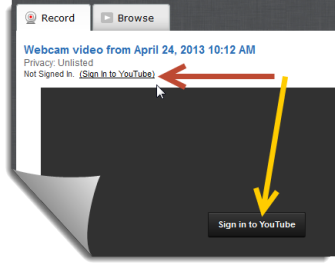
videoeverywhere_signinYou will need to sign in to leverage your YouTube account to add video to your course. Signing in is as easy as using the Sign in To YouTube link or button.

In most cases this is your Google account, so if you have Gmail or use Google Docs you are already in luck!  If you do not have an account you will be prompted to create one.

*Note:  If you sign in and notice that you don’t have the ability to press the Record button to capture your image you will need to close your WebCam Recorder window and click the Video Everywhere button Video Everywhere Button again on your content editor and then select Record.

Recording

Before you record yourself, be sure that you have your webcam/microphone plugged into your computer (if needed).

  • Under the Record tab in your Webcam Recorder window click the Record from webcam button.Record From Webcam
  • Next, you may be prompted to allow Flash to use your Webcam if so, select the Allow & Remember checkboxes, then click Close button.

    Flash Settings
  • You are almost ready to start!  Be sure that your webcam and mic are working by checking to see if you see yourself and when you talk if the green bar appears on the right.  When you are ready, click Start Recording to begin.
    Start Recording
  • After you click Start Recording you may be prompted to approve using the tool to upload your video to YouTube.  Click OK

    Confirm
  • Your Video will begin recording.  When you are ready to stop, click the Stop Recording button.
    Stop Recording
  • If you are satisfied with the recording, click Upload otherwise click Start Over and try again.
    Upload
  • Next choose whether you would like to embed your video by choosing Play in Place or use  Thumbnail to open a separate window to play your video.  *Best Practice Alert:  Choosing thumbnail will allow thoses people who come in on mobile devices an easier way to view the video.  Click Insert to place your video.
    Insert
  • Once you are ready to to complete your assignment, discussion, blog, wiki or conversation press Submit!

Selecting Video from your Video Library

You can also add previously recorded YouTube videos from your Video Library!

  • Click the Video Everywhere Video Everywhere Button button on content editor and sign in if you haven’t already.
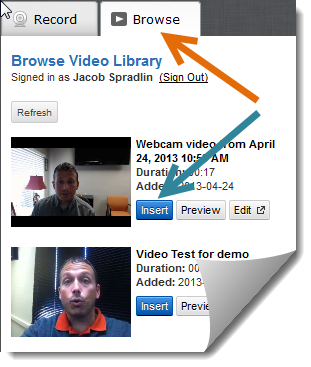
  • Click the Browse tab to access your Video Libary and click the Insert button next to the video you’d like to add to your post.Browse and Insert
  • Next choose whether you would like to embed your video by choosing Play in Place or use  Thumbnail to open a separate window to play your video.  *Best Practice Alert:  Choosing thumbnail will allow thoses people who come in on mobile devices an easier way to view the video.  Click Insert to place your video.Insert
  • Once you are ready to to complete your assignment, discussion, blog, wiki or conversation press Submit!

Blackboard will want me to be a BbWorld VIP blogger

Please accept this ‘Ode To BbWorld 2013’ as my humble submission.

Ode to Bb WorldAn Ode to BbWorld 2013

There once was a blogger of eLearning

who had a Technologically specific yearning.

To Vegas he’d go, not just for show,

but for BbWorld VIP Blogger status he was burning.

The Blogger heard that Sugata Mitra would be there,

Mitra’s thoughts on expanding EDU access he’d share.

He would blog them all down, and Tweet them around,

for once, what happened in Vegas wouldn’t stay there.

The knowledge acquired on these five days,

for Tips, Tricks & trends to the mainstays.

They would benefit all, because come the fall,

will be a bevy of BbWorld-influenced #bestpracticemondays!

Create a free website or blog at WordPress.com.

Up ↑