Search

eLearning Frenzy

eLearning is like a sewer, what you get out of it depends on what you put into it.

Category

Best Practices

BbWorld13 – Blackboard Learn’s New Social Learning Network

Live Blog for the BbWorld13 session: Blackboard Learn’s New Social Learning Network

Presenters: Melissa Stange, Francesca Goneconti Monaco, Terry Patterson

Session Description:

This presentation will cover the following:

  • Differences between existing social networks & Bb learn’s new global learning network
  • Benefits of using Bb’s Social Tools
  • How to implement
  • Lessons Learned
  • Answers to common concerns
  • Q&A

Session Begins at 2pm:

Overview of Social Learning Tools:

What is Social Learning – not one clear definition.  We all have different ways of describing it.  Introduced back in the 70’s.   Learning that takes place at a wider scale than individual or group learning, up to a societal scale, through social interrogation between peers.

“Learners learning from each other”

Why Now? – Because of the expectations and needs of today’s active learners.  For today’s students in our highly connected, information intensive world, learning is a 24/7 enterprise and the traditional school day is no more!

What students want in education mirrors what they experience outside of education.

Easily connect with educational community online.  (facebook not ideal) Educational network is different.

Educational Network – current and former classmates, professors, clubs, committees.  (not just friends).  In current social network it is hard to identify who is in your educational network.

Desire to keep networks separate! 60% of students say they want to keep academic and social lives separate.  Same amoutn think it is important to have an online forum to communicate with other students.  Cautious of mixing academic and social lives.

What are the tools?

Global Learning Network that connects users across/within institutions and countries.

How students see networks:

Facebook = Social
LinkedIn = Professional
Blackboard = Learning

Profiles – (photo/description) & Profile Wall.
People – Ability for users to discover learning network online.  Directory of entire institution, courses, global learning network
Spaces – Ad-Hoc group area.  Spaces can be created in less than a minute by anyone for anything.  (Study groups, research projects, interest groups, departments)
Messages – Asynchronously communicate 1 to 1 and with a group of people

Social profile tools go beyond basic and reach out to global connections.  Cloud gives identity, social lets you connect, collaborate and communicate.

Plan – Find early Adopters (Departments, programs, etc) Discover issues, questions and impact on faculty staff, students.

Policy – Find and fill gaps on current policies. Create new policies to fill in gaps.  Clear policy and where information is stored with affected parties on campus.

Procedures – Develop procedures to apply policy changes. Who implements/manages the procedures.

Implement – Pilot Group then full release.

Educate – Social Media vs. Social Learning

Usage, Intellectual Property, Harassment, social Accountability & Responsibility

FERPA directory information

Town Halls & Email Alerts

Bb Demos

Within 1st 1/2 hour 72 people adopted.  Made MyBb a tab.

Reporting on SysAdmin tab is on the Road Map.

help.blackboard.com has great FAQs and a communication & Adoption toolkit as well as videos on Youtube.

There’s more to learn video – a day in the life of a student using social learning tools.

BbWorld13: Blackboard Certified Trainer User Group

Title: BbWorld13: Blackboard Certified Trainer User Group

Kristine Duncan
Sr. Manager Consulting in Blackboardkristine.duncan@blackboard.com

Agenda

  • Benefits of Blackboard Certified Trainer Community
  • Future Vision of Community
  • Your Certified Trainer Experiences beyond the program
  • Q&A

Benefits:

  • Update CV, Resume with new Credential
  • 15% off of Blackboard Materials License
  • Access to Certified Trainer Community
  • Opportunities to Present at BbWorld Conferences

Benefits in the future

  • Quarterly professional development meetings/presentations
  • Quarterly renewal opportunities
  • Newsletter/Articles about training
  • More active online community
  • Advanced Certified Trainer Program

BbWorld 2013 Session – Effective Interactive Tools and Web 2.0 Projects Promote Student Learning & Engagement

Session Title: BbWorld 2013 Session – Effective Interactive Tools and Web 2.0 Projects Promote Student Learning & Engagement

Shu-Hui (Susan) Chang, Ph. D.
Director Distance Education
Computer Science Department
Iowa State University

(Seated and waiting for session to start)

Sound Teaching Pedagogies, Interactive Components and Effective Technologies are the hallmarks of an engaging online learning experience.

Distance Learning Evaluation Guide from American Council on Education

Before integrating interactive components in your course, focus on design.  (Systematic Design complete with Objectives, weekly modules, & technology that accommodates different learning styles)

Integrating Interactive Components

  • Build Online Community
  • Engage Learning
  • Facilitate Student instructor and student student interaction

Start from beginning.  Include media in Introductory Activities (Don’t be afraid to do audio/video).  Let the student start out as course content owners.

Use Case Study’s for group projects to build online learning community.  Students research their own project and comment on each other’s reports.

Use real-time Chat sessions – (Text chat is fine)  Guide the discussion by providing rules of the road so that the students know what to focus on.  Prompt with each question.  For example: What is Web 2.0?

Stream lecture-ets (5-15 minute) lectures that connect to Learning Activities.

Be Collaborative with Wikis, have students build the content and then provide feedback on each other’s section.  Include positive feedback and constructive Criticism in comments.  (provide netiquette guidelines for flaming etc)

Activities:

Use Shutterfly to Introduce yourself to the class.  Incorporates photos and text.
Use Prezi – Give students a research topic to present on (eg. Network Topology)

Tools:

Presentation Tools
Prezi, Brain Shark, Knovio, Projeqt.com, PhotoSnack,

Video Tools
TED, Animoto, Capzles (Capzles Classrooms), Jing, Podsnack(Custom Flash audio players), Tubesnack (create video playlists and sharew ith others)

Mobile

Audioboo(record sound to cellular device and attach picture to sound), Instagram, cel.ly (creates a social network using cell phones)

Community Tools

Bubbl.us(mind maps, brainstorming diagrams), Voki, Classtools (create interactive games, quizzes etcc), Wikis, Facebook, Blogger,

Other Tools
Blabbberize, Glogster, Quizlet, Toon Doo (create cartoons games), Fodey (fake newspaper), Pixlr (photo editor), Pintrest

BbWorld13 Breakout Session – Micro-blogging to Increase Engagement

BbWorld13 Breakout Session – Micro-blogging to Increase Engagement

Sprang from: Implementing Twitter into classes as a teaching tool.

Use hashtag #teachwithtwitter to share best practices.

Use of twitter came about from challenge of increasing retention.  What does engagement mean?  Connecting all institutional constituents to the activities of learning, discovery and the academic topics of study.

Twitter allowed use of social media in classes and beyond, tied to institutional mission, programmatic learning outcomes, & class objectives.  Connect to thought leaders in the industry to apply what they are doing to academic work.

Tell students to BYOD to class.  “If I find you on Facebook, “I get to post your status”.

276 students, 13 hasthtags and 10 professors.

Twitter is:

  • a great way to have students do research
  • a great way to connect with thought leaders in industry
  • a great way to engage students and faculty
  • a great way to affirm student knowledge  (retweets, favorites etc..)

Students felt more connected.

Twitter is not:

  • PRIVATE
  • A way for instructors to STALK students
  • A home work reminder tool!

Follow every major leader, mover/shaker in your field.  Prompts prof to prompt students to look at questions they should be thinking about!

Engagement uptick:

Building relationships via tweets and re-tweets.  Students that may not interact in face-to-face environment may feel more comfortable in the twittersphere.  Gain insight into your students through micro-blogging.

Affirming students by:

  • Followers
  • Retweets/Mentions
  • Favorited
  • Direct response/reply
  • Start a hashtag trend!

Bonus Results:  Creating Twitter pages for professional/business uses

In Blackboard – Use Twitter widget to display twitter feed!

Resources:

Bit.ly will shorten URLs  (also tracks clicks)
HootSuite, TweetDeck  (HootSuite allows you to schedule tweets – making them relevant to when your followers are reading their feeds)Twitonomy – Metrics on Tweets

Lessons Learned

  • Will continue to do this
  • More training for everyone (hashtag/mention use)
  • Help students understand Twitter (be clear on assignment layout)
  • Don’t assume all Gen Y students are tech savvy
  • Students were afraid of doing it “wrong” based on “multiple choice” mentality
  • Better Balance of quantifiable pieces with softer side

Twitter Assignment 1: Hashtag, you’re it!

  • Current event searches

Twitter Assingment 2: Follow you, Follow me

  • Making Connections to industry Leaders (make a professional account)

Twitter Assignment 3: Tweet That, Tweety Bird

  • Sharing ideas with others

World’s First eLearning Best Practice Music Video

A few weeks back, I did a post about an elearning best practice that turned into a song.  Well that song has finally been turned into a music video.  If this doesn’t help you to remember to check the links and embeds to external content in your online course, I don’t know what will!

The Course Blog: An Online Instructor’s Best Friend

Course BlogAn online instructor has many “friends” or tools to help facilitate communication, assessment, collaboration and learning in their online course. In many instances a faculty will chose one tool over the other for obvious reasons. A course blog can cover a number of bases and it is a medium that many of your students will already be familiar for helping to digest information. This blog post (<– see what I did there) will cover just a few ways that a course blog can benefit you and your students.

  1. Engage StudentsA Blog Can Keep Your Students Informed and Engaged

    It is already a best practice for you to communicate regularly with your students. A blog can help facilitate that practice by helping you to post weekly (or more depending upon your need). Ensure your students have a expectation of having to check the blog regularly and can expect (from you) a post each week.

    Part of what you are trying to do here is remind your students of upcoming assignments, readings, or research as well as giving them waypoints or signposts where they should be paying attention.

  2. FeedbackUse the Blog for Feedback

    One of the best ways to utilize your course blog is to make it a feedback mechanism. Letting your students know that you are reading their assignment submissions, discussions and other assessments assures them that you are taking an active part on their learning journey. For example, use the blog post to sum up student discussion posts or submitted papers for the week giving kudos (by name) to students who are really bringing it home and challenges where the class maybe coming up a little short. You can turn the feedback around and have them comment on a blog post to collect feedback.

  3. Searching Made EasyThe Course Blog Makes Finding Information Easy

    Have a course blog means that your students will know where to go to find the out what’s happening in your course. They know that they can use the tool to search for the data they want.

    Digging through a syllabus or checking old announcements can be time consuming for some students. The course blog provides a familiar interface that is easy to search for needed information. In many instances, students can search by category, key word or date (week, month etc..). The blog keeps an archive of old posts so your students will know exactly where to look.

Keeping your students informed, engaged and in the loop is key to ensure they have a successful leg in their educational journey. The course blog allows you to let your students know what’s going on, provide feedback and provides an easy way to find all of that information.

*Blackboard Learn provides the added benefit of associating your picture with each post and your students’ pictures with each comment, thereby making the experience more personal and connecting.

By Popular Demand – “Broken Links” that popular 80s Tribute (Lyrics)

So my #bestpracticemonday for this week had to do with prepping your course for the next semester in that you should always check links and embeds for all external content.  Part of my post had the humorous tribute to Mr. Mister’s Broken Wings (one of my personal favorite bands of that era).  So the Tweet actually read:

@jspradlin #bestpracticemonday “Take..these broken links and learn to browse again..” Check links & embeds for external content prior 2 semester start.

Broken LinksAfter posting that tweet, I received numerous requests to post the rest of the song. As luck would have it I rounded up the members of my 80’s eLearning cover band, “Best Practice” (which was funny as we never really seemed to have time to rehearse) and we (okay it was just me as the rest of the members kept talking about how they missed their swatch watches and parachute pants) put together the Pedagogical sounds of a tribute.

So without further ado, here is Broken Links:


Song: Broken Links
Artist: Best Practice
Label: eLearning Records
Year: 1980 something

Maybe, you’ll understand
why we can just click on the links that we planned.
This time wont’ be the last I fear
cause websites seem to disappear
Where do they go? Ohhh…

Take these broken links
and learn to browse again
learn to surf so free
And when we find the web content
the links will open up again and let us in..

Take these broken links….

Maybe, I think today
we can take that youtube mashup
and make it play.

Or Maybe, it’s all I know, that the Voki I created
Just won’t show
Where did it go?

Take these broken links
and learn to browse again
learn to surf so free
And when we find the web content
the links will open up again and let us in..

Maybe, where can it be, that prezi from last semester
I just can’t see.
yeah yeah yeah, yeah yeah.
Take these broken links
and learn to browse again
learn to surf so free
And when we find the web content
the links will open up again and let us in..

Take these broken links
and learn to browse again
learn to surf so free
And when we find the web content
the links will open up again and let us in..

Want to Improve your Online Course? Ask your students!

Keep Calm and Ask Your StudentsIn previous posts we have discussed the importance of feedback in your online course.  We’ve looked at how students obtain feedback from student/course, student/instructor and student/student interactions.  There is however another important type of feedback that can be gathered in your online course(s)…….Student Opinion!

We can all be a little touchy when it comes to something that we have put measurable effort into, but if something is worth your effort, it is also worth you finding ways to improve it.  Here are a few suggestions for getting feedback from your students:

Blog – Week in Review
Have your students do a reflective blog post each week that charts the highs, lows and in-betweens of their activity in your online course.  Start them off letting them know that you are looking for honest/candid observations of their experience that week.

Trying Something New? – Do a Post assignment Survey
Maybe you are using a wiki for the first time in class, or maybe you are trying out synchronous web meetings.  Whatever you are doing, ask your students how it went, how it could be better and what they got out of it.

Three Letter Acronym for Success – KWL
What do you know?  What do you want to know?  What have you learned?  These three questions are key to ensuring that your students know you are listening.  By asking the first two questions you can, with the help of your students’ answers, drive learning toward their needs.  By asking the last question you can be sure that any objectives you set are met by reading their answers.

Be Formative and Summative
It is nice to find out what your students think when they finish your course, but wouldn’t it be nicer to know if they are really enjoying a certain aspect of your course or have problems with another while they are doing it?

There are other ways to gauge your students’ feelings on your course through discussions, assignments, surveys and synchronous “touching base” online meetings, but hopefully these few can you get started and allow you to improve your course and your students’ online experience.

Best New Thing in Blackboard – Video Everywhere

Possibly the best new thing in Blackboard Learn is the Video Everywhere tool and leverages Youtube so that students can post video in your Blackboard courses.  In days of yore, recorded video for students inside a Blackboard course was like searching for that ever elusive Bigfoot in the Adirondacks.  Seldom seen and only in the hard to reach (hard to teach) places. Students were relegated to using third party tools and hoping that the embed code they would use worked within the rusty environs of the old text editor.

Now students and faculty can easily present, share and communicate inside blackboard via the Video Everywhere tool.  First let me show you a great over view from Blackboard’s own “Quick-Hit” master; Vivek Ramgopal.  His videos are a must use resource for faculty and students.

Now we will look at the steps you need to take to record and/or upload a video using the Video Everywhere Tool.

Accessing Video Everywhere

Video EverywhereTo access the Video Everywhere feature just click the little webcam button on your content editor. Video Everywhere is available anywhere you use a content editor.  You can add video to discussions, blogs, tests/quizzes, wikis, journals and feedback conversations with your instructor via the gradebook.

If nothing happens, be sure you have allowed popups.

Sign In to YouTube

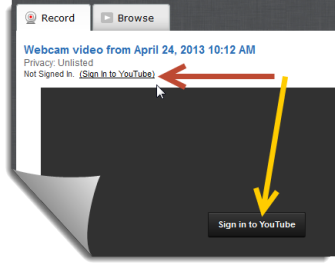
videoeverywhere_signinYou will need to sign in to leverage your YouTube account to add video to your course. Signing in is as easy as using the Sign in To YouTube link or button.

In most cases this is your Google account, so if you have Gmail or use Google Docs you are already in luck!  If you do not have an account you will be prompted to create one.

*Note:  If you sign in and notice that you don’t have the ability to press the Record button to capture your image you will need to close your WebCam Recorder window and click the Video Everywhere button Video Everywhere Button again on your content editor and then select Record.

Recording

Before you record yourself, be sure that you have your webcam/microphone plugged into your computer (if needed).

  • Under the Record tab in your Webcam Recorder window click the Record from webcam button.Record From Webcam
  • Next, you may be prompted to allow Flash to use your Webcam if so, select the Allow & Remember checkboxes, then click Close button.

    Flash Settings
  • You are almost ready to start!  Be sure that your webcam and mic are working by checking to see if you see yourself and when you talk if the green bar appears on the right.  When you are ready, click Start Recording to begin.
    Start Recording
  • After you click Start Recording you may be prompted to approve using the tool to upload your video to YouTube.  Click OK

    Confirm
  • Your Video will begin recording.  When you are ready to stop, click the Stop Recording button.
    Stop Recording
  • If you are satisfied with the recording, click Upload otherwise click Start Over and try again.
    Upload
  • Next choose whether you would like to embed your video by choosing Play in Place or use  Thumbnail to open a separate window to play your video.  *Best Practice Alert:  Choosing thumbnail will allow thoses people who come in on mobile devices an easier way to view the video.  Click Insert to place your video.
    Insert
  • Once you are ready to to complete your assignment, discussion, blog, wiki or conversation press Submit!

Selecting Video from your Video Library

You can also add previously recorded YouTube videos from your Video Library!

  • Click the Video Everywhere Video Everywhere Button button on content editor and sign in if you haven’t already.
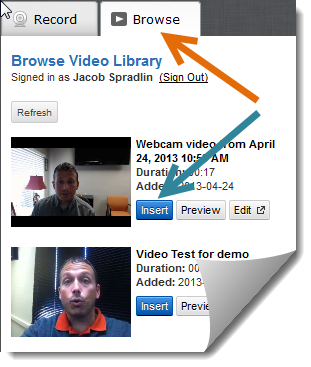
  • Click the Browse tab to access your Video Libary and click the Insert button next to the video you’d like to add to your post.Browse and Insert
  • Next choose whether you would like to embed your video by choosing Play in Place or use  Thumbnail to open a separate window to play your video.  *Best Practice Alert:  Choosing thumbnail will allow thoses people who come in on mobile devices an easier way to view the video.  Click Insert to place your video.Insert
  • Once you are ready to to complete your assignment, discussion, blog, wiki or conversation press Submit!

Create a free website or blog at WordPress.com.

Up ↑