Search

eLearning Frenzy

eLearning is like a sewer, what you get out of it depends on what you put into it.

Category

Blackboard

#bestpracticemonday – The Importance of Rubrics in Blackboard Courses

Rbrics CubeThis blog has covered the importance of communication strategies when leading an online course. Students who feel like they have effective lines of communication during an online course tend to have a higher opinion of the course’s quality. Part of effective communication lies in the explanation of  assessment and evaluation of student work. The Blackboard learning management system has a tool that can assist faculty when communicating around grading and assessment. This tool is called the Blackboard Rubric.

Rubric (Definition)
A rubric is a way to communicate expectations of quality about an assignment or activity.

The Blackboard Rubric is an assessment tool that lists evaluation criteria for an assignment, and provides a means to convey to students your expectations for the quality of completed assignments.  This tool is an effective means to enhance an online instructor’s communication strategy.  The Blackboard Rubric tool is important for three reasons.

  1. Using a Blackboard Rubric Clears up any Grading Ambiguity for Students
  2. Using a Blackboard Rubric Makes Grading Easier and Consistent
  3. Using a Blackboard Rubric Lets Students Know What they Need to Succeed

Using a Blackboard Rubric Clears up any Grading Ambiguity for Students

Students in online courses can feel like they have multiple reasons to be anxious about their experience.  Technology glitches, digital proficiencies, and communication snafus are all obstacles that can present a problem for online students.    This does not even take into account how students interpret results from assignments and activities they have turned in.  In a face-to-face environment, students have the luxury of talking to the professor during class or stopping by the office to talk about their grade. Online students who want to know why they received the grade they did have to jump through hoops at times to determine where they went wrong.  For a student, just seeing a number in their My Grades area of Blackboard doesn’t give them the full picture.
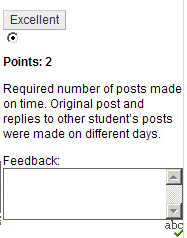
Rubric Criterion with Feedback BoxThe Blackboard Rubric tool provides an easy method for communicating about student performance. How a student performed is not only detailed by the indicated criterion and level of achievement, but the instructor has the ability to provide further individual feedback at the individual criterion level.    If one specific criterion has three levels of possible achievement, then Blackboard instructor will have the ability to leave feedback right where the student landed for their assignment/activity.

Giving students the tools to understand how they performed, will equip them with the ability to not only understand why they performed the way they did, it can also enable them to improve upon their performance.

Using a Blackboard Rubric Makes Grading Easier and Consistent

Grading assignments/activities in Blackboard can take a fair amount of an online instructor’s time.  One way to simplify the process and give both the instructor and the students a detailed explanation of the evaluation is to grade with the Rubric Tool.  Blackboard Rubrics can be associated with:

  • Assignments
  • Essay, Short Answer and File Response test questions
  • Blogs and Journals
  • Wikis
  • Discussion board forums and threads

This means that each of these activities can be graded using the Rubric tool.   Once a rubric is associated with a Blackboard activity, the instructor can access the gradable item via the Grade Center, on the Needs Grading page, or directly from the tool.  Once in the in-line grading or grading view the View Rubric (button or link) is clicked and the instructor can select the level of achievement for each criterion and the points are automatically tabulated!

Using a Blackboard Rubric Lets Students Know What they Needs to Succeed

SuccessIf a student knows what it takes to succeed at a particular assignment, they are far more likely to be successful themselves.  The Blackboard Rubric tool has the ability to allow the students to see the Rubric BEFORE they complete the assignment.

When viewing a Blackboard activity a link is provided to your students to View the Rubric.  They then see the activity levels of achievement and criterion.  The rubric gives them visibility into what it takes to not meet requirements, meet the requirements, and exceed the requirements for the activity. The rubric then becomes the book-ends for the assignment:  a guide for what they need to be successful and a tool for letting them know how they performed.

At the very least, the use of Blackboard Rubrics can help students organize their efforts to meet the requirements of an assignment, and you can use them to explain evaluations to students. Rubrics can help ensure consistent and impartial grading.  They are important because they clear up grading ambiguity, make grading easier, and provide a pathway to success.

For more on the Blackboard Rubric tool, check out the Blackboard Help pages.

Where to Start – Example Rubrics

Use Smart Views to corral unruly group assignments in the Blackboard Grade Center.

Leveraging course groups, as part of a course plan is one of the most important things an online instructor can do to encourage student engagement in an online course.

Course GroupsBenefits of course groups include:

  • Ready-made collaboration activities
  • Activities are usually recorded (discussions, blogs, wikis)
  • Critical thinking encouraged with peer review of group work
  • Students become content creators

While group activities are beneficial to students, they can create extra work for you when it comes to grading.  Thankfully, Blackboard has a handy tool in the grade center to cut down on the multiple columns you have to sort through when trying to grade group work.  To manage the amount of columns and list only the groups or a specific group, just employ a Smart View.

A Smart View is a focused look at the Grade Center. It shows only the columns that match a set of criteria, and the view is saved for continued use. When the Grade Center includes a great number of students and columns, you can use smart views to quickly find data.

Several smart views are available by default, but you can also create your own. You can easily move between the Full Grade Center view and any of the available smart views. You can set a smart view as the default view of the Grade Center and change it at any time.

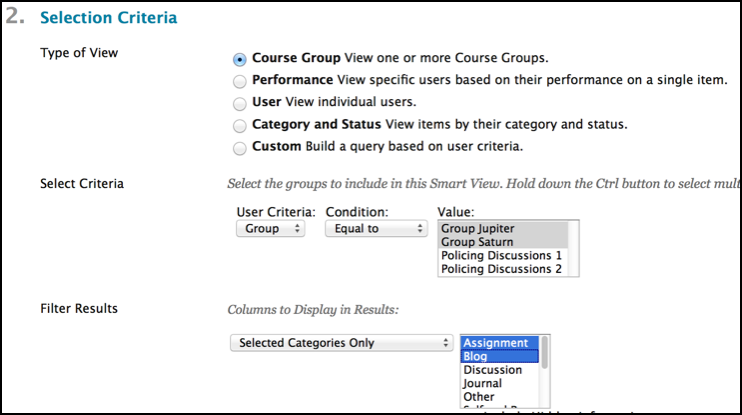
Smart View Selection CriteriaWith smart views, you can view the progress of the following:

  • An existing group
  • Student performance for a particular item
  • Individual students
  • Category and status of items
  • Custom combination of attributes

The Smart View list can be accessed via the manage button in the grade center.   The Smart Views can be added to the Favorites that already show up in the grade center menu of your control panel (includes assignments, tests by default).  They can also be created from this page.

*Note:  You will need to create course groups before you can create a group-based Smart View.

The Smart Views will let you focus on exactly what you want and nothing you don’t.  Be careful though, once you start using Blackboard’s Smart Views in the grade center for groups, you’ll find yourself using them on other things like tracking low scores for students who need help or to compare two different types of assessments for starters.

Looking for a 1st week of class activity? Introduce your students to Blackboard’s Social Learning tools.

One of the most important things your students can do while they pursue their education is to begin to build their PLN or Personal/Professional Learning Network.

A personal learning network is an informal learning network that consists of the people a learner interacts with and derives knowledge from in a personal learning environment. In a PLN, a person makes a connection with another person with the specific intent that some type of learning will occur because of that connection.

Linked-in, Twitter feeds, professional user groups, blogs and connections your students make to colleagues are all examples of ways students can extend their PLN.  Blackboard now offers a way students can begin this experience with the new Social Learning Tools.

With Blackboard’s social learning tools you can:

  • Have an enhanced Profile where you create your online academic identity and share only what you want to share. Profiles include a profile wall for communication and the ability to message and follow other users to make connections and build your learning network.
  • Use the People tool to find your students and peers, at your school or at another school with Blackboard Learn, and build your global learning network.
  • Message anyone within the global learning network.
  • Create a collaboration Space that you control, where you can communicate with others for departmental collaboration, best practice sharing, committee work, or to foster social learning among your students. You can also participate in spaces created by your peers or students.

Why the First Week?

  • Familiarizes the student with the My Blackboard menu which gives them access to their social profile as well as the dashboard for what’s going on in all of their courses.
  • Provides a way for student to identify themselves via photo and professional, educational and social information.  Once student has uploaded a photo, every interaction they make in your course will display their photo along side it so you and fellow students can connect with each other.
  • Let’s the students know that you are interested in them as more than just a person taking a class, which can start their learning journey out on the right foot.
  • Greases the wheels of communication:  Prompts the students to start collaborating/interacting from the start.

You can find instructions for using these tools in the Teaching Online tab in Blackboard and your students can find instructions through the Getting Started tab.  Both sets of instructions are accessed by using the Get Connected link in their respective course’s navigation menu.  You can also find instructions on the web here at help.blackboard.com.

Three Ways to Ensure Student Success when Teaching Online

Student SuccessInstructors who teach online must cover a number of bases when working with students in an online environment.   You must be mentors, knowledge sharers, tech support, facilitators of learning, and technology gurus in your own right.    It is easy to see that trying to wear all of these hats can make an online instructor’s life difficult and that student success becomes an afterthought to just surviving an online course.

The good news is that there are ways to ensure your students have a successful learning journey.  There are methods, best practices, tips & tricks that can make your life and the lives of your students easier when participating in an online course.  For this blog, we will focus on three:

  1. Start Here
  2. Model the Behavior You Want to See
  3. Contextualize Your Instruction

Start HEreStart Here

We often assume that students that come into our online courses are digital natives and will somehow intrinsically know how to find their way around when they first enter an online course.  Aside from the fact that not every student born after 1990 has a computer implanted in their brain, more and more students pursing an online education are non-traditional students and may not feel as comfortable in the online environment.

This is why it is a good idea to use a Start Here unit or content area in your course.  You can leverage the unit as a kind of “this is how my course works” walk-through for your students.  It should contain things like course expectations, a welcome message or video from you, introductory discussion and any other information that can help your students be successful in your course.  Tips like “assignments, discussions and quizzes are located in each course unit (Weeks)” can answer questions before they are even asked.

Giving your students a “standard operating procedure” for how your course will work will go a long way toward reducing their anxieties about your course and put them on a path for success.

Model the Behavior You Want to See

One way that parents impart knowledge to their young is to demonstrate whatever it is they would like their progeny to do.  When you teach, adopt the same practice in order to ensure that your students know what is expected of them.  Giving the students a guide or working rubric for what is acceptable can go a long way toward ensuring student success.  If you are having them turn in papers, give them a non-topic specific example of how you’d like their papers formatted.  It doesn’t have to be an entire paper, but an example of what you are looking for from them.  When using the Learning Management System’s discussion board for the first time in your class, be the first person take make the post.  This works best in an “Introductions” discussion. Provide the instruction and then provide the example that follows that instruction.  The same thing goes for blogs, wikis and journals.

Giving your students an example of the online course behaviors will reduce the amount of uncertainty that naturally comes when taking an online course.  Remember that some of them may never have submitted an assignment online or participated in an online discussion.  Taking the extra time early in your course to provide guidance will help your students feel at ease and let them know that you are engaged in the course along with them.

Contextualize Your Instruction

Contextual InstructionThink of your online course as a new destination for your students on their learning journey.  How would they describe their navigation experience?  Would they say that once they travel into your course that it is difficult to find their way back?  Would they say that the course links were easy to find and use?  Would they be frustrated trying to make it to their “destination”?  These questions can be easily put to rest by providing contextual instruction wherever your students are within the course. If you put every bit of instruction your students would need for the course within the syllabus you would end up with the document that rivals to War and Peace in its width and breadth.   Compare how hard it would be to locate instruction in a 20 page document versus instruction in the same area where your students are currently working.  College students are used to living in a connected world where they can find instructions for how to do something right where they are via their mobile device or computer. Taking the extra time to provide instruction in the context of where the students are in your course is easy.  Here are a few examples:

  • Place unit level or assignment specific ojbectives throughout your course. Traditionally we have left Learning Objectives in the syllabus and forgotten about them.  By placing objectives in the unit where the student is working or on the assignment the student is focusing on, you remind the students why they are doing what they are doing, and connect the students to course content in a way that keeps them focused on the topic at hand.
  • Create a locked INSTRUCTIONS thread in each discussion. Not all LMSs have the facility to keep the forum instructions/description where posts and replies are made.  Make the first post of the discussion be a locked INSTRUCTIONS thread that students cannot reply to but is available for them to ensure they remember what they need to do in the forum.
  • When placing content in folders, units, learning modules & containers, be descriptive.  When creating a folder to place a unit’s worth of course materials, be sure to provide a description to students of what is in the folder. Remember that old adage “Tell them what you are going to tell them“.  Placing descriptions on each content folder, unit or module leaves the students with no question as to what those items contain and reduces the stress of not knowing where to click.
  • Provide “signs” that tell the students where to go and what to do.  This last point on contextualizing your instruction may seem like it comes straight out of the Department of Double Redundancy Department, but it is well worth it to ensure that there is no confusion on the part of your online students.  Online students don’t always know where to go or what to click on to advance in your course.  A great best practice is to provide the contextual instruction for students so that they will successfully navigate your course.  When you do use a folder, or unit for organization be sure to tell them to click the title when you type up your folder/unit description.  Also, with some LMSs you can change the title of this particular container/item to blue.  Blue is the universal color of links and will help draw the student’s eye. Lastly, place an item at the end of your unit telling the students where to go next.  Don’t assume that they always know what comes next in your online course. Provide them with a signpost that points the way!

As with all strategies for success, don’t feel you need to implement all of these at once.  You can use them all, but don’t feel like you have to.  Pick one of them to use this time and become comfortable with it.  Next time add another and so on.  We all want to be in the business of student success.  We want to see our students succeed.  With a little extra effort you can help ensure that students fewer obstacles in their path when it comes to being successful in your online course.  Implementing a Start Here unit in your course, modeling the behavior  you want your students to exhibit and contextualizing your instructions will help set you and your students on a path to success.

Blackboard World and Vegas – A Perfect Match

Blackboard World and Las VegasAfter spending the last week in Las Vegas, Nevada at Blackboard World, the seminal conference for eLearning (professional, K-12 & Higher Ed); it is easy to see how Blackboard World & Las Vegas go well together.  Yes, I know there are obvious reasons around logistics and space, but those aren’t it.  Although, where else can you comfortably house, feed and present to 2500 people? But, I digress.

Breaking it down, I see Blackboard World 2013 & Las Vegas pairing up in three ways:

  • Bright Lights
  • Passion
  • An Oasis in the Desert

Bright Lights

Freemont Casino EntranceFrom the light show at the Bellagio to the casino entrances and screen covered ceiling of the Freemont Experience, Las Vegas is bright light in the desert once the sun goes down.  Stand close enough to the entrance to the Golden Nugget and you might find yourself with a tan.

In the same way, Blackboard World shines with luminaries from the world of eLearning.  This year’s keynotes were powerful examples of bright lights in the field.  Clay Shirky’s Cognitive Surplus and Sugata Mitra’s Beyond a Hole in a Wall were powerful examples of the way an idea can not only shine on its own, but of how those ideas can spark other lights into shinning.

The old summer/church camp song that starts off “It only takes a spark to get a fire going.” was in full effect with each of the conference sessions.  Attendees took the torch they were given with the sharing of successes, best practices and challenges, and left to spread the illumination to their peers, colleagues, faculty, staff and students at home.  I suggest we take another Blackboard World blogger’s advice and DON’T let what happened in Vegas stay there!

Passion

PassionLas Vegas is most assuredly, a city of Passion.  Passionate headliners go on stage each night at every casino.  Passionate Street musicians, performers and more put it all on the line to entertain you as you walk through the city.  There are more wedding chapels per capita in Las Vegas than anywhere else I’ve seen, testifying to the amount of passion in the city.  Revelers were passionately making bets, pulling levers on slots or putting it all on black on the casino floor in the conference hotel.

Just like Las Vegas, Blackboard World is a conference full of passionate individuals.    Blackboard announced this year a refocusing on their passion, teaching & learning.  The presenters at each session spoke passionately about their subject matter and how it relates to themselves and their (and our) constituencies.  Blackboard World Bloggers blogged and tweeted passionately about conference subject matter that lit up the eLearning Twittersphere.  As an attendee, I arrived early to each session so I could find a spot next to a power cord in order to passionately record everything I could.  All of these examples point to the fact that Vegas and Blackboard World are both passionate.

By the way, if anyone is looking for the name of a good educational jam-band my money is on eLearning Twittersphere or Cognitive Surplus.

An Oasis in the Desert

OasisAs I flew into Las Vegas, I was struck by how it seemed to spring out of the desert like a green sprout of life in a concrete jungle.  I could not help but be amazed at the sheer amount of water features in a city surrounded by nothing but sand and sparse vegetation.  Where the surrounding environs had little to no water to speak of, Las Vegas seemed to have water to spare magically bubbling, shooting and flowing its way throughout the city.

I do believe that Blackboard World provides an oasis of sorts for those involved in eLearning.  As each of us return to the day-to-day of our professional lives, it is easy to just get caught up in doing what we do without thought for innovation or disruptive change.  The wellspring of ideas that we swim in at Blackboard World give an almost recharging effect to our careers.  We remember why we do what we do, find new ways of doing it and learn to think outside of our proverbial boxes.

In closing, I hope everyone that attended Blackboard World this year got at least half as much out of it as I did.  Much like that oasis in the desert, I am bubbling over with energy, ideas and excitement about where eLearning is headed.  It is an exciting time to be involved in this noble pursuit as we break down barriers, redefine how we learn and push the envelope together.

I hope that this next year brings you some bright lights, passion in your work and an overflowing oasis full of what you need to keep on learning.

Jacob SpradlinA BbWorld13 Blogger

BbWorld – Last Keynote: Sugata Mitra

Sugata Mitra is Professor of Educational Technology at the School of Education, Communication and Language Sciences at Newcastle University, England. He is best known for his “Hole in the Wall” experiment, and widely cited in works on literacy and education. He is Chief Scientist, Emeritus, at NIIT. He is also the winner of the TED Prize 2013.

Mitra has been described as a polymath by the University of London, as his 30 years of research spans a wide range of disciplines.

Sugata Mitra, put computers in “a hole in a wall” in the slums of India.  His book Beyond the hole in the wall covers what happened afterwards.

Talk should be filed under self-education:

Why is it the way it is right now?  With Helicopter you tell children “do not touch it” wait until someone tells you what you have to do….that is the education system we have to day.  From an age when you can press a button and blow things up….but a computer is not like that.

How can teachers change when they are driven by an ancient examination system that they have to teach to? System was engineered for the 19th Century.

14 years ago Sugata Mitra put a computer in a slum in India. He used to make courses for people who had money.  Who has decided that slum children won’t make good programmers?  From this frustration he put the computer in the wall.  The students taught themselves and each other!

Students taught themselves English in order to use the computer he left there.  8 year olds were teaching 6 year olds how to work the computer.

Girls between 11-13 invent a system of adminitration to give everyone access to the machine.

English Language gets better.  Get bored of the games on the machine, find new games and discover google and EVERYTHING changes.

Children discuss what else they can do with the computer and how the community can maintain the computer so that it never goes away and never breaks down (that doesn’t happen – big challenge for technology durable computer for rough environments)

Speech to text software helps students improve their speaking skills. Students download the speaking Oxford dictionary to check against for Speech to text.  They invented the pedagogy!

Student start to learn BECAUSE I’m not there!  Students were completing educational objectives by themsleves.

One student makes a small breakthrough and then reflects to the rest of the students!

Students can reproduce individually w/out help what they did as a group with aids months later.

These ideas are being applied to schools in UK.  Get a group of children, ask them to make groups of four (allowed to use 1 computer with an internet connection)  Give them one question to solve. (Bringing the properties of Hole in the wall into the classroom)

Children will go to almost any length to find the answers.

Self-Organized Learning Environments – Hole in the Wall learning method. Self Organized learning environments need a boost….the admiration boost (grandmother effect – positive affirmation)  The Granny Cloud

Schools in the Cloud!


BbWorld Session: Incorporating Student-Centered Activities within Blackboard Learn Courses

Session Title: Incorporating Student-Centered Activities within Blackboard Learn Courses
Thursday, July 11 9:25 – 9:50
Venetian|Palazzo Congress Center, Bellini 2003

Erika Wilkinson
Dean of Online & Continuing Education
Central Penn College

Being student centered must spill into every aspect of university life.

The Approach:

Start with Literature Review, Get Buy-in, Highlight non-student centered policies and develop professional development sessions.

Definitions & Review of Activities  (wikis to discuss class policies, journals for refleciton and dbs for collabo)

Instructor Centered vs. Student Centered

Don’t just stand there and share your expertise.  Involve the students, be collaborative.  Its about how you engage with your students.

Things (Topics that can be discussed)  Give Students options, get student buy-in and opinion on what they want to look into.

People (How you view it) – How you engage with students is important

Process (How the Information is shared)  Same thing every week (PPT, Discussion, Assignment)Have students post lecture notes (outline) by group.  Include your students!

Teaching is now how many posts are in DB or if curriculum is uploaded.  Teaching is how you are engaging your students!

Class Policies – Provide opportunity for students to take ownership of course requirements – Use Wiki with students to determine class policies:  Allow Student Editing, Allow Student Commenting, Decide if participation is graded.  “Class are we going to allow late work?”  “Should there be a penalty”?  “Should Extra Credit be available?” Post rationale.

REFLECTION – Provides opportunity for students to engage in learning. Bb Tool:  Journal – Weekly or Monthly entries, allow users to edit or delete, permit course users to view journal (Private vs. public), graded journal.

Journal Activity – Reflect on your personal goals for the class as they align with the course objective.  By the end of each week post a reflection on how this weeks assignments aligned with your goals and any modifications you anticipate in behavior for upcoming assignments.

Collaborate – encourage students and teachers to learn from one another. Bb tool: DB, WIKI, COLLAB SESSIONS.  Have students work together on review assignments for upcoming exams or presentations.

DB example – Give students roles in managing their own discussion

Takaways:

Begin on small scale, communicate new approach with students, use Bb tools to:

  • engage students in their learning
  • encourage students to reflect on their learning
  • motivate students by empowering them
  • Encourage students and faculty to learn from one another

BbWorld13 – Blackboard Learn’s New Social Learning Network

Live Blog for the BbWorld13 session: Blackboard Learn’s New Social Learning Network

Presenters: Melissa Stange, Francesca Goneconti Monaco, Terry Patterson

Session Description:

This presentation will cover the following:

  • Differences between existing social networks & Bb learn’s new global learning network
  • Benefits of using Bb’s Social Tools
  • How to implement
  • Lessons Learned
  • Answers to common concerns
  • Q&A

Session Begins at 2pm:

Overview of Social Learning Tools:

What is Social Learning – not one clear definition.  We all have different ways of describing it.  Introduced back in the 70’s.   Learning that takes place at a wider scale than individual or group learning, up to a societal scale, through social interrogation between peers.

“Learners learning from each other”

Why Now? – Because of the expectations and needs of today’s active learners.  For today’s students in our highly connected, information intensive world, learning is a 24/7 enterprise and the traditional school day is no more!

What students want in education mirrors what they experience outside of education.

Easily connect with educational community online.  (facebook not ideal) Educational network is different.

Educational Network – current and former classmates, professors, clubs, committees.  (not just friends).  In current social network it is hard to identify who is in your educational network.

Desire to keep networks separate! 60% of students say they want to keep academic and social lives separate.  Same amoutn think it is important to have an online forum to communicate with other students.  Cautious of mixing academic and social lives.

What are the tools?

Global Learning Network that connects users across/within institutions and countries.

How students see networks:

Facebook = Social
LinkedIn = Professional
Blackboard = Learning

Profiles – (photo/description) & Profile Wall.
People – Ability for users to discover learning network online.  Directory of entire institution, courses, global learning network
Spaces – Ad-Hoc group area.  Spaces can be created in less than a minute by anyone for anything.  (Study groups, research projects, interest groups, departments)
Messages – Asynchronously communicate 1 to 1 and with a group of people

Social profile tools go beyond basic and reach out to global connections.  Cloud gives identity, social lets you connect, collaborate and communicate.

Plan – Find early Adopters (Departments, programs, etc) Discover issues, questions and impact on faculty staff, students.

Policy – Find and fill gaps on current policies. Create new policies to fill in gaps.  Clear policy and where information is stored with affected parties on campus.

Procedures – Develop procedures to apply policy changes. Who implements/manages the procedures.

Implement – Pilot Group then full release.

Educate – Social Media vs. Social Learning

Usage, Intellectual Property, Harassment, social Accountability & Responsibility

FERPA directory information

Town Halls & Email Alerts

Bb Demos

Within 1st 1/2 hour 72 people adopted.  Made MyBb a tab.

Reporting on SysAdmin tab is on the Road Map.

help.blackboard.com has great FAQs and a communication & Adoption toolkit as well as videos on Youtube.

There’s more to learn video – a day in the life of a student using social learning tools.

BbWorld13: Blackboard Certified Trainer User Group

Title: BbWorld13: Blackboard Certified Trainer User Group

Kristine Duncan
Sr. Manager Consulting in Blackboardkristine.duncan@blackboard.com

Agenda

  • Benefits of Blackboard Certified Trainer Community
  • Future Vision of Community
  • Your Certified Trainer Experiences beyond the program
  • Q&A

Benefits:

  • Update CV, Resume with new Credential
  • 15% off of Blackboard Materials License
  • Access to Certified Trainer Community
  • Opportunities to Present at BbWorld Conferences

Benefits in the future

  • Quarterly professional development meetings/presentations
  • Quarterly renewal opportunities
  • Newsletter/Articles about training
  • More active online community
  • Advanced Certified Trainer Program

Blog at WordPress.com.

Up ↑