Search

eLearning Frenzy

eLearning is like a sewer, what you get out of it depends on what you put into it.

Category

elearning

#bestpracticemonday – 5 Ways to “Engagify” Your Online Course

If you are reading any commentary on online learning these days, you cannot read two sentences without bumping into the phrase student engagementStudent engagement happens when students take an active, purposeful step towards their own learning.  The challenge for online instructors is to find ways to make their courses promote student engagement.  There are many strategies, practices and tools that can help!  Here are 5 ways to engagify your online course:

1. Put yourself in the course.

Put yourself in the courseThis blog has covered the need to personalize the online experience for students.  One great way to promote engagement and get the students to know you is to make sure that “you” are in your course.  This can be done in a number of ways. Uploading a digital photo, providing a Welcome to the Course video, using audio & video to introduce assignments or give feedback and just finding ways to add your personality to the course are just a few examples.

2. Invite students to be the co-pilot on their learning journey.

Student Into CourseIn much the same way you can personalize the course for your students, your students can establish a social presence and take ownership of their learning journey.  They do so by uploading their photo, using audio/video tools and building a network of learning within your online course. They can also be content builders when it comes to providing useful content in the online course with wikis, discussions and other interactive tools.

3. Have your students get “pushy” because there’s an app for that.

Push NotificationsPush notifications are everywhere these days.  In many ways they prompt your students to interact with their work, friends and world around them.  Any major LMS like Blackboard allows students/instructors to enable push notifications to mobile devices to offer reminders about due dates, added content and to interact with each other and the course.

Push notifications are little engagifiers that prompt you and your students to interact with the course and to become engaged with the learning process.

4. Provide academic and technical instructions.

InstructionsWhen you set up your course it is easy to remember to give your students the academic logistics around their course work.  They are provided with assignment length, citation criteria and even word count to help them figure out assignment parameters.  In many cases, a major disconnect develops for students who don’t know how to use the software tool to submit the assignment.  So, remember to provide students with a one or two sentence “how-to” for instructions on uploading or participating in the course activity.  If the activity is complex a link to a full set of instructions may be needed.

5. Broaden your portfolio when it comes to course activities.

Diverse PortfolioImagine having to eat the same meal 3 times a day 5 days a week.  Not very appetizing is it?  Now, take those thoughts and apply them to your course.  Does your weekly activity look suspiciously like reading, discussion, assignment & quiz?  Mashed potatoes again?  Try to liven up your course by adding new/different tools.  Instead of a reflection paper, have your students do a blog posts instead.  Changing up the order of the routine alone can also be a primer for student engagement.

#bestpracticemonday – Be Present in Your Course by Establishing a Routine

Routine GraphicPart of being available in a course is letting your students know when you are available.  A great way to do this is to establish a routine for your course interactions.

  • For starters, you can let them know that you will get back to them on questions posted in your Virtual Office/Q&A discussion forum within a set amount of time (within 24 hours on a weekday for example)*
  • Hold regular “office hours” with the Blackboard Chat or Blackboard Collaborate tool where you will be available in real-time to answer your students questions if need be.
  • Post an announcement and send it out via e-mail once a week summing up the previous weeks events and highlighting the important aspects of the next week.

By establishing a routine you form a habit of being available in your course that your students can count on.

#bestpracticemonday – 4 Ways to Save Time When Teaching Online

clockOne of the concerns I hear from faculty who teach online is that there seems to be a fair amount more work that goes into teaching an online course. Most of the work comes on the front end. Putting into written/audio/video format all of the things you might say in class, and planning and developing your course does take extra time. However, there are things you can do to save time elsewhere that can help even this out.

Here are 4 ways you can save time when Teaching an Online Course:

  1. Work in Groups
  2. Have  a Virtual Office
  3. Select/Limit Assignments
  4. Connect Your Course

WORK IN GROUPS

Group PuzzleGroup work in your online course is important for multiple reasons.  We’ve already touched on the importance of making your students take an active part in their learning experience and how course participation can be increased via group work.  Another benefit of course groups is that they can help you save time.

With a class full of 30 people you may find yourself grading 30 individual assignments multiple times.  Instead, try making some of those assignments group oriented and dividing your course into 5 groups.  You can reduce the amount of things you need to read as well as recruit your students to take part in the group assessment.


Virtual OfficeHAVE A VIRTUAL OFFICE

The name doesn’t matter, but a Virtual Office course Q&A forum services 4 purposes:

  1. Cuts down on the amount of e-mail in your inbox
  2. Gets your students in the habit of checking and using the LMS
  3. Keeps a record of questions and answers.
  4. Keeps you from having to answer a question more than once.

Let’s face it, we all “misplace” e-mail.  For some of us our inbox receives a hundred new messages or more each day.  Why not make life easier on you and your students by reserving course e-mails for those things of a personal or private nature.  You may have to use the first week of the course as a “training week” where you ensure you point your students to the Virtual Office for answers to course questions.  Make it a requirement in your syllabus, an expectation on your course expectations page and a question on your Syllabus quiz to ensure students know where to go.

When your students establish the habit of checking the course regularly, they will be more engaged and more successful.  When you answer questions via e-mail the only people that see that correspondence are you and the student.  Utilizing a discussion forum makes course Q&A visible to everyone in your course, saving you hours of time answering e-mails.


SELECT/LIMIT ASSIGNMENTS

Select your Assignment GraphicRemember the first time you taught?  Many of us when we first teach want to take on the world and show the students all the great things that they can do in the course.  Mid-way through the semester did you find yourself thinking that you committed to do too much?  Working with your online course can provide the same kind of feeling.

My suggestion is to carefully select your assignments so you are not weighing yourself down with extra grading, proofing and other activities.  Your students will appreciate 5 -10 well thought out assignments as opposed the 20 “let’s do everything!” activities in their course.  By being particular in what assignments you add to your course you save yourself on grading time, cut down on questions and answers and give your students a more focused learning experience.


CONNECT YOUR COURSE

Connect PuzzleWhen you travel somewhere for the first time, doesn’t it seem to take a little bit longer to get there than it does to return home?  Whether it is unfamiliar surroundings, difficulty reading the map or the GPS isn’t up to date, it can be frustratingly slow to travel to new places.

Think of your online course as that new destination for your students.  How would they describe their navigation experience?  Would they say that once they travel into your course that it is difficult to find their way back?  Would they say that the course links were easy to find and use?  Would they be frustrated trying to make it to their “destination”?

Connecting your course by organizing and clearly naming your navigation elements will save your students and ultimately you time when putting together your online course.

Below are steps you can take to connect your course and save time for you and your students:

  • Use Dividers and Subheaders to visually organize your course’s navigation menu.
  • Append the text (Click to Open) on titles for content folders, learning modules, lesson plans, web and course links.
  • Put directions in the content description that direct students to “click” the title to access the content.
  • Make the content item Blue if you want your students to click it
  • Chunk your course content as you would teach it in your face-to-face course.  For example: Put all Chapter content in chapter folder with different sub-folders for each chapter.
  • Place a Course Link at the bottom of a unit a study so that the student can navigate back to where they were before easily.

#bestpracticemonday – Encouraging Academic Integrity in Your Online Course

Academic Integrity - Photo of Student CheatingOne of the biggest challenges facing distance learning today is ensuring academic integrity. There are swaths of blog posts, scholarly articles and stories in the Chronicle covering this topic.  Let’s clear the air now and let you know that their is no absolute sure-fire way to eliminate cheating in your online courses, just as there is no way to do it in your face-to-face courses.  There are however, strategies you can adopt and methods you can employ that will assist in making it extremely difficult to do so. We will cover 5 ways to encourage academic integrity:

  • Get Students on the Record
  • Original Discussion Posts
  • Pool Your Resources
  • Multiple Measuring Sticks
  • Use the Tools Available

GET STUDENTS ON THE RECORD

The president has the Oath of Office, doctors have the Hippocratic Oath. We all have oaths or agreements that we sign our name to that guaranty a certain behavior on our part.  One underutilized best practice in your online courses is to have your students go on record stating that they will maintain academic integrity while taking part in your class.

Whether you use a Mark Review Status, a discussion forum for a publicly stated pledge or an assessment where they put into words their commitment, having students go on record stating that they will have academic honesty is a good idea.  This activity assists with your course expectations and helps to make crystal clear the academic integrity policy in your course and for the University.

Note:  You can also make access to your course content contingent upon them “signing off” on the academic integrity agreement.


Discussion Forums GraphicOne of the best communication tools used in online, hybrid and face-to-face courses is the discussion forum. The benefits of forum use are widely published in academic circles. Some examples of these benefits are:

  • allowing the student to reflect and respond thoughtfully to a discussion question
  • allow them to apply that same kind of critical thinking to a peer’s posting
  • enables students who might not otherwise responds in a live classroom environment to have a “voice”

As envelopes are pushed in the distance education arena, we are discovering some things that need to be addressed.  Having taken a few online courses for my Master’s degree and in working with faculty in their courses, I’ve noticed a trend when it comes to some student postings in what are supposed to be well reasoned, interactive back-and-forth discussions.

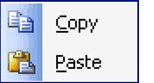
Copy Paste GraphicStudents are waiting to see what their colleagues post and then creatively copy-pasting their own discussion board posts. Instead of doing the leg work of coming up with their own thoughts about whatever it is they are supposed to be posting, they are rehashing their colleague’s posts.  There are thoughts as to why this may be happening, but that is subject for a different day.

The challenge then becomes one of encouraging the interaction and critical thinking you want in a discussion board while maintaining the academic integrity of original thought.  Blackboard now offers a check box when setting up Discussion Forums that ensures that discussion Participants must create a thread in order to view other threads in this forum.

By checking this box, you force the students to make their posts, completing the first part of the discussion assignment (the part when you want them to reply with their original thoughts) without being able to view the posts of fellow students. This solution does not have to be utilized on every discussion forum in your course, but can be leveraged for when you want to ensure the student’s thoughts are original.


POOL YOUR RESOURCES

Question Mark for Pools GraphicQuestion Pools are a longstanding best practice when it comes to ensuring academic integrity in your online courses. Question pools are inventories of questions that you may use across all of your assessments.  The ability to select questions from a pool or pools in your online assessments gives you the flexibility you need to ensure a fair assessment.  Over time you create a large amount of questions for you assessments.  Imagine storing all of those questions together so you can draw from them whenever you want for your assessments.

In Blackboard, question pools allow for Random Blocks of questions and Question Sets.

Random blocks are groups of questions that can be presented in a random fashion determined by an instructor. You create random blocks by:

  • Finding and selecting questions
  • Deciding on the number of points per question
  • Determining the number of questions to display to the user

A question set is a collection of questions retrieved from selected tests and pools. From this set, you specify how many questions to display. The specific questions displayed are randomly chosen each time the test is taken.

For each question set, you can specify:

  • The pools and tests that it will draw from.
  • The type of questions to draw from.
  • The number of questions to draw from.

MULTIPLE MEASURING STICKS

Measuring Sticks GraphicAfter reading the mountain of anecdotal evidence on the Internet about students cheating in online courses, you might be tempted to just throw your hands up and stop before you start!  Measuring student success is not something that is done just by looking at scores on objective tests. You should use multiple measure sticks to gain 360 degree view of your students.

Change the percentage that tests a worth in your overall grading schema.  Look at their participation in group activity, discussions, papers and other activities to determine how they are doing.  Get a feel for your student’s “voice” by looking at their work over more than 1 assignment.  If you are concerned question the student over the phone or via video chat in Collaborate to determine the real extent of their knowledge.


USE THE TOOLS AVAILABLE

Toolbelt GraphicBlackboard has/partners with tools that can help you work to foster academic integrity in your course(s).  Using a combination of these tools will assist you in throwing up road blocks to cheating and get your students in the routine of making good decisions when it comes to “playing it straight”.  Let your students know up front (via your syllabus and/or an expectations document) what tools you will employ to encourage them to contribute honestly in your course.

Examples of these tools:

  • Respondus Lockdown Browser
  • ProctorU (live remote proctoring service – additional fee involved – payable by your students)
  • Question Pools
  • Randomized Questions and Answers
  • Tegrity Remote Proctoring (Records student’s screen + web cam)
  • Turnitin Assignments (check for plagiarism)

#bestpracticemonday Encouraging & Tracking Participation

Tracking and Encouraging ParticipationIt can be challenging to get students to participate in their own learning, even in face-to-face courses.  Online courses can add their own sets of obstacles to getting “all hands on deck” in your course.  The good news is that you can work to ensure your students are participating actively on their learning journey.  Once they are engaged in your course how you track their participation is important.  Tracking participation can also act as a catalyst for increasing participation.

Use the following 6 methods to help encourage and track participation:

  1. Use the Tools
  2. Team Ownership
  3. Encourage Interaction
  4. Grade Quantity & Quality
  5. Statistically Speaking
  6. Reaching Out

USE THE TOOLS

Use the ToolsLearning a foreign language would be awfully difficult if you rarely spoke it. Many of us took a few hours of a foreign language as part of our degree plan, but can’t remember much beyond “please” and “thank you.”   In the same way it is difficult to participate in an online course if you are not actively using the tools within the course environment.    If your students use their online course rarely their participation in their own learning starts to drop.

Having students submit assignments in the course environment rather than e-mail, Work on a project collaboratively with a wiki rather than their own or participating in a threaded discussion rather than an e-mail exchange will foster more participation in your online course.

Here are some examples of tools that encourage class participation:

  • Discussion Forums
  • Peer Assessment
  • Group Pages
  • Wikis
  • Blogs
  • Due Dates (Course Notifications)
  • Assignment Tool
  • Surveys & Exams

TEAM OWNERSHIP

There’s a great saying in education circles about how teaching has evolved. College professors have gone from being the “Sage on the Stage” to being a “Guide on the Side“. After hearing it so often at educational conferences and teaching symposiums it may start to become trite, but it still holds true. Part of being a Guide on the Side is involving your students actively in their learning journey. Fortunately most Learning Management systems have plenty of tools that encourage students to take ownership of the their learning process.

Students will participate more if they believe they have “skin in the game” when it comes to your course. Giving them responsibility besides just reading and regurgitating can help get them engaged in the learning process. Let’s look at two Blackboard tool areas that can help in this regard.

Discussion Forum Roles
You can assign specific roles to student in any of your Blackboard discussion forums. The roles are as follows:

Role Permissions
Manager The Manager has full control over the forum and can change the forum settings moderate posts, and assign grades.
Users with a course role of Instructor of Teaching Assistant are granted this role by default.
Builder The Builder can change the forum’s settings and delete threads.
Moderator The Moderator can delete, edit, and lock all posts in any forum, even if the forum does not use the Moderation Queue.
If a Moderation Queue is used, the Moderator may approve or reject posts in the queue before they are made available to all users.
Grader Grader can read and reply to posts. Grader can review posts and enter grades. Users with a course role of Grader are granted this forum role by default. They have some access to Grade Center. Graders may not view their own work.
Participant Participant can read and reply to posts.
Users with a course role of “Student” are granted this role by default.
Reader Reader can read the contents of a forum, but cannot post responses of add threads.
Blocked user A blocked user cannot access the forum.

By making your students Graders, Builders, Moderators or managers you equip them help facilitate an actiity and take an active part in their learning.

Blackboard Group Pages
The Blackboard Group Pages tool is another great way for students to become content creators in your course. Whether they participate in group discussions, chat, use the file exchange or work collaboratively in group wikis or blogs, students have an outlet to create from scratch or from your guidelines their own content.


ENCOURAGING INTERACTIONS

InteractionsHave you ever felt left out of a discussion? When you are contributing to an effort, how does it feel to not be recognized for that contribution? Recognizing the contributions of the students in your online classes is key to increasing their participation.  Here are some strategies for success:

  • Reply to a handful of discussion posts for each forum picking different students each time
  • Give Kudos and Challenges (recognize the contributions and offer challenges to encourage your students to reach beyond)
  • For larger classes do one summary post for each discussion mentioning students by name

If students believe you are actually reading their contributions they will work harder to ensure quality and quantity of their efforts.


GRADE QUANTITY & QUALITY

One easy way to foster contributions to asynchronous discussions in your online courses is to grade on the number of posts made.  Quality is vitally important and should always be the main metric when ensuring that your students grasp the subject matter, but assigning a grade for quantity will ensure that you have more of a back and forth dialog in your online discussions.

When assigning point values for discussion forums, split the points over the original response and replies.  For example a discussion forum with a grade value of 15 points me be split across 10 points for the original post and 5 points for the replies.  When writing your discussion instructions be sure to let the students know that they must create their original post as well as reply to 2 or three of their colleagues. 

Note: Make this part of your Syllabus as well and part of the Syllabus Quiz for extra emphasis.


STATISTICALLY SPEAKING

StatisticsHaving Statistics on student activity in your course is a powerful weapon for tracking participation. Knowing how much time a student spent in a particular unit or how long it has been since they have logged into your course provides important information.

Blackboard offers multiple ways to track student activity in your online course(s).  You can designate areas of your course that you want to pay particular attention to by the Track Number of Views option when you add content to your course.  You can also run Course Reports via the Evaluation section of your Control Panel that can show statistics across the entire class or just for one person or group.

One of the best tools for tracking course participation and activity is the Performance Dashboard. The Performance Dashboard tool provides a window into all types of user activity in a course or organization. All users enrolled in the course are listed, with pertinent information about that user’s progress and activity in the course.

The Dashboard allows you to see the date/time since last login for your students as well as Items the student has marked as reviewed (using the Review Status option on the Syllabus for example).  It also has a view of their grades for a 360 degree view of the student.


REACHING OUT

Reaching OutAn important strategy that falls in line with tracking and encouraging participation is reaching out to those students who appear to be behind or are performing poorly.  An e-mail query to show that you are concerned is always a good idea.  Retention is one of those buzz words around online education and this strategy can assist in your efforts to retain students.

Here is where you can work with the tools within the LMS to understand why the student is having a hard time.  Using a combination of grade center scores, performance dashboard and student statistics can assist you in determining where the pain points for the student might be.  Paying attention to discussion posts, time on task and objective scoring can help you work with your student on focusing their efforts.   You can also create Retention Center rules that can help you identify and reach out to these students before the problems become insurmountable.

#bestpracticemonday – Be Scripted When Recording Multimedia

Script GraphicUsing a script is one of the most underrated best practices when it comes to speaking to your students via a recording.  You may be very comfortable talking to your students in a live classroom environment, but may not be as accustomed to just you and a video camera.  Try writing up a script or at least an outline of what you want to say.

Graphic of Verbal DebrisIt can be more than a little embarrassing to have yourself repeating the verbal debris “um” over and over in a video you are planning to use in classes.  A script minimizes the chances that you will forget the point you were trying to get across to your students.

If you do your recording in a studio, you may have access to a teleprompter right in the camera.  That way the students don’t know you are reading your script while you look straight at them.  There are also great teleprompter apps for your iOS or Android device.

At the very least just writing yourself something up in word or on a note-card can go along way toward smoothing out your presentation.

#bestpracticemonday – The Importance of Rubrics in Blackboard Courses

Rbrics CubeThis blog has covered the importance of communication strategies when leading an online course. Students who feel like they have effective lines of communication during an online course tend to have a higher opinion of the course’s quality. Part of effective communication lies in the explanation of  assessment and evaluation of student work. The Blackboard learning management system has a tool that can assist faculty when communicating around grading and assessment. This tool is called the Blackboard Rubric.

Rubric (Definition)
A rubric is a way to communicate expectations of quality about an assignment or activity.

The Blackboard Rubric is an assessment tool that lists evaluation criteria for an assignment, and provides a means to convey to students your expectations for the quality of completed assignments.  This tool is an effective means to enhance an online instructor’s communication strategy.  The Blackboard Rubric tool is important for three reasons.

  1. Using a Blackboard Rubric Clears up any Grading Ambiguity for Students
  2. Using a Blackboard Rubric Makes Grading Easier and Consistent
  3. Using a Blackboard Rubric Lets Students Know What they Need to Succeed

Using a Blackboard Rubric Clears up any Grading Ambiguity for Students

Students in online courses can feel like they have multiple reasons to be anxious about their experience.  Technology glitches, digital proficiencies, and communication snafus are all obstacles that can present a problem for online students.    This does not even take into account how students interpret results from assignments and activities they have turned in.  In a face-to-face environment, students have the luxury of talking to the professor during class or stopping by the office to talk about their grade. Online students who want to know why they received the grade they did have to jump through hoops at times to determine where they went wrong.  For a student, just seeing a number in their My Grades area of Blackboard doesn’t give them the full picture.

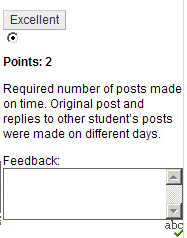
Rubric Criterion with Feedback BoxThe Blackboard Rubric tool provides an easy method for communicating about student performance. How a student performed is not only detailed by the indicated criterion and level of achievement, but the instructor has the ability to provide further individual feedback at the individual criterion level.    If one specific criterion has three levels of possible achievement, then Blackboard instructor will have the ability to leave feedback right where the student landed for their assignment/activity.

Giving students the tools to understand how they performed, will equip them with the ability to not only understand why they performed the way they did, it can also enable them to improve upon their performance.

Using a Blackboard Rubric Makes Grading Easier and Consistent

Grading assignments/activities in Blackboard can take a fair amount of an online instructor’s time.  One way to simplify the process and give both the instructor and the students a detailed explanation of the evaluation is to grade with the Rubric Tool.  Blackboard Rubrics can be associated with:

  • Assignments
  • Essay, Short Answer and File Response test questions
  • Blogs and Journals
  • Wikis
  • Discussion board forums and threads

This means that each of these activities can be graded using the Rubric tool.   Once a rubric is associated with a Blackboard activity, the instructor can access the gradable item via the Grade Center, on the Needs Grading page, or directly from the tool.  Once in the in-line grading or grading view the View Rubric (button or link) is clicked and the instructor can select the level of achievement for each criterion and the points are automatically tabulated!

Using a Blackboard Rubric Lets Students Know What they Needs to Succeed

SuccessIf a student knows what it takes to succeed at a particular assignment, they are far more likely to be successful themselves.  The Blackboard Rubric tool has the ability to allow the students to see the Rubric BEFORE they complete the assignment.

When viewing a Blackboard activity a link is provided to your students to View the Rubric.  They then see the activity levels of achievement and criterion.  The rubric gives them visibility into what it takes to not meet requirements, meet the requirements, and exceed the requirements for the activity. The rubric then becomes the book-ends for the assignment:  a guide for what they need to be successful and a tool for letting them know how they performed.

At the very least, the use of Blackboard Rubrics can help students organize their efforts to meet the requirements of an assignment, and you can use them to explain evaluations to students. Rubrics can help ensure consistent and impartial grading.  They are important because they clear up grading ambiguity, make grading easier, and provide a pathway to success.

For more on the Blackboard Rubric tool, check out the Blackboard Help pages.

Where to Start – Example Rubrics

Use Smart Views to corral unruly group assignments in the Blackboard Grade Center.

Leveraging course groups, as part of a course plan is one of the most important things an online instructor can do to encourage student engagement in an online course.

Course GroupsBenefits of course groups include:

  • Ready-made collaboration activities
  • Activities are usually recorded (discussions, blogs, wikis)
  • Critical thinking encouraged with peer review of group work
  • Students become content creators

While group activities are beneficial to students, they can create extra work for you when it comes to grading.  Thankfully, Blackboard has a handy tool in the grade center to cut down on the multiple columns you have to sort through when trying to grade group work.  To manage the amount of columns and list only the groups or a specific group, just employ a Smart View.

A Smart View is a focused look at the Grade Center. It shows only the columns that match a set of criteria, and the view is saved for continued use. When the Grade Center includes a great number of students and columns, you can use smart views to quickly find data.

Several smart views are available by default, but you can also create your own. You can easily move between the Full Grade Center view and any of the available smart views. You can set a smart view as the default view of the Grade Center and change it at any time.

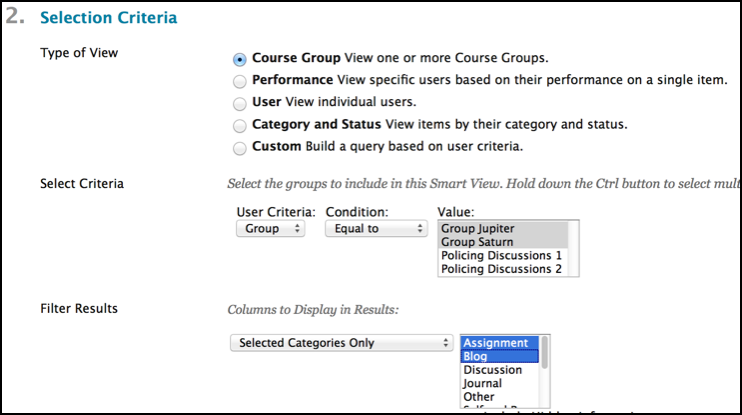
Smart View Selection CriteriaWith smart views, you can view the progress of the following:

  • An existing group
  • Student performance for a particular item
  • Individual students
  • Category and status of items
  • Custom combination of attributes

The Smart View list can be accessed via the manage button in the grade center.   The Smart Views can be added to the Favorites that already show up in the grade center menu of your control panel (includes assignments, tests by default).  They can also be created from this page.

*Note:  You will need to create course groups before you can create a group-based Smart View.

The Smart Views will let you focus on exactly what you want and nothing you don’t.  Be careful though, once you start using Blackboard’s Smart Views in the grade center for groups, you’ll find yourself using them on other things like tracking low scores for students who need help or to compare two different types of assessments for starters.

#bestpracticemonday – How to Choose Technology-Based Tools for an Online Course

Teaching online can seem like wading through a super store of technological innovation when it comes to the amount of technological aids available. There are a bevy of tools that can brought to bear when enhancing and equipping student learning.  The challenge comes in deciding which of these tools to use when putting together a course plan.  It is very easy to be mesmerized by the shiny object with all the bells and whistles when browing through available tech tools. The instructor is immediately assailed with questions.  Which tool works best? Which tool will the students like?  Is it too new?  Is it too old?

Making ChoicesWhen picking technologies to use in an online course, keep these four things in mind:

  1. Learning Objectives
  2. Know The Audience
  3. Logistical Considerations
  4. Instructor Comfort Level

Learning Objectives

Learning ObjectivesOnline instructors seem to have more options than ever when it comes to technology choices for their courses.  Personal Learning Networks (PLNs) are inundated by technology products that claim to work with big ideas and catchy concepts like gamification of learning and the ability to disrupt the status quo.  The pressure of keeping up with the Dr. Joneses alone can make a teacher’s technology tool belt feel more like a burden than an aid.

It is during this maelstrom of keywords and catchphrases that it is important to ask if the chosen tool will assist in completing learning objectives.  Hold firm to the mantra that it’s the method, not the medium. If the tool assists in completing learning objectives, then it is the right tool for the job.

Know The Audience

Know the AudienceWalking into a situation already knowing how the audience will react is a tremendous benefit for anyone and even more so for an online instructor.  Knowing the student audience in an online course greatly influences the technology choices that are made.

Knowing the audience isn’t some innate psychic power that online instructors are born with.  Some of this knowledge comes from past teaching experience and some comes from working through activities as a course progresses.  One of the best ways to know the audience of an online course is to take a technology literacy survey early on in the course.  This helps to establish a basic comfort level for participants and helps the instructor know which tools fill a learning need without raising anxiety levels.

Logistical Considerations

Logistical ConsiderationsChoosing the right technology can be seriously impacted by logistical considerations.  These considerations can be student-centric like a lack of high-speed Internet or a total lack of technology all together at certain periods of time.  Military service members in particular may have stretches of time where they do not have access to high-def technology, so scheduling a web conference may not be a good idea.

There is another side of logistics that must also be thought about.  The support structure for online instructors is a huge logistical consideration when choosing technology.    If a technology in use by instructors and students stops working during the course of a term, who is responsible for fixing it?  If students need help getting the technology to work, is there a support number, web or e-mail address that they can use? Do the online instructor and students have access to a help desk?  Do the help desk hours coincide with times that the technology will be used? All of these logistical considerations need to be taken into account when picking technology to use in an online course.

Instructor Comfort Level

This last part was almost not included in that it should be an understood value when it comes to tech tool selection.  The online instructor needs to be comfortable with the technology tools they choose.  It does the online students no good if the instructor’s anxiety level is up.  Students take their behavioral queues from the teacher.  If the instructor seems like they have a firm grasp of the technology and can calmly relate appropriate usage, then the student will feel the same way.  Conversely, if the instructor is flustered and communicates stress when trying to use the tool, the students will reflect that stress and frustration right back.

Comfort with technology is gained by practice.  Before introducing a tool to students, the online instructor should work with the tool on and off line to ensure that it works and that he or she is familiar with all of the technological “bumps in the road” that may arise.   Where possible the instructor should use the tool in a current class where the students can passively view the results before trying it themselves.  For example, he or she can use a presentation software like Prezi for lecture materials BEFORE asking the students to create a presentation of their own.

Choosing Technology

These 4 items can be of assistance when deciding which technologies to use. Working through them will save time and frustration before the online course begins.

Remember, the technologies out there might seem like the greatest thing since sliced bread, but if they don’t help meet learning objectives, if the audience isn’t taken into account, if logistical considerations aren’t thought about and if the instructor isn’t comfortable with the technologies then they are much like the bard wrote, “full of sound and fury and signifying nothing”.

Create a free website or blog at WordPress.com.

Up ↑