Search

eLearning Frenzy

eLearning is like a sewer, what you get out of it depends on what you put into it.

Tag

eLearning

Use Smart Views to corral unruly group assignments in the Blackboard Grade Center.

Leveraging course groups, as part of a course plan is one of the most important things an online instructor can do to encourage student engagement in an online course.

Course GroupsBenefits of course groups include:

  • Ready-made collaboration activities
  • Activities are usually recorded (discussions, blogs, wikis)
  • Critical thinking encouraged with peer review of group work
  • Students become content creators

While group activities are beneficial to students, they can create extra work for you when it comes to grading.  Thankfully, Blackboard has a handy tool in the grade center to cut down on the multiple columns you have to sort through when trying to grade group work.  To manage the amount of columns and list only the groups or a specific group, just employ a Smart View.

A Smart View is a focused look at the Grade Center. It shows only the columns that match a set of criteria, and the view is saved for continued use. When the Grade Center includes a great number of students and columns, you can use smart views to quickly find data.

Several smart views are available by default, but you can also create your own. You can easily move between the Full Grade Center view and any of the available smart views. You can set a smart view as the default view of the Grade Center and change it at any time.

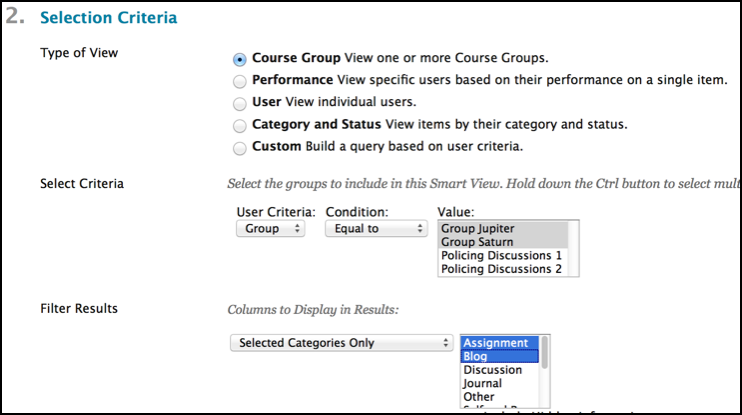
Smart View Selection CriteriaWith smart views, you can view the progress of the following:

  • An existing group
  • Student performance for a particular item
  • Individual students
  • Category and status of items
  • Custom combination of attributes

The Smart View list can be accessed via the manage button in the grade center.   The Smart Views can be added to the Favorites that already show up in the grade center menu of your control panel (includes assignments, tests by default).  They can also be created from this page.

*Note:  You will need to create course groups before you can create a group-based Smart View.

The Smart Views will let you focus on exactly what you want and nothing you don’t.  Be careful though, once you start using Blackboard’s Smart Views in the grade center for groups, you’ll find yourself using them on other things like tracking low scores for students who need help or to compare two different types of assessments for starters.

#bestpracticemonday – How to Choose Technology-Based Tools for an Online Course

Teaching online can seem like wading through a super store of technological innovation when it comes to the amount of technological aids available. There are a bevy of tools that can brought to bear when enhancing and equipping student learning.  The challenge comes in deciding which of these tools to use when putting together a course plan.  It is very easy to be mesmerized by the shiny object with all the bells and whistles when browing through available tech tools. The instructor is immediately assailed with questions.  Which tool works best? Which tool will the students like?  Is it too new?  Is it too old?

Making ChoicesWhen picking technologies to use in an online course, keep these four things in mind:

  1. Learning Objectives
  2. Know The Audience
  3. Logistical Considerations
  4. Instructor Comfort Level

Learning Objectives

Learning ObjectivesOnline instructors seem to have more options than ever when it comes to technology choices for their courses.  Personal Learning Networks (PLNs) are inundated by technology products that claim to work with big ideas and catchy concepts like gamification of learning and the ability to disrupt the status quo.  The pressure of keeping up with the Dr. Joneses alone can make a teacher’s technology tool belt feel more like a burden than an aid.

It is during this maelstrom of keywords and catchphrases that it is important to ask if the chosen tool will assist in completing learning objectives.  Hold firm to the mantra that it’s the method, not the medium. If the tool assists in completing learning objectives, then it is the right tool for the job.

Know The Audience

Know the AudienceWalking into a situation already knowing how the audience will react is a tremendous benefit for anyone and even more so for an online instructor.  Knowing the student audience in an online course greatly influences the technology choices that are made.

Knowing the audience isn’t some innate psychic power that online instructors are born with.  Some of this knowledge comes from past teaching experience and some comes from working through activities as a course progresses.  One of the best ways to know the audience of an online course is to take a technology literacy survey early on in the course.  This helps to establish a basic comfort level for participants and helps the instructor know which tools fill a learning need without raising anxiety levels.

Logistical Considerations

Logistical ConsiderationsChoosing the right technology can be seriously impacted by logistical considerations.  These considerations can be student-centric like a lack of high-speed Internet or a total lack of technology all together at certain periods of time.  Military service members in particular may have stretches of time where they do not have access to high-def technology, so scheduling a web conference may not be a good idea.

There is another side of logistics that must also be thought about.  The support structure for online instructors is a huge logistical consideration when choosing technology.    If a technology in use by instructors and students stops working during the course of a term, who is responsible for fixing it?  If students need help getting the technology to work, is there a support number, web or e-mail address that they can use? Do the online instructor and students have access to a help desk?  Do the help desk hours coincide with times that the technology will be used? All of these logistical considerations need to be taken into account when picking technology to use in an online course.

Instructor Comfort Level

This last part was almost not included in that it should be an understood value when it comes to tech tool selection.  The online instructor needs to be comfortable with the technology tools they choose.  It does the online students no good if the instructor’s anxiety level is up.  Students take their behavioral queues from the teacher.  If the instructor seems like they have a firm grasp of the technology and can calmly relate appropriate usage, then the student will feel the same way.  Conversely, if the instructor is flustered and communicates stress when trying to use the tool, the students will reflect that stress and frustration right back.

Comfort with technology is gained by practice.  Before introducing a tool to students, the online instructor should work with the tool on and off line to ensure that it works and that he or she is familiar with all of the technological “bumps in the road” that may arise.   Where possible the instructor should use the tool in a current class where the students can passively view the results before trying it themselves.  For example, he or she can use a presentation software like Prezi for lecture materials BEFORE asking the students to create a presentation of their own.

Choosing Technology

These 4 items can be of assistance when deciding which technologies to use. Working through them will save time and frustration before the online course begins.

Remember, the technologies out there might seem like the greatest thing since sliced bread, but if they don’t help meet learning objectives, if the audience isn’t taken into account, if logistical considerations aren’t thought about and if the instructor isn’t comfortable with the technologies then they are much like the bard wrote, “full of sound and fury and signifying nothing”.

Three Ways to Ensure Student Success when Teaching Online

Student SuccessInstructors who teach online must cover a number of bases when working with students in an online environment.   You must be mentors, knowledge sharers, tech support, facilitators of learning, and technology gurus in your own right.    It is easy to see that trying to wear all of these hats can make an online instructor’s life difficult and that student success becomes an afterthought to just surviving an online course.

The good news is that there are ways to ensure your students have a successful learning journey.  There are methods, best practices, tips & tricks that can make your life and the lives of your students easier when participating in an online course.  For this blog, we will focus on three:

  1. Start Here
  2. Model the Behavior You Want to See
  3. Contextualize Your Instruction

Start HEreStart Here

We often assume that students that come into our online courses are digital natives and will somehow intrinsically know how to find their way around when they first enter an online course.  Aside from the fact that not every student born after 1990 has a computer implanted in their brain, more and more students pursing an online education are non-traditional students and may not feel as comfortable in the online environment.

This is why it is a good idea to use a Start Here unit or content area in your course.  You can leverage the unit as a kind of “this is how my course works” walk-through for your students.  It should contain things like course expectations, a welcome message or video from you, introductory discussion and any other information that can help your students be successful in your course.  Tips like “assignments, discussions and quizzes are located in each course unit (Weeks)” can answer questions before they are even asked.

Giving your students a “standard operating procedure” for how your course will work will go a long way toward reducing their anxieties about your course and put them on a path for success.

Model the Behavior You Want to See

One way that parents impart knowledge to their young is to demonstrate whatever it is they would like their progeny to do.  When you teach, adopt the same practice in order to ensure that your students know what is expected of them.  Giving the students a guide or working rubric for what is acceptable can go a long way toward ensuring student success.  If you are having them turn in papers, give them a non-topic specific example of how you’d like their papers formatted.  It doesn’t have to be an entire paper, but an example of what you are looking for from them.  When using the Learning Management System’s discussion board for the first time in your class, be the first person take make the post.  This works best in an “Introductions” discussion. Provide the instruction and then provide the example that follows that instruction.  The same thing goes for blogs, wikis and journals.

Giving your students an example of the online course behaviors will reduce the amount of uncertainty that naturally comes when taking an online course.  Remember that some of them may never have submitted an assignment online or participated in an online discussion.  Taking the extra time early in your course to provide guidance will help your students feel at ease and let them know that you are engaged in the course along with them.

Contextualize Your Instruction

Contextual InstructionThink of your online course as a new destination for your students on their learning journey.  How would they describe their navigation experience?  Would they say that once they travel into your course that it is difficult to find their way back?  Would they say that the course links were easy to find and use?  Would they be frustrated trying to make it to their “destination”?  These questions can be easily put to rest by providing contextual instruction wherever your students are within the course. If you put every bit of instruction your students would need for the course within the syllabus you would end up with the document that rivals to War and Peace in its width and breadth.   Compare how hard it would be to locate instruction in a 20 page document versus instruction in the same area where your students are currently working.  College students are used to living in a connected world where they can find instructions for how to do something right where they are via their mobile device or computer. Taking the extra time to provide instruction in the context of where the students are in your course is easy.  Here are a few examples:

  • Place unit level or assignment specific ojbectives throughout your course. Traditionally we have left Learning Objectives in the syllabus and forgotten about them.  By placing objectives in the unit where the student is working or on the assignment the student is focusing on, you remind the students why they are doing what they are doing, and connect the students to course content in a way that keeps them focused on the topic at hand.
  • Create a locked INSTRUCTIONS thread in each discussion. Not all LMSs have the facility to keep the forum instructions/description where posts and replies are made.  Make the first post of the discussion be a locked INSTRUCTIONS thread that students cannot reply to but is available for them to ensure they remember what they need to do in the forum.
  • When placing content in folders, units, learning modules & containers, be descriptive.  When creating a folder to place a unit’s worth of course materials, be sure to provide a description to students of what is in the folder. Remember that old adage “Tell them what you are going to tell them“.  Placing descriptions on each content folder, unit or module leaves the students with no question as to what those items contain and reduces the stress of not knowing where to click.
  • Provide “signs” that tell the students where to go and what to do.  This last point on contextualizing your instruction may seem like it comes straight out of the Department of Double Redundancy Department, but it is well worth it to ensure that there is no confusion on the part of your online students.  Online students don’t always know where to go or what to click on to advance in your course.  A great best practice is to provide the contextual instruction for students so that they will successfully navigate your course.  When you do use a folder, or unit for organization be sure to tell them to click the title when you type up your folder/unit description.  Also, with some LMSs you can change the title of this particular container/item to blue.  Blue is the universal color of links and will help draw the student’s eye. Lastly, place an item at the end of your unit telling the students where to go next.  Don’t assume that they always know what comes next in your online course. Provide them with a signpost that points the way!

As with all strategies for success, don’t feel you need to implement all of these at once.  You can use them all, but don’t feel like you have to.  Pick one of them to use this time and become comfortable with it.  Next time add another and so on.  We all want to be in the business of student success.  We want to see our students succeed.  With a little extra effort you can help ensure that students fewer obstacles in their path when it comes to being successful in your online course.  Implementing a Start Here unit in your course, modeling the behavior  you want your students to exhibit and contextualizing your instructions will help set you and your students on a path to success.

Blackboard World and Vegas – A Perfect Match

Blackboard World and Las VegasAfter spending the last week in Las Vegas, Nevada at Blackboard World, the seminal conference for eLearning (professional, K-12 & Higher Ed); it is easy to see how Blackboard World & Las Vegas go well together.  Yes, I know there are obvious reasons around logistics and space, but those aren’t it.  Although, where else can you comfortably house, feed and present to 2500 people? But, I digress.

Breaking it down, I see Blackboard World 2013 & Las Vegas pairing up in three ways:

  • Bright Lights
  • Passion
  • An Oasis in the Desert

Bright Lights

Freemont Casino EntranceFrom the light show at the Bellagio to the casino entrances and screen covered ceiling of the Freemont Experience, Las Vegas is bright light in the desert once the sun goes down.  Stand close enough to the entrance to the Golden Nugget and you might find yourself with a tan.

In the same way, Blackboard World shines with luminaries from the world of eLearning.  This year’s keynotes were powerful examples of bright lights in the field.  Clay Shirky’s Cognitive Surplus and Sugata Mitra’s Beyond a Hole in a Wall were powerful examples of the way an idea can not only shine on its own, but of how those ideas can spark other lights into shinning.

The old summer/church camp song that starts off “It only takes a spark to get a fire going.” was in full effect with each of the conference sessions.  Attendees took the torch they were given with the sharing of successes, best practices and challenges, and left to spread the illumination to their peers, colleagues, faculty, staff and students at home.  I suggest we take another Blackboard World blogger’s advice and DON’T let what happened in Vegas stay there!

Passion

PassionLas Vegas is most assuredly, a city of Passion.  Passionate headliners go on stage each night at every casino.  Passionate Street musicians, performers and more put it all on the line to entertain you as you walk through the city.  There are more wedding chapels per capita in Las Vegas than anywhere else I’ve seen, testifying to the amount of passion in the city.  Revelers were passionately making bets, pulling levers on slots or putting it all on black on the casino floor in the conference hotel.

Just like Las Vegas, Blackboard World is a conference full of passionate individuals.    Blackboard announced this year a refocusing on their passion, teaching & learning.  The presenters at each session spoke passionately about their subject matter and how it relates to themselves and their (and our) constituencies.  Blackboard World Bloggers blogged and tweeted passionately about conference subject matter that lit up the eLearning Twittersphere.  As an attendee, I arrived early to each session so I could find a spot next to a power cord in order to passionately record everything I could.  All of these examples point to the fact that Vegas and Blackboard World are both passionate.

By the way, if anyone is looking for the name of a good educational jam-band my money is on eLearning Twittersphere or Cognitive Surplus.

An Oasis in the Desert

OasisAs I flew into Las Vegas, I was struck by how it seemed to spring out of the desert like a green sprout of life in a concrete jungle.  I could not help but be amazed at the sheer amount of water features in a city surrounded by nothing but sand and sparse vegetation.  Where the surrounding environs had little to no water to speak of, Las Vegas seemed to have water to spare magically bubbling, shooting and flowing its way throughout the city.

I do believe that Blackboard World provides an oasis of sorts for those involved in eLearning.  As each of us return to the day-to-day of our professional lives, it is easy to just get caught up in doing what we do without thought for innovation or disruptive change.  The wellspring of ideas that we swim in at Blackboard World give an almost recharging effect to our careers.  We remember why we do what we do, find new ways of doing it and learn to think outside of our proverbial boxes.

In closing, I hope everyone that attended Blackboard World this year got at least half as much out of it as I did.  Much like that oasis in the desert, I am bubbling over with energy, ideas and excitement about where eLearning is headed.  It is an exciting time to be involved in this noble pursuit as we break down barriers, redefine how we learn and push the envelope together.

I hope that this next year brings you some bright lights, passion in your work and an overflowing oasis full of what you need to keep on learning.

Jacob SpradlinA BbWorld13 Blogger

World’s First eLearning Best Practice Music Video

A few weeks back, I did a post about an elearning best practice that turned into a song.  Well that song has finally been turned into a music video.  If this doesn’t help you to remember to check the links and embeds to external content in your online course, I don’t know what will!

By Popular Demand – “Broken Links” that popular 80s Tribute (Lyrics)

So my #bestpracticemonday for this week had to do with prepping your course for the next semester in that you should always check links and embeds for all external content.  Part of my post had the humorous tribute to Mr. Mister’s Broken Wings (one of my personal favorite bands of that era).  So the Tweet actually read:

@jspradlin #bestpracticemonday “Take..these broken links and learn to browse again..” Check links & embeds for external content prior 2 semester start.

Broken LinksAfter posting that tweet, I received numerous requests to post the rest of the song. As luck would have it I rounded up the members of my 80’s eLearning cover band, “Best Practice” (which was funny as we never really seemed to have time to rehearse) and we (okay it was just me as the rest of the members kept talking about how they missed their swatch watches and parachute pants) put together the Pedagogical sounds of a tribute.

So without further ado, here is Broken Links:


Song: Broken Links
Artist: Best Practice
Label: eLearning Records
Year: 1980 something

Maybe, you’ll understand
why we can just click on the links that we planned.
This time wont’ be the last I fear
cause websites seem to disappear
Where do they go? Ohhh…

Take these broken links
and learn to browse again
learn to surf so free
And when we find the web content
the links will open up again and let us in..

Take these broken links….

Maybe, I think today
we can take that youtube mashup
and make it play.

Or Maybe, it’s all I know, that the Voki I created
Just won’t show
Where did it go?

Take these broken links
and learn to browse again
learn to surf so free
And when we find the web content
the links will open up again and let us in..

Maybe, where can it be, that prezi from last semester
I just can’t see.
yeah yeah yeah, yeah yeah.
Take these broken links
and learn to browse again
learn to surf so free
And when we find the web content
the links will open up again and let us in..

Take these broken links
and learn to browse again
learn to surf so free
And when we find the web content
the links will open up again and let us in..

Want to Improve your Online Course? Ask your students!

Keep Calm and Ask Your StudentsIn previous posts we have discussed the importance of feedback in your online course.  We’ve looked at how students obtain feedback from student/course, student/instructor and student/student interactions.  There is however another important type of feedback that can be gathered in your online course(s)…….Student Opinion!

We can all be a little touchy when it comes to something that we have put measurable effort into, but if something is worth your effort, it is also worth you finding ways to improve it.  Here are a few suggestions for getting feedback from your students:

Blog – Week in Review
Have your students do a reflective blog post each week that charts the highs, lows and in-betweens of their activity in your online course.  Start them off letting them know that you are looking for honest/candid observations of their experience that week.

Trying Something New? – Do a Post assignment Survey
Maybe you are using a wiki for the first time in class, or maybe you are trying out synchronous web meetings.  Whatever you are doing, ask your students how it went, how it could be better and what they got out of it.

Three Letter Acronym for Success – KWL
What do you know?  What do you want to know?  What have you learned?  These three questions are key to ensuring that your students know you are listening.  By asking the first two questions you can, with the help of your students’ answers, drive learning toward their needs.  By asking the last question you can be sure that any objectives you set are met by reading their answers.

Be Formative and Summative
It is nice to find out what your students think when they finish your course, but wouldn’t it be nicer to know if they are really enjoying a certain aspect of your course or have problems with another while they are doing it?

There are other ways to gauge your students’ feelings on your course through discussions, assignments, surveys and synchronous “touching base” online meetings, but hopefully these few can you get started and allow you to improve your course and your students’ online experience.

Infographic: 5 Strategies for Success when Teaching Online with an Example of Each

Check Your Course Before they Wreck Your Course!

Before You BeginBefore you give your students access to your course, go through it with Edit Mode off and/or use the Student View button to make sure all your content and tools are accessible and easy to find.

Note: Use your course’s navigation menu because students can’t navigate via the Control Panel.

A few things you should be looking for are:

  • When a student enters the course do they know where to go and what to do?
  • Are the items in the Nav Menu clear? For instance, ‘Content’ means anything to a new student. It would make more sense to them if it was more specific, like ‘Course Materials’ or ‘Modules’
  • Are all the tools you want the students to use linked from the Nav Menu or a Content Area? An easy way to check is by looking at the Nav Menu in Edit View.
  • Can all the Tests and Assignments be taken and submitted?
  • Do links to other places on the web work?  (YouTube videos can be pulled down in a blink of an eye and web content can disappear at any time).

Other things to check while in Edit Mode:

  • Links to hidden tests and assignments are not broken. Its good practice to re-deploy all your tests (if you’ve copied the course) to ensure that the links are correctly attached to the Grade Center.
  • The Grade Center columns are correctly displayed to students (hidden or revealed) and the weighting and points possible are correct.
  • Be sure due dates on items in your course are correct (these can now be changed easily by dragging and dropping with the Calendar feature in My Blackboard.

Create a free website or blog at WordPress.com.

Up ↑