Search

eLearning Frenzy

eLearning is like a sewer, what you get out of it depends on what you put into it.

Category

Best Practices

When you Pack your Bags for Blackboard World 2015

bbworld15When we think of thought leading eLearning conferences that we attend like Blackboard World, we often think of them in terms of things we will come back with. There is good reason for this, as there are so many takeaways that a conference like Blackboard World provides. For the purposes of this blog post however, we will be focusing on what we should bring with us to Blackboard World 2015.

So when you pack your bags for BbWorld….

…..Pack a way to share what you learn:

For every oSharing Gadgetsne of us who are fortunate enough to attend this tremendous eLearning event, there are many, many more of us who cannot be at BbWorld. Since we all know that “sharing is caring,” bring a way to share what you’ve learned with your coworkers back home and your colleagues across the world. Whether you are live tweeting by phone or mobile device, live-blogging from your tablet or laptop, or maybe just taking notes to present, blog, or post later, you will be helping your coworkers at home and your peers across academia benefit from what you are picking up from colleagues, professionals and thought leaders.

…..Pack a charger (Mobile or otherwise):
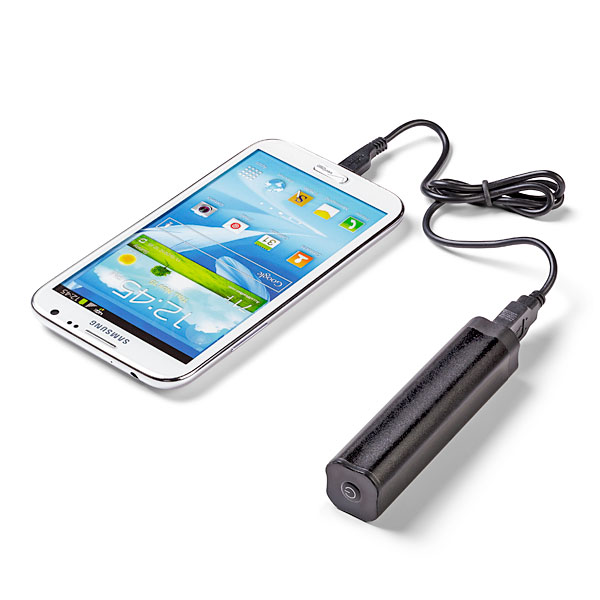
Portable ChargerIf indeed you are sharing your experience, or just trying to stay in touch with events back at home, you will definitely need a charger. I would suggest bringing one of the mobile chargers that you can keep in your pocket/purse/backpack. During the hectic schedule, you may not get a chance to go back to your room, and you may not find an open plug where you can “juice-up”. *As an addendum to this packing tip, bringing a small power strip is also beneficial as you can share one plug with a number of your peers.

…..Pack a desire to meet people and make connections:

Make ConnectionsPossibly the biggest benefit to being at Blackboard World is the ability to meet your peers and form connections that you will maintain and use throughout your professional career. At your home institution you may be the only person who does what you do, but at Blackboard World you are a small fish in a big pond. There will literally be hundreds of people with your same type of job. What better way to pick up best practices and learn what is working and not working for your colleagues, so that you aren’t stumbling around on your own when it comes to your learning management system or eLearning in general.

…..Pack some tennis shoes or at least comfy dress shoes:

ShoesBbWorld has possibly the largest population of slacks/skirts and Nikes in the eLearning universe. For a conference this large, you may be walking a quarter of a mile just to get to your next session. You also have vendors to see and colleagues to touch base with, so comfortable footwear is a must. Some of you may spend the evening at the Washington Mall area. Let me speak from experience, walking the Mall in DC can cause blisters in the wrong shoes!

…..Pack a Presentation!

PresentationBe a Blackboard World Presenter! The Call for Proposals is open until April 15. Share your successes, obstacles and experiences on a multitude of topics. The backbone of BbWorld are presentations by those of us in the trenches who work with faculty, students, deans, directors and Blackboard to make eLearning possible. Take the plunge and submit your proposal to present today!

There are probably many other things you can think of packing, so don’t limit yourself to just this list (checked bag fees not-withstanding). I know I look forward to seeing what my colleagues are bringing to BbWorld15 this summer!


Being Ready for Finals in an Online Course

ReadinessWith finals fast approaching, your students should be dutifully studying up on course materials, completing academic research and course activities that will help them be able to handle the questions and concepts they come across during end-of-semester assessments.   Your course materials have covered topics large and small that will help them make appropriate inferences, connect the dots and generally understand the subject matter they have been interacting with over the course of a semester.

Even when hitting all of your targets academically speaking, your students may have problems when it comes time for finals in an online environment.  We all know that technology failures operate under the “when, not if” principle, but there are strategies and practices that your students can put into place that will help them surmount any obstacle thrown their way.  The following practices will benefit your students when it comes to the end of year exams:

BEFORE STARTING THE EXAM

Power Up!
Plug your laptop into the power outlet unless you are absolutely certain that your laptop has enough battery power to last for the duration of the test.

Tether Up!
If you have the option, turn off your wireless connection and plug your laptop into the nearest available network port or use your desktop computer if available.  Wireless issue can cause your exam to disconnect and your instructor may not be fond of resetting your exam attempt for the umpteenth time.

Go Solo!
Close down any other programs that my distract you from the test or interfere with your network connection.  Having only one active program ensures your computer will be running at its best.

Idle Computers are the Devil’s Playground
Check your laptop idle time to make sure that it will not go into sleep mode prematurely and sabotage your assessment attempt midway through.

Be Up for Pop-Ups!
Disable all pop-up blockers. These blockers come installed in the latest versions of Internet Explorer and Firefox, in third-party toolbars such as Google and Yahoo, and they can come with utility software such the Norton products from Symantec.

Get Patched Up!
Ensure that your laptop has the latest Operating System (e.g., Windows) patches. Automatic updates can disrupt your current browser session or make your laptop very slow.

Are You Compatible?
Use a web browser that is compatible with or certified to work with the current version of your Learning Management System.

Using Special Software?  Practice, Practice, Practice!
If you are using a lockdown browser or special proctoring software, be sure to download and install it BEFORE you take the exam. Your instructor may provide a practice assessment that will let you make sure you are familiar with the special software involved.

DURING THE EXAM

Don’t Get Click Happy!
When beginning the quiz/test, click the quiz link ONLY ONCE and wait at least a minute for the quiz/test to load.. Do not keep clicking on the quiz/test/test link. Clicking on the quiz/test link two or more times may trigger a message saying you already took the quiz/test. If, after clicking once and waiting the full minute nothing happens, contact your instructor or test proctor immediately.

Leave-off of Leaving
Once you have started the quiz, do not leave the quiz/test page for any reason. Using the browser’s back and forward buttons to move to and from the quiz/test will end the quiz prematurely and prevent you from further access until your instructor clears the attempt. If you are permitted to view other online resources during the quiz/test, open a new browser to view them.

Problem?  Reach out and Touch Someone
In case of computer problems during the test notify your instructor as soon as possible. He or she will reset your quiz/exam attempt or authorize a designee to do so. Your instructor may have policies on if they allow you to reattempt the quiz at all.

Sizing it up BEFORE You Begin!
Do not resize or refresh your screen after loading the quiz/test. Make sure the screen is the size you want before going into the quiz/test. Most browsers refresh the page when you resize the screen so the browser will try to reload the quiz/test if you resize/refresh.

Connect With Online Students – Make Feedback Personal

banner-people-connectedOne of the challenges for any online instructor is making students feel a sense of community or connectedness in their online course.  There are multiple strategies that can be put into place to meet this challenge head-on.  Today’s blog post will focus on the feedback the instructor gives in an online course and how it can connect the student more personally with the instructor.

The type of feedback an instructor provides can have a tremendous affect upon the student/instructor dynamic in an online course.  Students who feel like they know their instructor report higher satisfaction levels and tend to be more engaged with the courses they are taking. Conversely, students that don’t sense instructor presence in the course tend to feel less satisfaction and engagement, and that can be reflected in course evaluations.

The following are steps an instructor can take to connect with online students via course feedback:

1. Leave specific feedback.

Be purposeful about leaving feedback that deals specifically with aspects of a student’s submitted work. A side-effect of a good best practice to save time for online instructors is that sometimes generic feedback can be used to a fault. The online instructor can counteract this by leaving specific feedback about the students’ attempt every few assignments.

2.  Use student names when leaving feedback.

Starting assignment feedback with a student’s name immediately personalizes the interaction.  Placing emphasis on the personal before leaving the feedback of the assignment, points to interest on the part of the instructor in the student’s individual attempt. The idea that an instructor cares about student success is vitally important in any course, online or otherwise.

3. Use multimedia to personalize the interaction.

To a student sitting at their workstation/laptop/tablet, a grade or text-based feedback in an online course can seem almost sterile and devoid of the human touch that comes from the professor handing back grades in a face-to-face course.  Luckily, most LMS’s these days come with tools that can make the feedback interaction more personal.  Just the sound of the instructor’s voice will add a personal dimension to the feedback experience.  The addition of video to assignment feedback kicks it up a notch!

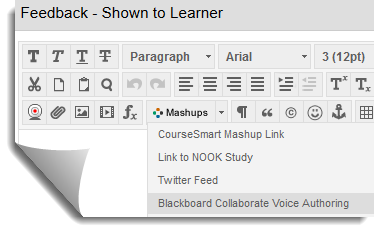
Audio Feedback with Blackboard Collaborate Voice AuthoringAt SHSU, Blackboard is the Learning Management System for online, hybrid and web-enhanced course offerings, and it comes equipped with tools that can enhance the feedback experience.  It also interacts well with third party tools and other types of files that can fulfill the same type of need for students.  For example faculty can use the Blackboard Collaborate Voice Authoring Mashup to leave audio feedback directly in the feedback of the assignment.

As a bonus a student is not just limited to hearing the disembodied voice of the online instructor for feedback.  Faculty members can also use the Video Everywhere tool to drop a recorded video into the feedback shown to the student.  The Video Everywhere tool utilizes YouTube to either link to a video uploaded to the instructors YouTube account or record a video at the point of feedback and place it directly.

Using Video Everywhere for FeedbackIf the instructor does not have ready access to a webcam or microphone on their computer, he or she can record a video with their smartphone and upload it to YouTube as an unlisted video, then link to the video with the Video Everywhere tool.  Instructors can also use voice recording apps to attach audio files to feedback for online students.

Personalizing feedback for an online course is an important best practice for any instructor. However, personalizing every feedback entry for every student would take too much time away from grading and other important interactions.  As with all things, moderation is key.  Try provide a few personal interactions for each student, each semester, letting them know that the instructor is committed to their success and is willing to connect with students on a more personal level.

New Semester? Check Your Course Before You Wreck Your Course!

Check your CourseAnother new semester has arrived at my workplace and Alma mater. We are just days(2) away from the start of a the fall 2014 semester. Many of us have moved last fall’s content over or re-purposed course materials from last spring. Copying course content from previous semesters saves us time and effort that we would otherwise spend re-inventing the wheel.

As you prepare to unleash your online course resources to your students via a course in your Learning Management System, you will need to take some things into consideration to ensure a smooth start to the semester.

Here are a few steps you can take to help guaranty a good start for you and your students:

  1. Get your course’s dating life straight. – Content Availability & Due Dates
  2. Take….these Broken Links! – Check Your External Content
  3. Get a second opinion! – Is Your Course Navigable?

Get Your Course’s Dating Life Straight
(Content Availability & Due Dates)

Date AdjustmentNothing can be more frustrating for your students than having an assignment that is due in the syllabus but unavailable in your Blackboard course.  Obviously this is not done on purpose to confuse the students.  Some content from a previous semester could have been date specific and so a new semester needs new availability dates.  Checking your due dates is also an important part of getting your course’s dating life straight.  Not only to ensure that you have days and dates mentioned correctly throughout your course, but you want to ensure you don’t have things due on holidays etc..

This date checking session also provides you with a good opportunity to make changes for the better.  Think back to your previous semester when you taught the course.  Maybe there wasn’t enough time to complete an assignment, or maybe there was too much.  Make changes to this semester’s calendar based upon issues or opportunities from the previous semester.

Blackboard provides a great tool for date management inside your course.  The Date Management tool can be found here: Control panel>Course Tools>Date Management. The tool allows you to change dates based upon:

  • Using the Course Start Date
  • Adjust by number of Days
  • List all Dates for Review

Being aware of your course’s dating life will greatly benefit you and your students.

Take….these Broken Links!
(Check Your External Content)

One of the primary benefits of posting files and content in Blackboard or any Learning Management System is that you can feel very secure in the knowledge that within reason, your content/files will always be accessible.  This is NOT true with links to external content.  Whether you are linking to an Internet article, a YouTube video, a SlideShare presentation or some other external content, you never know when that content might disappear.

This is why it is uber-important for you to check links to external content prior to releasing it to your students.  This means checking prior to the start of the semester as well as just before your students have to use the content.  Ensuring that links to external content work before your students need them will help reduce pain and frustration within your Blackboard course.

Here is a helpful (and funny) eLearning Best Practice music video to help you remember to Take….these Broken Links!

Get a Second Opinion!
(Make Sure Your Students can find Their Away Around)

So, you have dotted your i’s and crossed your t’s.  Your course dates are adjusted and your links have been checked.  You’ve even read through your course and feel pretty good about it. There is another best practice you can use to help ensure success for your students when it comes to your Blackboard course.

Why not have a colleague, a friend even a family member read through course instructions to make sure they make sense?  Unfortunately ‘they’ haven’t invented a pill that conveys all knowledge of how to operate inside a Blackboard course yet so the importance of contextualized mechanical & academic instructions is key for any LMS-based course.  Layering instructions throughout your course will help your students feel like they have way-points to guide them as they move along through their learning journey. 

Your course might make sense to you the twelfth time you’ve read through it, but there might be some obstacles that people who have never seen it before could come across.  So getting a fresh perspective on your course is always a best practice.  Ask a colleague, your instructional designer, a family member, heck even your son or daughter could help in this endeavor. 

These three steps can go a long way toward reducing consternation and frustration for both you and your students as they and you move through your Blackboard course.

The Best Browser for Blackboard Learn

Jacob and his MinionSo last week I went on a trip to visit a very good friend of mine.  He can’t see very well and he is addicted to wearing overalls, but he is a great dancer and is the life of the party wherever we go (especially with the younger set).  Any-who, we were walking down Fremont street together and he asks me a fairly straight forward question.

“Jacob, what is the best browser for Blackboard Learn?”

I smiled back at my friend the minion and told him that was a question we get often at our Technology Support Desk for SHSU Online. We strolled along together while I tried my best to answer his question. Well, my friend the minion liked the answer so much he asked me to share it with you.  So, with this blog post, I shall attempt to do so.

Traditionally our support desk has leaned heavily toward one particular browser, Mozilla Firefox when answering this question.  While I still think that Firefox is probably the best answer from a stability and fails-the-least-with-all-of-Blackboard’s-bells-and-whistles standpoint, the real answer is more nuanced than that.

While visiting with the minion last week in Las Vegas, I had the occasion to make a small side-trip to the Blackboard World 2014 (#BbWorld14 – for those that tweet) conference.  One of the sessions I attended on supporting Blackboard’s user community was put on by the University of Knoxville, Tennessee.  During the session they stated something that we here at SHSU Online always knew, but never put into words:

“The best browser for Blackboard is every browser.”

This zen-like statement on viewing Blackboard via the lens that we call our Internet browser is almost mind-blowing. It seems like something that “the Dude” would have uttered.  If you think about it though, it is true.

Internet browsers are on an accelerated development schedule.   They receive updates sometimes weekly in order to be sure that they are safe & secure to use for netizens across the globe. Blackboard, on the other hand, receives updates officially twice a year for the most part (not counting any cumulative patches your institution decides to apply).  The update disparity here is clear. You can already see where the pain points might happen when a browser is updated as often as they seem to be.  If one browser’s update messes with how you interact with Blackboard Learn, then try another.

Sometimes you may be on a deadline and “It’s my Blackboard and I want it now!”  In this case, just being able to launch another browser rather than making sure you clear your cache, delete your cookies and cleanse any temporary Internet files, makes life easier.

This is why it is important to have a stable of tools you can turn to when the need arises.  For PCs, your browser list for Blackboard should be: Internet Explorer, Mozilla Firefox & Google Chrome.  For Macs: Safari, Mozilla Firefox & Google Chrome.

Blackboard even provides a supported browser list that will work with your particular version of Blackboard Learn.

Well, the minion and I had a great visit.   I also visited a few more of my friends and they too had some questions that might interest you, but I’ll save those for another blog post.

BbWorld14 Session Blog: Building Community with Faculty Using Blackboard Learn

Murano 3301
Benjamin Tixier | Instructional Design Specialist | Arizona State University | W.P. Carey School of Business

Glimpse of instructional design team behind W.P Carey’s top-rated online MBA and how they build relationships with faculty.  They will demonstrate how they use Bb Learn in our process for bringing on the ground courses online and how they keep existing online courses up-to-date.

Pedagogy & Androgogy assistance with online learning.  (About 1000 courses a semester)

Instructional Design Group (8 people)

  • Each ID is paired with a number of different faculty
  • Each ID (Instructional Designer) is also paired with another one in the group, backup is copied on everything (is also a mentoring relationship)
  • pairing takes into account IDs and faculty and traits.
  • A faculty has a Lead ID that does not change regardless of program, platform or course
  • A faculty knows there is always someone to help them

What this means

  • ability to build long term relationships with faculty
  • the backup system also serves as mentor/apprentice system

How do we get your courses designed?

  • Each lead is expected to email their faculty 10 weeks out from course launch to set up kick-off meeting
  • The Kickoff meeting is expected to be 8 weeks out from the course launch date
  • Each time a course is developed they add 1 new thing.  (a new video is recorded or a reading is changed into a video)
  • Faculty are expected to give us all the materials for the course 4-6 weeks from course launch date
  • We start putting the course together in Bb learn
  • We are expected to have the course fully built and developed 2 weeks before course launch
  • At this pint the course goes through a QA process from backup and one other, then ask faculty for approval (in writing)

Faculty Buy-in

  • Faculty Certification
  • Follow Up Certifications
  • Badges, Badges, Badges
  • Get an iPad when they go through the training****
  • One of the most successful ways we have had gains in faculty buy-in is through faculty to faculty interactions. (peer to peer)


BbWorld14 Session Blog – Bridging the Gap: Supporting Users’ Wide-Ranging Needs in an Ever-Changing Technological Landscape

Murano 3201
Frederick Kelly IT Administrator University of Tennessee Knoxville
Mary Lee Stewart University of Tennessee Knoxville
Rosie Sasso Instructional Technology and Research Support Specialist III, University of Tennessee Knoxville

Background: Knoxville has 1,400 Instructional Faculty, Student Enrollments 27k, Colleges 11, Degree Programs 300+, Course Delivery staff of 5.

Course Delivery Tools: Bb Learn, Bb Collaborate

Bridging the Gap

When You are in Support – Every Day is Different!

We are ambassadors among different groups and people with unique backgrounds and traits with which to synthesize superior support.

Don’t be THAT guy.  – It’s okay to say “I don’t know”, Investigate, Give Users Options

User Real Life examples and practical experiences – even if anecdotal – and then apply them to tech.

– Use analogies, metaphors, and/or similes.  “Like drinking a milkshake through a cocktail straw”
– Computing Systems are like a fingerprint – browsers, operating systems, java, security, MS Office, third party- All users are diverse  (verbal, visual) get to know users and needs

Embracing Change

The only thing constant is change – Heraclitus, Greek philosopher (535 BC – 475 BC)

  • Change is often forced on users, but it’s constant, so roll with it.
    – Know you are a change agent. (Make it as not scarey as possible)
  • Browsers are on accelerated schedule
    – Best browsers for BbLearn? More than one.
    – Your browser is the window for the internet like your windshield is a window to the interstate
  • Sites like Amazon tweak GUIs all the time and no one freaks out.
    – Literal people may view a GUI change as catastrophic
  • Focus on positives from the change.  Yes, things an break, but new features are helpful
  • Find balance between experimentation and frustration.
    – If something looks different play with it.
    – If you’ve got the time to experiment, do.
    – If you start to get angry or frustrated, call support.

“For every ailment under the sun there is a remedy, or there is none; if there be one, try to find it; if there be none, never mind it.”
– W.W Bartley American Philosopher (1934-1990)

Empowering Users

  • Provide cheat sheets, walkthroughs (printable & Postable)
  • Myth: Technology is supposed to make things easier – not true, just different
  • Hold users accountable and foster a sense of personal responsibility. (“let’s schedule a time to get together an set up Grade Center BEFORE next semester.”)
  • Take the Heat when its applicable
    – Know when to say no. Do not be run over.
  • Make a checklist for Instructors to get them started

Fortune favors the brave!  – Publius Terentius After the roman playwright.

Asking Questions

  • What did you do BEFORE BbLearn or BbCollaborate?
    – I hate BB, but I want it to paint my house and do magical things
  • How far did you get?
  • WHY?
  • Would you be willing to try this a different way?
  • Are you interested in learning a potentially more effective way of doing this?
  • Are you willing to come in and meet with us?

Professional Development:

Workshops – F2f, Online, your place or mine? (5 or 6 a month f2f)
Consults – Brief topical – how do I do x with y? one-on-one or group, where can i find? But what about..
Faculty Assist – Detailed, specific need (ID work) Was, Is or Will Be, Across support groupsKnowledge Base – Online constantly updated

Summary –

Offer multiple avenues of support, consistent message.  Be Technical & Practical, Address Expectations, Expect change!!

BbWorld14 Session Blog: Beyond the Discussion Board – Implementing Blackboard Tools to Increase Engagement

Murano 3301
Cheryl Boncuore | Academic Director, Kendall College
Ken Sadowski | SLATE

Session explores student and faculty experiences form a variety of institutions using traditional discussion boards in online, hybrid and campus-based classes.  It takes a deeper dive with an institution that implemented blogs, journals, wikis and video everywhere in order to increase engagement. Results and Reaction will be discussed.

  • What Engagement Means in Online Learning
  • Faculty Favorites
    -examination of faculty responses positive and negative
    -Status Quo Expected mandated
  • Beyond the Discussion Board
    -Other Tools
    -Tools beyond Bb

Assumptions

  • DB has been around for a long time
  • DB is static and students don’t like it
  • Faculty bear with it because they have to
  • Don’t know any other tools
  • Can’t use other tools
  • Forced Responses
  • No real social Interaction

What the Numbers told us?

  • Survey 400 people from 100 insitutions
  • Return rate of 20%
    -84% Faculty
    -12% admin
    -3% staff
    1% Instructional Designers

What LMS do you use?  74% Bb Learn

How do you Primarily Teach? 36% Online, 35% on Ground, 29% equally

Age Group – Nice Mix 25 – 65 and older
How long have you been teaching – 1 – over 20

What tools do your students prefer?

  • Discussion Board 52%
  • Other – 24%
  • Don’t know 15%
  • Blog 2%
  • Journal 1%
  • Facebook 6%

What has happened?

  • Surprised about positive comments for discussion board
  • perceived mediocre yet they use it
  • molded it to what they wanted it to do to fully engage students

Discussion Board got some “new” friends…

Defining Engagement –

  • Connecting all institutional constituents to the activities of teh learning, discovery and the academic topics of study
  • Great Engagement leads to Greater Retention
  • Every class must go beyond institution walls
  • Fits Mission of University

Tools of Engagement

DB – pre-developed online courses, traditional tool, what else is there?

BB Tools – Journals, blogs, wikis, surveys, video everywhere, rubrics

Web Tools – Twitter, YouTube, Facebook, Skype, Big Marker(video conferencing tool – web based no java)

Don’t always look for right answer…look for group work, engagement and problem solving process.

What did we learn?

  • Tools that are available to us can be used in interesting ways
  • Faculty use tools that they are comfortable with
  • It’s not the tool, it’s the pedagogy!

What’s Next?


BbWorld Session Blog: Growing Enrollments: Implementing Online Programs with Learners in Mind

Lido 3104
Leslie Buckalew | Vice President Student Learning | Columbia College

This session will focus on helping educational administrators grow enrollments using Online Programs that improve student retention and timely degree completion.  Proven pedagogy that focuses on learner needs will be reviewed.  Use of the Blackboard Learn and Collaborate will be highlighted. Program evaluation will be discussed in the context of a larger campus strategic plan.

Online Education Initiative – Environment to get student in virtual courses in a seamless fashion.

*Students will be successful if faculty are supported.

Online Learner: Characteristics and Course Development with their needs in Mind:

Self-Directed: Metacognitively aware (know how to learn)

Value Collaboration technology/social learning

Need to be Connected

Part of a community of Practice

Title II Grant: Money to expand distance learning (2 million for 5 years) – equip faculty to teach online using cohort training (flexible, collaborative and accountable training program)  Online and face-to-face learning community setting.

  • Teaching and learning Communities
  • Blackboard 9.1 Training
  • Collaborative Development
  • Technology Training & workshops
  • Peer Mentors
  • Incentives and Software

Designed a three unit course called (Online Course Development as a supplement as grant has run out.  Also provided other instructional technology training (smaller groups – Variety is the spice of life).  Encouraged everyone of their faculty to use Blackboard as an enhancement in their class.

Best Practices (Principles of Good Practice)

  • Good practice encourages contact between students and faculty
  • Good practice develops reciprocity and cooperation among students
  • Good practice encourages active learning
  • Good practice gives prompt feedback
  • Good practice emphasizes time on task
  • Good practice communicates high expectations
  • Good practice respects diverse talents and ways of learning

Faculty Training Offers

  • Web Resources (JIT)
  • Peer Mentoring
  • Online Development Cohort & Classes
  • Ongoing Support
  • Pre & Post Surveys for Program Assessment
  • Instructional Technology Training – ties into having students feel supported as well.

Pre & Post Faculty Training Survey*

Equipping Faculty to Provide:

  • Start Here Modules (safety Net activities)
  • Safety Nets (Practice Assignments)
  • Universal Designed & Accessible Learning Materials and Modules
  • Need to Know student service information
  • Authentic Assessment
  • Embedded Instructional Video Clips – welcome video required
  • Asynchronous and Synchronous Communication Tools
  • Rubrics, Models & Guidelines
  • Community Building Activities

Training Topics & Activities

  • Create Accessible Syllabus and Materials
  • Develop Rubrics
  • Embed Instructional Videos
  • Set-Up Anti-plagiarism assignments (safe assign, turnitin)
  • Provide Different Learning Style Activities
  • Design learning modules
  • Participate in Communication Tools
  • Embed the Human Presence Aspect – sprinkles and icing

Need to Know video clips –

  • Where to find a tutor
  • Technical Support
  • etc..

Virtual Conferencing Tools for Office Hours, Lectures, Counseling, and Meetings (Bb Collaborate, Google Hangouts)

Student Success Factors Proven Effective

  • Blackboard Help Desk
  • Instructional Technology Center
  • F2f and Virtual Orientations
  • Video tours of Online Class
  • Embedded Instructional Videos
  • Online Student Resources
  • Blackboard Quick Guide
  • Email Blasts
  • Faculty Directory Page

Take Aways

  • Student Confidence is up
  • 21st Century Skills
  • Strong Online Community
  • Higher Retention Rates
  • Student Satisfaction
  • Educational Opportunities


Blog at WordPress.com.

Up ↑