Search

eLearning Frenzy

eLearning is like a sewer, what you get out of it depends on what you put into it.

Category

Best Practices

BbWorld14 Session Blog: Desiging Equivalent Instructional Learning Activities for Fully Online Courses

Murano 3304
Michelle Simms | Director of Instructional Technology, Gwynedd Mercy University

Learn how to make online activities engaging, fun, collaborative, authentic and as close to actually “being there” as possible.  Sessions looks at how Gwynedd Mercy University is building its fully online programs in Blackboard and designing EIAs (Equivalent Instructional Learning Activities) that really get the students motivational juices going.

Gwynedd Challenges:

  • Requires demonstration and documentation of 42 contact contact hour equivalent instructional activities and 14 hours of seat time per 3 credit hour course.
  • Gwynedd reputation is high-quality – how to transfer reputation to online programs.

Questions

  • How to design accelerated programs (7 weeks) to be just as effective.
  • How to best leverage learning technolgies to offer meaningful and rigorous content that takes full advantage of technology.

ERIC Online Activities

E – Engaging
R – Relevant
I – Interactive
C – Collaborative

*Use list of accompanying technology for instructional equivalent activites.  A list of matching instructional activities and complementary technology.

Example Class – Tech Applications for Educators – Master Teacher Program

Seven Week Course week Weeks content area and each week has its own folder (module).  Modules are outlined in each week folder and it is aligned to course objective.  Each Module includes resources and activities, supplemental resources and activities and assignments.

Based on EIA list, this course emphasized three popular Conceptual Frameworks:

  • Bloom’s Revised Taonomies
  • TPACK – Technology, pedagogy and content knowledge.
  • SAMR – Substitution, Augmentation, Modification and Redefinition

Activities

  • Web based learning resources include: Wordles, audacity, infographics, prezi, pedagogy wheel, glgosters, powtoon, goanimate, embedded twitter, feed, padlet etc..
  • IceBreakers – (Student Bios and Riddles)  – Introduce yourself and solve a riddle.  Twelve pears hanging high twelve men came riding by, Each took a pear, and left eleven hanging there. How did they do it?
  • Pre/Post Quizzes – Establish a baseline and provide a way to see how far they have come.
  • Extended Journals & Blogs – Students posted their personal teaching reflections blogs and turned their posts into wordles.  (Search- 50 Interesting Ways to Use Wordle in the Classroom) – Go beyond
  • Weekly Animated lectures – Audacity, Powtoon, and Vimeo introduce each week’s topics.
  • Incorporate Bloom’s Revised Taxonomies – and an -ING.  (Creating, Evaluating, Analyzing, Applying, Understanding, Remembering.
  • Students explore the differences between revised taxonomies and original and how it would impact 21st century teaching and learning.

    Bitstrips for Schools (has subscription fee) – Comic Strip Generator (Activity)

  • Collaborate in Group Wiki Debates – In this activity, students use the Bb Wiki tool to debate which learning theory has had the most impact in the last 100 years.  (Team Constructivism, Team Objectivism, Team Cognitivism etc..)  (pre build areas in wiki to place team info and then comment on each team’s place for debate.  Another – Should cursive writing still be taught in schools?
  • Design Collaborative Script Writing – Bloomin Apps (Goggle earth, Google Maps, Google Translate, Google Lit trips (marry google earth/google maps and story telling), You Tube, Google Calendar  Assignment was to create a script writing project in teams using tools.
  • Use wiki or google docs on collaborative story telling.

Look at “Padagogy Wheel”.

Other Activities:

  • Building padlet walls (like pintrest
  • Creating WebQuests – (Students “interviewed” any historical figure asking three qeustions about their thoughts on the 21st century education by researching works, biography.  Answer from figures point of view and cite.
  • PBL Case Studies
  • Live Twitter Feed embedded in course
  • Build own assessment tools using Bloom’s chart.

BbWorld14 Keynote Blog: Joi Ito

Joi Ito
Technology Visionary
Director of MIT Media Lab

Joi provides his perspective on what new technologies are just over the horizon and how that they will affect the way eduation is delivered and received.

JOI – dropped out of college three times and got kicked out of kindergarten.  He now convinces

Learning is What you to do yourself and education is what others do to you.

World is divided into 2 phases: BI (Before Internet) and AI (After Internet)

Internet is not a technology it is a philosophy.  Internet is about Best Effort!

Low-cost networks and computing = Low cost of Innovation

Telephone companies in Japan and France tried to build internet from scratch costing billions of dollars.  When interent happened (Google Yahoo, Facebook) Students who didn’t raise money to put it together, they just did it.  The only time they had to hire an MBA was when they figured out the business model.

AI (after internet)- permission-less innovation system

Safecast – nonprofit used cognitive surplus (hodge-podge of experts and volunteers) Put together after fukishima.  Mobile Geiger counters  (20 Million Data points)  All open data, it is an app.  The Government only has 20 thousand data points.  The citizens succeeded where the government failed.

Students using internet to fund innovation development costs!

Designing what is cheap, simple and functional – Innovation.  Paradigm shift – making hardware look and feel a lot more like software.

Synthetic Biology – To program cells to become cellular factories, sensors.

Sorona – DuPonts -takes sugar and turns it into Polyester
Moore’s Law for Silicon  – getting cheaper and cheaper from design to Fabrication to working Chip to product.

Cost of sequencing genes is going down about 4 times faster than Moore’s law.

We will be giving our kids recombinant biology DNA kits.

Are we trying to prepare our kids for a day when they are on top of a mountain with no signal trying to solve a math problem with pencil.

Brain Activity during class  – less active than when students relax.

Creative learning is about projects, peers, passion and play.  Learn with PBL, when you teach (interact with peers), learn because you the energy to learn about something (passion), Life long learning – play.

When you get many people together they start creating their own classes within the big class.  Perfect example of interest base learning.

Connected Learning:

Surrounded by places you can learn: peer groups, social media, interests, community organizations etc…  How do you connect things that happen in school and out of school, online or in the real world, kids & adults.

Interests, Peer Culture, Opportunities: Production Centered, Shared Purpose, Openly Networked

Antidisciplinary – You can’t fit in a discipline.  Space between disciplines is bigger than space in disciplines.

Design – Form follow function – but look at iPhone (Steve Jobs had to make a leap)

We all need to be artists, scientist, designers and engineers.

When your mission is passion and project driven you do what you need to do to get it done!

Principles

Practice Over Theory – don’t let lack of theory get in the way of trying things.
Resilience Over Strength
Systems over objects
Compasses over Maps
Disobedience over Compliance – you don’t get a nobel prize for doing what you are told!
Pull over Push –
Emergence over authority
Risk over Safety
Learning over education


BbWorld14 Session Blog – Being Present & Engaging Students Online Using Video Everywhere

Murano 3304
Jason Rhode
Director, Faculty Development and Instructional Design Center
Northern Illinois University

One instructor’s use of YouTube’s free and easy-to-use features incorporated into Blackboard for recording, editing, captioning video in YouTube will be provided as well as examples of various approaches.

jasonrhode.com/bbvid – link to presentation and Jason’s Blog.

Outline – Steps(Recording, Editing, Captioning, Embedding) Examples (approaches for incorporation), Feedback(from students – lessons learned), Q&A

Considerations for using Video in Teaching –

Why not?

  • Want to keep course materials accessible
  • Don’t want videos public
  • Use alternative text & audio communications
  • Haven’t tried before

Online Instructor Roles – Pedagogical, Social, Managerial, Technical ( 4 key roles)

Community of Inquiry – Total Educational Experience (Social presence, Cognitive Presence, Teaching Presence) As a teacher you are always working in one or more of those areas.  Video crosses all three.

Why Video?

  • Web Based (no special software)
  • Accessible
  • Embeddable
  • Quick
  • Shareable
  • Human
  • Easy

Why YouTube?

  1. Free
  2. Accessible
  3. Embeddable in LMS

Where?

  • Blog Entries
  • Discussion Boards
  • Journals
  • Instructor Feedback
  • Wikis

Steps

1. Clarify Purpose

  • Why are you using Video in Your Course?
  • *What current communications are you augmenting or replacing
  • Are students allowed to incorporate video into their discussions and assignments
  • How ill you gauge effectiveness of using video? (mid-course survey)

2. Setup YouTube Account

  • Use personal account or setup academic account (up to you)  If you use personal you can permission individual videos
  • Edit Your Profile (put links to other social media accounts, edit privacy settings

3. Verify Your Account youtube.com/verify

  • Gives you a few additional settings (Put in custom thumbnail image for videos)
  • Get longer videos

4. Record

  • Video everywhere is on every textbox so you can record in Bb
  • Doing video recording in YouTube you get larger screen and easier to deal with (then use video everywhere to browse for previously recorded video
  • Students can do the same

5. Preview & Upload

  • Don’t Fret over video, doesn’t have to be perfect
  • Put in custom title/description/tags
  • Privacy settings (choose Unlisted – others can’t find it)
  • Advanced Settings – Share video using Creative Commons licencse
  • Default Settings are as public as possible so PAY ATTENTION

6. Add Captions

  • Youtube captioning is not perfect (really)
  • You can transcribe and sync video yourself via captioning screen (hit play and type along video will pause as you type)**
  • When you are finished transcribing, click sync
  • CC button shows captions

7. Save Transcript as Text File

  • Stay accessible

8.  Embed the video

Setup a Youtube Playlist for Your course – organize all videos for the course into one list that students can subscribe to outside of the LMS.  Students received notification upon addition of new recordings.

Examples

  • Welcome Video(tour de course) in Start Here (served as course course homepage) [Put in player controls in settings for video everywhere gives users more ability to start/stop video.
  • Instructor Info page (another video about Professor) (keep player controls)
  • Video in Announcements – Quick Video just like talking to them class, no rehearsal (umms and ahhs are okay)
  • Welcome Video to Each unit – Things to look forward to, preemptive advice etc..
  • Video Resources (youtube videos)  (Pirates of the Carribean for Bloom’s Taxonomy)
  • Video in Groups Home Page (in Description Area)
  • Videos in Discussion Instructions
  • Video Discussions – accessibility aide for learning disabilities
  • Video Journal – Reflect on Learning Journey option for text
  • Video Feedback in Grade Center

Feedback from Students

  • Unit Introduction Videos – most viewed in Unit
  • Students loved the videos
  • videos gave clear expectations

Lessons Learned

  • Students find the helpful
  • Videos don’t have to be polished to work
  • Transcription features are easy
  • Auto captioning has some issues

Keep your Videos Quick and Dirty, Under 10 Minutes, Record in Quite location, Use consistent Volume Level, Embed Videos in LMS!

BbWorld14 Session Blog – Be A Better Online Teacher

Paul Beaudoin PhD
Online Education Specialist
Murano 3304

Dr. Paul Beaudoin shares five key classroom tested strategies to help improve teaching efficacy and enhance the classroom experience for the learner.

“Upgrade your online experiences with zero financial cost”

“Where’s the Rubric?”  – Quality Matters Rubric or Blackboard’s Exemplary Course Rubric

5 Strategies:

  1. Maximize Your Digital Savvy

    Know your LMS – find out what tools are available to you (native & third party)
    Know what your text editor can do!  Format text and fonts, use hyperlinks, emoticons, webcam videos, tables attachments.
    Find other tools to use as well – Timetoast (timelines), Jing, Voki, GO2Web2.0(.net) [list of tools]

  2. Be an Active and Engaged Participant –

    Participate – What you do will be emulated and modeled by your learners
    Wiki class study guide.  Play Devil’s advocate
    Utilize User Activity inside content areas report tool.

  3. Reinvent your Wheel!

    What you do face to face isn’t always easy to do online (rethink)
    Use Wordle to help focus vocabulary building in your class (have students create them)  Transfer notes into wordle to emphasize what words are popping up over and over.
    Role play online  (ToonDoo cartoon)  (what one word would you use to describe this class – scenario)
    Use Twitter – Tweet the Crusades, Romeo & Juliet on Twitter

  4. Include Your Learners in the Process

    Make students feel like they are contributing to the process:
    Google Docs (surveys, forms, group documents)
    Make a commitment right at the beginning of glass on a DB as a public statement
    Create study guides – Study Blue
    Surveys (Formative, summative) to “Course Correct” along the way.

  5. Reassess Assessment

    Take the anxiety out of testing.  Testing Strategies that are low-stakes, medium-stakes & high-stakes
    Puzzles!  Crossword and Jigsaw Puzzles – great for building learner confidence (Bonus Points)
    Consider using questions that involve media (pictures, audio, video)
    Consider mind mapping tools like mind-mup.
    Have learners create infographics using tools like glogster.
    Making a Movie/Podcast Digital Storytelling FTW!  (Even use Vine)

Yup, It’s Okay to Fail!  Failure will allow you to build on the next endeavor!


BbWorld14 – Certified Trainer Summit

I had the good fortune to attend the Bb Certified Trainer summit pre-conference workshop as a Bb Certified Trainer.  I was invited to present by my mentor and 2013 CTP facilitator Craig Agneberg from Blackboard.

1st Presentation – Lessons Learned From the Trenches – Online Faculty Certification
Jacob Spradlin | Assistant Director of Training & Developemnt | SHSU Online

My presentation consisted of Lessons we learned in Implementing our Teaching Online with Bb Faculty Certification cohort. In the interest of brevity, I’ll skip all the introductions and get right to the lessons.

Lesson 1: Do Chunk it ‘Like A Boss
Packing almost everything you’ve wanted to know about Blackboard, but were afraid to ask” into 8 weeks, you need to find ways to make the material digestible. Our certification is chunked across 4 courses:

  1. Blackboard Learn – Course Building
  2. Blackboard Learn – Communication
  3. Blackboard Learn – Assessment
  4. Teaching Online – Strategies for Success

Each course is divided into no more than 7 and no less that 5 modules that covers topics. Each Module is divided into Objectives, Content (Learning Unit) & Assignments (Content Folder).

*One of the big lessons learned for us is to “chunk” the cohort by doing more than one section of each course if the enrollments get to high.

Lesson 2: Don’t Always use the Same Feedback
Engaged your participants in different ways by using different feedback methods:

  • Audio/Video (in Grade Center and throughout the course)
  • Weekly Announcements/E-mails summarizing what they went over and previewing what comes next.
  • Summary Discussion Posts
  • Chat Sessions
  • Peer Feedback
  • Text

Lesson 3: Don’t Assume They Won’t Enroll if it Isn’t Mandatory

How did we garner enrollments?

  • Peer Pressure (Beta Cohort with early adapters, and “Squeaky Wheels”) They went out and sold it for us
  • Certificates & Badges – Certificate for completing cohort and badges upon each course completion.
  • Partner With HR – We use Talent Management and faculty can record external training for PD.
  • Positive Attitude – Work on Relationship with Faculty/Departments/Deans get them excited about the prospect

Lesson 4: Don’t Assume Tech Fluency

Your faculty, just like your students, don’t come into Blackboard with the same technical skill sets. Find ways to make the process of navigating and using Bb tools “snag free” by providing:

  • Mechanical Instructions – How to use the Tool
  • Contextual Instructions – Place academic and mechanical instructions at the point of the assignment as well as in your syllabus
  • Demonstrate Success – Show the participants what success looks like upon assignment completion.

Lesson 5: Be Present in the Course

  • Have Virtual office Hours
  • Be more than text on a screen – Ensure your photo is in your courses, place yourself in audio an video in your courses and interact with your students (Its not correspondence!)
  • Give individual Feedback (Use Student Names)

Lesson 6: Develop a Routine

  • Use Expectations to let students know how often you will be in the course
  • Check your course before you wreck your course!
  • Check your Virtual Office
  • Limit your Availability (you need time for you)
  • Grade Turnarounds
  • Give individual feedback but not on everything
  • Leverage canned generic text where you can place student name

2nd Presentation – Faculty Training Evolution: An Institution Case Study
Kesha James | Instructional Technologist/Director of Distance Learning
Lawson State Community College

(Ice Breaker)
Handing out Pennies as an ice breaker – say something interesting that happened during the year on the penny.

Kesha described how her office/job formed and how the evolution of faculty training has grown from hey we probably need to do this, to creating a position/department that handles it.

To help bootstrap her way into the game Kesha earned a Certificate in Distance Learning – University of West Georgia, leaned on the resources of the Instructional Technology Council.

Where to Begin – Needs Assessment (Survey)
From the survey, they found the courses that they were lacking and placed them into a Summer Bb Insitute (2 month)

Planning – ADDIE Analysis, Design, Develop, Implement, Evaluate

Preparation – Training Material, Eventbrite (Scheduling Registration Software)

Go to Bb to update Materials. (Purchased training materials from Bb)

3rd Presentation – Is Your Course “Badge Worthy” – Rita Thomas, Frostburg State University

Objectives


  • Understand Evolution of Teaching Online Training at FSU
  • Produce & Discuss creative motivators (group activity)
  • Understand need to develop cert. process
  • Review the rubric to evaluate a course at fSU

Background –

F.O.C – Faculty Online Certification
(stipend) after completing cert
Hotel California Feeling – You can enter but you can never leave

How to get faculty to keep improving their courses & to eventually develop courses according to Quality Matters rubric? Credentials?
What happens after Certification? What’s Next?

Faculty have to apply to attend Online Cert. Training
Badging for Tech Evaluations –

Put Badges on course banner, badges for competency, skill/ability/knowledge

4th Presentation – Tech Tools I (We) Cannot Live Without – Melinda Rhodes-DiSalvo, University of Cincinnati

Can’t live without iPad

  • 1to1 iPad requirement
  • Closed Operating system,
  • industry leading battery life,
  • app volume purchasing program,
  • revoke and reuse app redemption code
  • mobile device manager – give out apps at scale
  • Standardized suite of apps, (Apps organized by Bloom’s)
  • apple tvs everywhere – wirelessly project ipad change dynamic of classroom freedom from lectern
  • Content Delivery with iTunesU (optimize content for ipad)

redid content with iBooks – everything that was PowerPoint was redesigned in multi-touch ibook – SAMR MODEL technology driving toward

Every student has a virtual computer (remote access) – students purchase IPAD as part as program – Devices managed – air watch $100 in apps.

Can’t live without Technology kits for faculty (using faculty development dollars)
eLearning backpack – Apple TV, iPad Air, intelligent backpack, wacom tablet (Kahn academy videos), styles, wireless usb mic, wireless headset, camtasia studio (about $2000 in equipment) (20 hours of consultant who work with faculty)

I Can’t Live Without
Snagit, Camtasia – Scorm Created Objects, Webcam, Wireless headset/Mic (explain everything – Videos) $5 dollars, (Jott Stylus)

Fight Unit Fatigue – Chunk it Like a Boss

Chunk It Like a BossWe have all experienced a first glance at what looks like an insurmountable obstacle in our learning endeavors. Maybe is was the practicum for your Masters degree, maybe it was your dissertation, maybe it was all the grading you had to catch up on after you returned from vacation.

Undoubtedly, there are strategies that we as instructors can employ to make the amount of material seem less ominous. Whether we distribute our course across, weeks, units, topics or lessons, chunking our content makes it more digestible for our students.

In this day and age many of our students are viewing courses through the lens of multiple devices, many of those with the display real estate of a tablet or smart phone. Why not take the extra step and chunk our units as well?

I like to take the extra step to organize my units across a content item and 2 content folders (depending upon the amount of coursework). Each of my units contains three things:

1. Unit Objectives
2. Unit Content
3. Unit Assignments


Example of Chunking It Like A BossObjectives (Content Item)

The objectives are a great way-stone for my student in the course. They remind the student why they are learning what they are learning and what they should be getting out of each unit. The objectives are generally a content item that the students see immediately upon entering the unit, so they don’t have to dig any deeper to see what they will be learning about.

Unit Content (Content Container)

The Unit Content container contains all of the readings, videos, articles, links and lecture materials for the particular unit. Putting them in the same spot each time leaves no room for second guessing by my students as to where the content will reside. I also place a download link at the end of the container for students who don’t like to read content on a computer/device.

Unit Assignments (Content Container)

The Unit Assignments container contains all of the assignments for a particular unit. I do this to avoid having the assignments show up at the bottom of a long list inside a unit. It allows me the flexibility to order my assignments as I see fit and utilize more folders if the assignments include large projects that work through multiple submissions. By chunking the assignments, the students will see 2 or three assignments per unit rather than 3 assignments added to what may be up to 9 other content items from readings/lectures.

At the end of each of the Unit Content and Unit Assignment container, I provide a link back to the main unit page in case the students need it.

I know that multiple clicks can turn off some students, but have found via student feedback that they appreciate this layout and are secure in the fact that they always know where to look in my online courses for course materials.  Hopefully after reading this you may want to start Chunking it – Like a Boss!

What I’m hoping to get from Blackboard World 2014

What do I hope to get from #BbWorld14 this July? Well, aside from the endorsement deals, the hefty signing bonus and the fame and fortune that comes along with attending eLearning’s premier event, I hope to get the following:

1. The Ability to Share
2. The Ability to Learn
3. The Ability to Connect
The Ability to Share
shareThe first benefit from my attendance seems obvious, right? We are supposed to share when we attend #BbWorld14.  After all, even the Care Bears thought that “sharing is caring”.  This year i am very fortunate in that I get to share not only in conversations I have with colleagues across the country, or Twitter back-n-forths.  I get to present TWICE.  This is my first time to really present at Blackboard’s premiere event.  I’ve presented as part of a panel, but never on my own, so I feel privileged.  I have the good fortune of being able to stand in front of my peers and present information that i believe is important to the eLearning sphere.

I will be presenting as part of the Certified Trainer Summit during Bb’s pre-conference workshops (frankly this one scares me because I will be presenting in front of people who do exactly what I do at their institutions) and I am pumped for it.  I’m also presenting on the last day of the conference on how we managed to put our Faculty Certification Online with an assist from the good folks at Blackboard.  I am so jazzed that i will be able to share our successes and even our mistakes with the community!
The Ability to Learn
learnThis is possibly the main reason I come to Blackboard World each year since around 2000.  I learn so much!  Learning at the feet of luminaries that present at our keynotes as well as colleagues and thought leaders who present at all the sessions is a gift that I will never be able to fully repay.  Information that I can pass on to my constituencies about the direction Blackboard is going is also key to getting faculty excited about eLearning where I work.
I take copious notes at the sessions that I attend and bookmark the blogs and presentations of others I could not so that it can benefit my people back at home.  These nuggets of wisdom, methods of learning and best practices that I can absorb will be shared with my local community for the benefit of our students.
The Ability to Connect
connectHow often do you get the chance to talk to thought leaders in your field? Yea, sure you may be able to have a Twitter discussion on occasion where you get one or two sentences in, but that isn’t all you want, right?.  Imagine a five minute sit-down with one of them.  Blackboard World affords us that opportunity.  But, even more important that that, it allows us to sit down with our counterparts at other institutions.  We can find out what they are doing and share with them what we are doing.  How cool is that?
This professional learning community that meets once a year all together is possibly one of the worlds greatest versions of a “cognitive surplus” to quote one of your keynotes from last year.
I have made friends at this event that I will be able to stay in touch with beyond the scope of a once-a-year conference.  Connections forged at Blackboard world not only benefit us professionally, but personally as well!  I look forward to affirming those connections this year as well as making new ones.
I hope these few words start to shed some light on what I’ll be hoping to receive when I attend #BbWorld14!

Want to take your Blackboard Course to Next Level? Be Graphic!

bestpracSo, you’ve been at this Blackboard thing for a couple of semesters and you are starting to feel comfortable with the learning management system.  You’ve mastered the art of uploading and attaching files to content.  The discussion board is your boon companion and you are collecting assignments digitally from your students via the assignment tool.  Navigating the grade center is like riding a bike and you feel good about it!

What now?  Learn a new tool or technology? Live inside your course for the next 6 months?  Well, you could do those things, but let me suggest a slightly different approach.  Have you considered adding an important layer to your Blackboard course by inserting images?

Importance of Images

  • Convey course information in an alternate method.
  • Students pay more attention to articles/readings with graphic content.
  • Breaks up monotony of “text-only” Blackboard pages.
  • Increases student engagement by making them use a different part of their brain.
  • It just looks better!

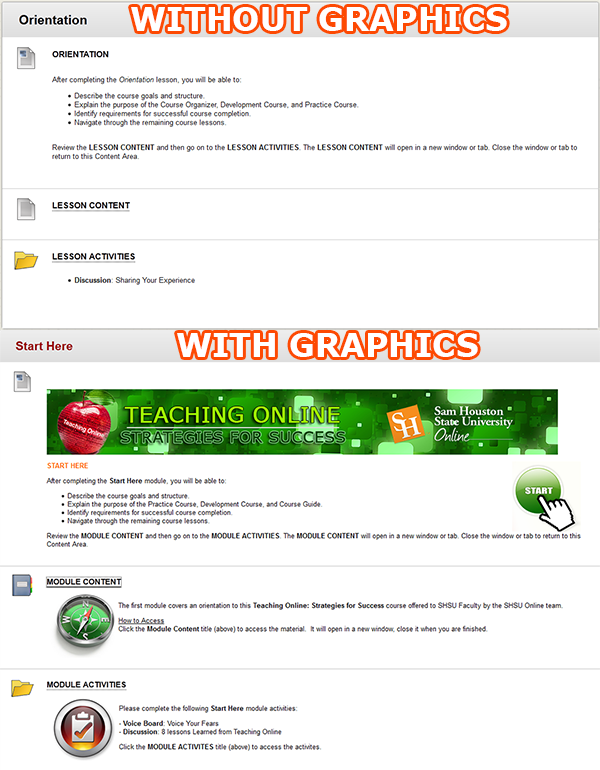
Below are examples of a Blackboard content area without graphics and a content area with graphics.  Which one looks better?  Which one would you rather read?

Blackboard Course Content Area Examples
In this example the graphics are more of the decorating variety, but they do add color and continuity to your course.  Imagine having your course banner at the top of every major content area in your course.  In this case there are examples of images in a content item, learning module and content folder descriptions. Almost anywhere you use the content editor in Blackboard, you can place an image.

Inserting an Image

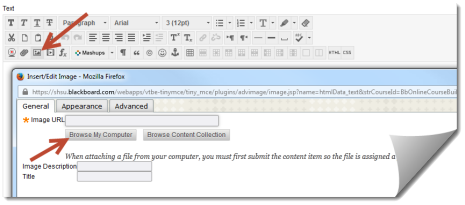
  1. Click the Insert/Edit Image button on your content editor.
  2. Browse to where your image is saved and attach it.
  3. Type an Image Description (for screen readers).
  4. Click the Insert button.Insert Image dialogue

Editing an Image (Alignment, Spacing and Size)

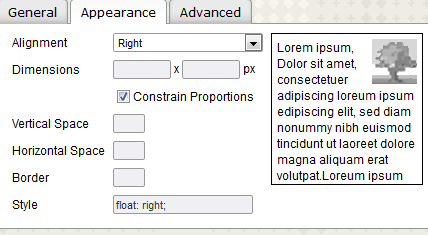
  1. Click on the image you have placed in the Content Editor.
  2. Click the Insert/Edit Image button.
  3. Click the Appearance tab.
  4. Adjust your Alignment, Spacing and Size.
    Insert - Edit Image - Appearance Tab

With a few clicks of your mouse, your Blackboard course can go from black and white text to a colorful tapestry of text and images that convey meaning to students in a number of different ways!

Resources – Free Images For Your Courses

Teaching Online – The Middle Distance

Long Road Ahead PhotoWhen running a race, it is easy to think of it in three parts. First, there is the start, where you build slowly all the while being excited about the journey you are on. Then, there is the finish, where your goal is in sight and you race to the end of your journey. The bulk of the time of your race is spent in the middle distance, where you are trying to put one foot in front of the other and keep your eyes on the prize.

If you think about it, teaching an online course can be broken up into the same three categories. The start builds slowly as the students and instructor develop the routines they will follow as they move through the course. The finish is completed in a mad frenzy as students race to deliver classwork and submit end-of-course assessments. The majority of the course is handled in the middle distance, where students work to meet weekly objectives and make their way through the course.

For a runner, the middle distance can be the toughest part of the race. For an online instructor, the middle distance of a course can be just as challenging. However there are some strategies/practices you can put into place to make this part of the online course easier to handle.

Keep the Pace

paceIn order to stay on track for a strong finish it is important to pace yourself when running any race. Going too slow can dramatically affect your finishing time and going too fast can burn you out so that you don’t finish strong or for that matter, finish at all.

Pacing yourself as you teach an online course is just as important. Going too slow for your students can disengage them from the course and from meeting learning objectives. Conversely, blowing through course materials is also detrimental for your students’ comprehension and retention. Establishing a pace that keeps all parties engaged and involved while not leaving folks behind is a great best practice when teaching an online course.

Stay Engaged

Student EngagementAs you move through the long stretch of any race it is easy to lose focus, lose track of what your goal is and just disengage from what you are trying to do. Staying checked in while you run ensures that you know where you are, what you are doing and where you need to be to complete the race successfully.

Staying engaged is possibly the most important thing you can do as an online instructor. Though it may seem monotonous at times, checking in and interacting with your course can mean the difference between student success and failure. If you know how your students are doing (because you are engaged), then you know what course corrections to make, what affirmations to give, and how best to direct your students as they move through the course.

Be on the Lookout for Obstacles

ObstaclesAs you move through any run, it is important to keep an eye on the road in front of you for any obstacles that may trip you up. Getting tripped up can reduce your pace and disengage you from your plans for the run. Listening to fellow runners and race officials can help you in this regard. Having a lay of the land can also be a tremendous asset.

Obstacles can be just as problematic in an online course. Keep an ear to the ground with your students through discussion forums and e-mails to help them work around any roadblocks that may occur. Keep in touch with “race officials” aka the support desk or LMS administrators so that you and your students are aware of what is on the road in front of you. Knowing what course activities might cause issues for your students (third-party tools, multimedia or new software) can help you be sure your students are prepared for any issues that arise.

Whether you are at the middle distance of running a race or teaching an online course, keeping pace, staying engaged and being on the lookout for obstacles can help you be successful and finish strong!

Create a free website or blog at WordPress.com.

Up ↑