Search

eLearning Frenzy

eLearning is like a sewer, what you get out of it depends on what you put into it.

Category

Blackboard

BbWorld15: Drop-In Trainings – A Buffet Approach to Technology Training – Session Blog

Speakers
Christala Smith
Director, Center for Instructional Development & Technology
Southeastern Oklahoma State University


Problem with scheduled training classes is low attendance.

Problem solving:

  • have to attend hour long training for 5 minutes of what they need
  • low attendance at scheduled training classes
  • different expectations
  • Quality delivery mechanisms

Educause Article on Drop-In Training

Wall of different software with handouts for each at the lab.  Go and get the exactly the information you want, right then.  Find experts in tech that wouldn’t mind being available to answer questions for the buffet-style training.

Goals

– Have a Variety of Tools – they come for what they need  (they come wanting to learn thing but end up learning two or more)
– Start: Targeted Training
– Networking Opportunities
– Personalized Hands-on Training
– All Inclusive Technology
– Have food (buffet of tech and buffet of food)

Have floater walking around touching base and asking “Did You Know” questions to direct faculty to appropriate drop-in group.

Have different units there to help with area of expertise:  Trainers, Instructional Designers, Support Desk, Video Team, Web Content specialists, Library etc..)

Send images of software offered in press release and let faculty know that they can think of questions before hand.

Getting the word out:  E-mail, Flyers, Word-of-Mouth

Success:  More served immediately, increased exposure, improve meetings, creating unique solutions, bridge of creativity, positive feedback!

Future:  In Conjunction with faculty symposium, include other trainers/topics, additional space.

BbWorld15: General Session – Session Blog

Speakers
Jay Bhatt
Jon Kolko
Annie Chechitelli
Stephanie Weeks

    Educational Institutions currently is struggling to engage learners.  85 percent of learners in North America are Non-traditional.

The educational system is no keeping pace with new learner’s use of technology. New Learners have a different set of needs.

  • We need to engage online with apps
  • allow the pursuit of Digital Skills & Competencies
  • Community Engagement
  • Follow Employers online
  • Attend multiple institutions

Center of issue:  Learner + Teacher

  • Focus on needs of learner

What is Blackboard doing to revolutionize Education?

The Education Continuum: Birth | K-12 | Higher Ed | Professional Education  | Lifelong Learning

New Learning Experience (NLE) is a new approach to education that fosters better engagement, interaction and quality learning through the delivery of leading edge technology and data capabilities. The NLE is:

  • Focused on Learner
  • Connecting and tightly integrating workflows
  • A delightful new user experience
  • An accessible and always-on environment
  • Integrated data and analytics

A day in life of K-12 student

1. Check bus schedule – 7am
2. Attendance Confirmation – 10am
3. Participate in blended classroom 11am
4. Tweet image of field trip 2pm
5. Check shool menu for tomorrow lunch 6pm
6. Check for upoming PTA meeting 7pm
7. Practice homework 8pm8. Confirm soccer field change 9pm

All of these things are happening trough the lenses of devices, technology & software.

Our Capabilities:  Parent Link, Schoolwires, teaching & learning Solutions, Blackboard connect, Sociability – connect with the day in the life of k-12 students.  What if we could delivery them consistently and in an integrated fashion.

Higher Ed Day in the Life

7am – check class schedule
10am – Confirm student loan
12pm – Virtual Study Group
6pm – Do homework/discuss with prof via online office hours
7:30pm – Check job boards
9pm – Buy calculus book for next quarter

Our capabilities – Learning Analytics, Blackboard Transact, MyEdu, Blackboard Learn, Bb Student, Blackboard Student Pathway Services, Blackboard Collaborate. All of these connect to the Higher Ed day in the life.

Our Technology Framework

Next Generation LMS – Blackboard Learn Ultra Saas, and Moodlerooms
Blackboard Collaborate – java free browser based no download web conferencing system.
BB Mobile apps – Being mobile first, mobile learn Bb Student, Bb Grader,
Learning Analytics
Blackboard Services Capabilites – Student Pathway Services – Marketing and Recruiting etc..
Deployment options – Self Hosting, Managed Hosting and Saas (Public Cloud)

SaaS – Standard, Plus, Advantage  (Product is continuously released – no April release etc)

Design

Design is about empathy (walking in their shoes).  See the world through student, teachers, parents shoes.

  • Their are no traditional learners. (LMS should change with learner)
  • Academia has been driven by quantitative metrics at the expense of educational creativity (Integrate the analytics)
  • Support the learners journey – (build products that help learners figure out who they are)

Ultimately we are focused on minimizing anxiety in learners.

NLE for K-12
Parent Link – menu, bus schedule, library balance, grades, news, directory (integrates info from multiple schools) Confirmation of arrival.
School Wire.

Key to Learning experience is adoption and Integration for K-12.

NLE for Higher Ed
Instructors still have ultimate control of how course is displayed.  Can stay in “original” mode if they want.

Start conversations around specific assignments in a course.  Contextual conversations for the win! – Instructors have the ability to turn this off.

Adding content is as easy as clicking the “+” button anywhere you are in the course.  Make items Visible or Hidden without leaving the page.  Discussions are placed directly in the module.  No longer do students have to go elsewhere!!  Entirety of NLE is in Responsive design.

NLE is designed to interact with different personae (mobile, computer).

NLE is stream based and curated directly for the student.  Mobile apps home screen is a stream.  Can organize by What’s New and What’s Due!

Collaborate – Adaptive Design Wow we wow wow.

Request Access to tech preview – try.blackboard.com (Trial site this fall)


BbWorld15: Best Practices for Implementing Blackboard Communities – Session Blog

Speaker
Adam Voyton
Wilmington University

Once you get the license, what do you do with it?  Customize interface to engage students and faculty across your institution.

Customization:

  • Create tabs, sub-tabs, and modules
  • each tab, sub-tab can be configured to appear to users that are assigned to a particular role
  • A module is bascialy a box that can contain: text, video etc..

Primary Roles are Students, faculty, staff.

For tabs or modules that have information relevant to students and or faculty in certain department, we set up college-specific institutional roles.

Student/faculty login has generic content and customized content.  Advertising, Marketing, Student Life

Students: Top layer tab has student services tab – links to student service pages, Jobs for Kats as Top Layer Tab
Faculty: (Faculty services tab – centralizes info that was scattered across website)  My media module (Kaltura)

Subtabs – Tech Support/Resources (support desk hours) (clean up My courses video), Kaltura subtab, My media and faculty repository on it along with self-help for Kaltura.  Blackboard Collaborate  subtab(embed the webpage), Blackboard subtab for IM.

Wilmington uses colleges on Top lvl tabs that contain info that they may want behind a login.  Each of these tabs have subtabs with more info   (question, how do you envision having 6 tabs one for each college).  Tabs to other systems

Things to Keep in mind:

*Tabs don’t open up in new browser tab.
*when embedding content use HTTPS*Have rules and policies for what content can go where (Governance)
*Set up a calendar to manage/schedule the content
*keep MY Courses at top right and announcements at top center

Blackboard Organizations

Bulk of orgs are Academic in nature, a fair amount of student orgs, smaller honor societies and departments.

Come up with and keep up with a naming convention.

Implementing Communities  (Organizations Subtab with “My Organizations” module)  Contains video explaining what orgs are and how they work. Including support documentation.  (Have an org catalog), link to a request form.

3 ways to enroll users into orgs: 

  • Self Enrollment – No level of privacy
  • Manual Enrollment – Leader has complete control, but has to do it all themselves.
  • Automatically adding someone who meets a certain criteria (SIS Based), some people may not want to be enrolled. (come up with un-enrollment process – place a default link in orgs with instructions to e-mail leader etc..) come up with code of conduct link for orgs as well.

Tips to Increase Students Use of Organizations (Require leaders to go to training)

– Make registration process simple
– Put out a press release on ORGS (get the word out)
– Videotaping campus events or use collaborate
– have student representatives talk for them

Online Student Association – Blackboard Org  (Engaging Online Students) – automatically add every student taking an online course.

  • Discussion board of the month – “What can we do to engage our online students at homecoming?”  small giftcard or prize of randomly selected participant
  • Online Student of the Semester – (we can use our ads)  Short little bios, students can apply we can focus on them.
  • Introductions Discussion Board (Networking)
  • Have video and webpage about this organization

Remind your constituencies what Blackboard Communities does for them. Press Releases, videos etc…  Target program chairs about Bb Orgs.

Lessons Learned:

– Get Departmental Involvement
– Dedicate a staff member to serve as community admin- Audit content every year
– People that do not have a Bb Login will not be able to access any content in Orgs

BbWorld15: Leveraging Blackboard to Introduce New Faculty to Essential Technologies – Session Blog

Speakers
Kimberly Evans
Joey Robinson
Reynolds Community College

TTS 101 Orientation to Essential Tech is an online orientation designed to streamline the on-boarding process and acclimate newly hired faculty to various technologies and services.  A collection of modules are housed within Blackboard introducing faculty to the wide range of tech resources they will be expected to use.

Upon hire faculty are automatically enrolled and through Blackboard complete each module.  They will remain enrolled for 1 year.  Once completed, deans and chairs are notified and they receive 1.5 hours of professional development.

Information is distributed at faculty orientations, convocation.

Orientation contains:

  • brief video of objectives
  • self-guided activities
  • self-assessment
  • resources

Each of the modules use adaptive release to move faculty on to the next module when they complete the previous one.

Menu: Possibilities: (Start Here, E-mail, Computer account, SIS, LMS etc..)

Exit survey posted at the end of session to measure effectiveness of orientation.  (It is not mandatory to complete training)

Reynolds looked at helpdesk tickets (Logon Concerns, Email, Software) they all decreased over time with implementation of orientation.

Don’t ask, just congratulate when welcoming.  Not “Would you like to participate?”, but “Congratulations, you’ve been enrolled..”

‘Twas the Week Before Blackboard World’

‘Twas the week before Blackboard World,
not much longer will we wait.

Thinking about multi-booked sessions

for which we’ll be late.


Meeting with vendors, colleagues and more,

Technology experts and topics to explore.

Pre-conference workshops to jumpstart our brains

learning best practices on which we will train.


I’m interested in training, f2f and online,

so many sessions, so little time!

T-Bug, best practice, pedagogy first,

networking with colleagues, you work up a thirst!


Vendor exhibits, giveaways galore,

Or maybe a door prize of which we will score!

We will listen, we will talk, we will soak up the knowledge,

and share our experiences with private sector, k-12, or college.


We look to return come Friday next week,

loaded with the knowledge we strove to seek.

So I say to you all, let’s learn without fear,

for if we want more, we wait ‘till next year!

Course Banners are NOT just for Course Landing Pages

Since the early days of Blackboard and other Learning Management Systems in the field, Course Banners have been a great way to personalize the online or web-enhanced learning environment. Instructors could differentiate any course by starting it out with a graphic or photo of their own choice/making. Course Banners have been used far and wide since then to add flare and personalize the online and blended environment.

Course with Banner ScreenshotFor years, instructors who used Blackboard have been operating under the assumption that a Course Banner could only be used on the landing page of a Blackboard course.  Well guess what?  Course Banners can be placed almost anywhere in an online/web-enhanced course. Check out this before and after photo of a Blackboard content area, in this case Lesson 1:

Before and After - Adding BannersWith just the addition of a few graphics, a theme change and a Banner image, we can add continuity to the course as well as make it more engaging.

How do you do it?

Show Text OnlyFirst, you will want to give yourself more real estate in the Content Area where you will be placing the Course Banner.  You do this by changing your page options to show text only.

  • Ensure your Edit Mode is on.
  • Click the contextual menu next to your page title and select Page Options.
  • Click Show Text Only.

This gives you more space for your graphic to live in the content area where you place it, by removing the icon that shows up next to your content title.

Note: It is also a good idea to make your Course Banners in the subsequent course content areas a little bit smaller. This cuts down on load time as well as screen resolution issues.

Add ImageNext, add/edit a Content Item on your page and add an image to the top.

  • Add/Edit a Content Item.
  • Click the Add Image button.
  • Browse and Attach your Banner.
  • Click Submit.

You will now have a content item with a banner graphic that is placed at the beginning of the content area, folder or module of your choice:

Adjusted Content Item ExampleThis practice will add a layer of continuity and engagement to your course. If your students feel like they are in a familiar place and are engaged while browsing, their satisfaction levels will increase. Consider adding more Course Banners to your online/web-enhanced courses today!

When you Pack your Bags for Blackboard World 2015

bbworld15When we think of thought leading eLearning conferences that we attend like Blackboard World, we often think of them in terms of things we will come back with. There is good reason for this, as there are so many takeaways that a conference like Blackboard World provides. For the purposes of this blog post however, we will be focusing on what we should bring with us to Blackboard World 2015.

So when you pack your bags for BbWorld….

…..Pack a way to share what you learn:

For every oSharing Gadgetsne of us who are fortunate enough to attend this tremendous eLearning event, there are many, many more of us who cannot be at BbWorld. Since we all know that “sharing is caring,” bring a way to share what you’ve learned with your coworkers back home and your colleagues across the world. Whether you are live tweeting by phone or mobile device, live-blogging from your tablet or laptop, or maybe just taking notes to present, blog, or post later, you will be helping your coworkers at home and your peers across academia benefit from what you are picking up from colleagues, professionals and thought leaders.

…..Pack a charger (Mobile or otherwise):

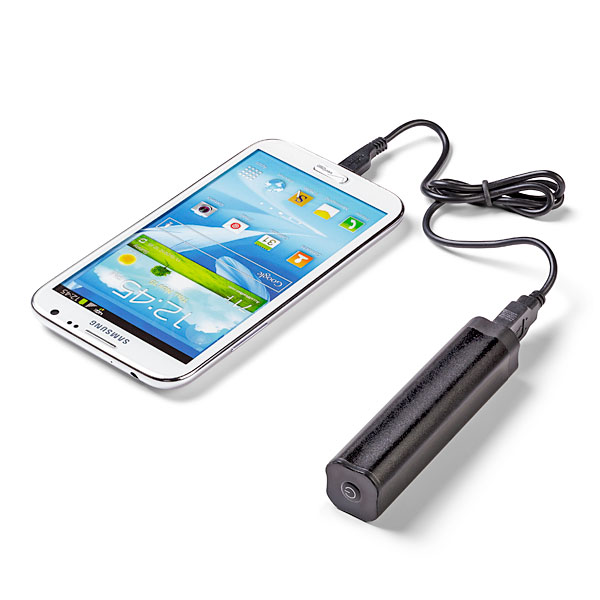
Portable ChargerIf indeed you are sharing your experience, or just trying to stay in touch with events back at home, you will definitely need a charger. I would suggest bringing one of the mobile chargers that you can keep in your pocket/purse/backpack. During the hectic schedule, you may not get a chance to go back to your room, and you may not find an open plug where you can “juice-up”. *As an addendum to this packing tip, bringing a small power strip is also beneficial as you can share one plug with a number of your peers.

…..Pack a desire to meet people and make connections:

Make ConnectionsPossibly the biggest benefit to being at Blackboard World is the ability to meet your peers and form connections that you will maintain and use throughout your professional career. At your home institution you may be the only person who does what you do, but at Blackboard World you are a small fish in a big pond. There will literally be hundreds of people with your same type of job. What better way to pick up best practices and learn what is working and not working for your colleagues, so that you aren’t stumbling around on your own when it comes to your learning management system or eLearning in general.

…..Pack some tennis shoes or at least comfy dress shoes:

ShoesBbWorld has possibly the largest population of slacks/skirts and Nikes in the eLearning universe. For a conference this large, you may be walking a quarter of a mile just to get to your next session. You also have vendors to see and colleagues to touch base with, so comfortable footwear is a must. Some of you may spend the evening at the Washington Mall area. Let me speak from experience, walking the Mall in DC can cause blisters in the wrong shoes!

…..Pack a Presentation!

PresentationBe a Blackboard World Presenter! The Call for Proposals is open until April 15. Share your successes, obstacles and experiences on a multitude of topics. The backbone of BbWorld are presentations by those of us in the trenches who work with faculty, students, deans, directors and Blackboard to make eLearning possible. Take the plunge and submit your proposal to present today!

There are probably many other things you can think of packing, so don’t limit yourself to just this list (checked bag fees not-withstanding). I know I look forward to seeing what my colleagues are bringing to BbWorld15 this summer!


Being Ready for Finals in an Online Course

ReadinessWith finals fast approaching, your students should be dutifully studying up on course materials, completing academic research and course activities that will help them be able to handle the questions and concepts they come across during end-of-semester assessments.   Your course materials have covered topics large and small that will help them make appropriate inferences, connect the dots and generally understand the subject matter they have been interacting with over the course of a semester.

Even when hitting all of your targets academically speaking, your students may have problems when it comes time for finals in an online environment.  We all know that technology failures operate under the “when, not if” principle, but there are strategies and practices that your students can put into place that will help them surmount any obstacle thrown their way.  The following practices will benefit your students when it comes to the end of year exams:

BEFORE STARTING THE EXAM

Power Up!
Plug your laptop into the power outlet unless you are absolutely certain that your laptop has enough battery power to last for the duration of the test.

Tether Up!
If you have the option, turn off your wireless connection and plug your laptop into the nearest available network port or use your desktop computer if available.  Wireless issue can cause your exam to disconnect and your instructor may not be fond of resetting your exam attempt for the umpteenth time.

Go Solo!
Close down any other programs that my distract you from the test or interfere with your network connection.  Having only one active program ensures your computer will be running at its best.

Idle Computers are the Devil’s Playground
Check your laptop idle time to make sure that it will not go into sleep mode prematurely and sabotage your assessment attempt midway through.

Be Up for Pop-Ups!
Disable all pop-up blockers. These blockers come installed in the latest versions of Internet Explorer and Firefox, in third-party toolbars such as Google and Yahoo, and they can come with utility software such the Norton products from Symantec.

Get Patched Up!
Ensure that your laptop has the latest Operating System (e.g., Windows) patches. Automatic updates can disrupt your current browser session or make your laptop very slow.

Are You Compatible?
Use a web browser that is compatible with or certified to work with the current version of your Learning Management System.

Using Special Software?  Practice, Practice, Practice!
If you are using a lockdown browser or special proctoring software, be sure to download and install it BEFORE you take the exam. Your instructor may provide a practice assessment that will let you make sure you are familiar with the special software involved.

DURING THE EXAM

Don’t Get Click Happy!
When beginning the quiz/test, click the quiz link ONLY ONCE and wait at least a minute for the quiz/test to load.. Do not keep clicking on the quiz/test/test link. Clicking on the quiz/test link two or more times may trigger a message saying you already took the quiz/test. If, after clicking once and waiting the full minute nothing happens, contact your instructor or test proctor immediately.

Leave-off of Leaving
Once you have started the quiz, do not leave the quiz/test page for any reason. Using the browser’s back and forward buttons to move to and from the quiz/test will end the quiz prematurely and prevent you from further access until your instructor clears the attempt. If you are permitted to view other online resources during the quiz/test, open a new browser to view them.

Problem?  Reach out and Touch Someone
In case of computer problems during the test notify your instructor as soon as possible. He or she will reset your quiz/exam attempt or authorize a designee to do so. Your instructor may have policies on if they allow you to reattempt the quiz at all.

Sizing it up BEFORE You Begin!
Do not resize or refresh your screen after loading the quiz/test. Make sure the screen is the size you want before going into the quiz/test. Most browsers refresh the page when you resize the screen so the browser will try to reload the quiz/test if you resize/refresh.

Connect With Online Students – Make Feedback Personal

banner-people-connectedOne of the challenges for any online instructor is making students feel a sense of community or connectedness in their online course.  There are multiple strategies that can be put into place to meet this challenge head-on.  Today’s blog post will focus on the feedback the instructor gives in an online course and how it can connect the student more personally with the instructor.

The type of feedback an instructor provides can have a tremendous affect upon the student/instructor dynamic in an online course.  Students who feel like they know their instructor report higher satisfaction levels and tend to be more engaged with the courses they are taking. Conversely, students that don’t sense instructor presence in the course tend to feel less satisfaction and engagement, and that can be reflected in course evaluations.

The following are steps an instructor can take to connect with online students via course feedback:

1. Leave specific feedback.

Be purposeful about leaving feedback that deals specifically with aspects of a student’s submitted work. A side-effect of a good best practice to save time for online instructors is that sometimes generic feedback can be used to a fault. The online instructor can counteract this by leaving specific feedback about the students’ attempt every few assignments.

2.  Use student names when leaving feedback.

Starting assignment feedback with a student’s name immediately personalizes the interaction.  Placing emphasis on the personal before leaving the feedback of the assignment, points to interest on the part of the instructor in the student’s individual attempt. The idea that an instructor cares about student success is vitally important in any course, online or otherwise.

3. Use multimedia to personalize the interaction.

To a student sitting at their workstation/laptop/tablet, a grade or text-based feedback in an online course can seem almost sterile and devoid of the human touch that comes from the professor handing back grades in a face-to-face course.  Luckily, most LMS’s these days come with tools that can make the feedback interaction more personal.  Just the sound of the instructor’s voice will add a personal dimension to the feedback experience.  The addition of video to assignment feedback kicks it up a notch!

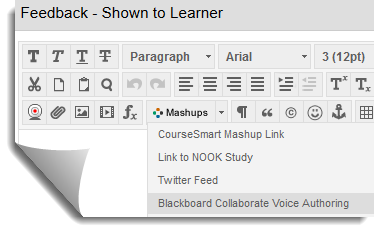
Audio Feedback with Blackboard Collaborate Voice AuthoringAt SHSU, Blackboard is the Learning Management System for online, hybrid and web-enhanced course offerings, and it comes equipped with tools that can enhance the feedback experience.  It also interacts well with third party tools and other types of files that can fulfill the same type of need for students.  For example faculty can use the Blackboard Collaborate Voice Authoring Mashup to leave audio feedback directly in the feedback of the assignment.

As a bonus a student is not just limited to hearing the disembodied voice of the online instructor for feedback.  Faculty members can also use the Video Everywhere tool to drop a recorded video into the feedback shown to the student.  The Video Everywhere tool utilizes YouTube to either link to a video uploaded to the instructors YouTube account or record a video at the point of feedback and place it directly.

Using Video Everywhere for FeedbackIf the instructor does not have ready access to a webcam or microphone on their computer, he or she can record a video with their smartphone and upload it to YouTube as an unlisted video, then link to the video with the Video Everywhere tool.  Instructors can also use voice recording apps to attach audio files to feedback for online students.

Personalizing feedback for an online course is an important best practice for any instructor. However, personalizing every feedback entry for every student would take too much time away from grading and other important interactions.  As with all things, moderation is key.  Try provide a few personal interactions for each student, each semester, letting them know that the instructor is committed to their success and is willing to connect with students on a more personal level.

Blog at WordPress.com.

Up ↑