Search

eLearning Frenzy

eLearning is like a sewer, what you get out of it depends on what you put into it.

Tag

Teaching Online

Want to take your Blackboard Course to Next Level? Be Graphic!

bestpracSo, you’ve been at this Blackboard thing for a couple of semesters and you are starting to feel comfortable with the learning management system.  You’ve mastered the art of uploading and attaching files to content.  The discussion board is your boon companion and you are collecting assignments digitally from your students via the assignment tool.  Navigating the grade center is like riding a bike and you feel good about it!

What now?  Learn a new tool or technology? Live inside your course for the next 6 months?  Well, you could do those things, but let me suggest a slightly different approach.  Have you considered adding an important layer to your Blackboard course by inserting images?

Importance of Images

  • Convey course information in an alternate method.
  • Students pay more attention to articles/readings with graphic content.
  • Breaks up monotony of “text-only” Blackboard pages.
  • Increases student engagement by making them use a different part of their brain.
  • It just looks better!

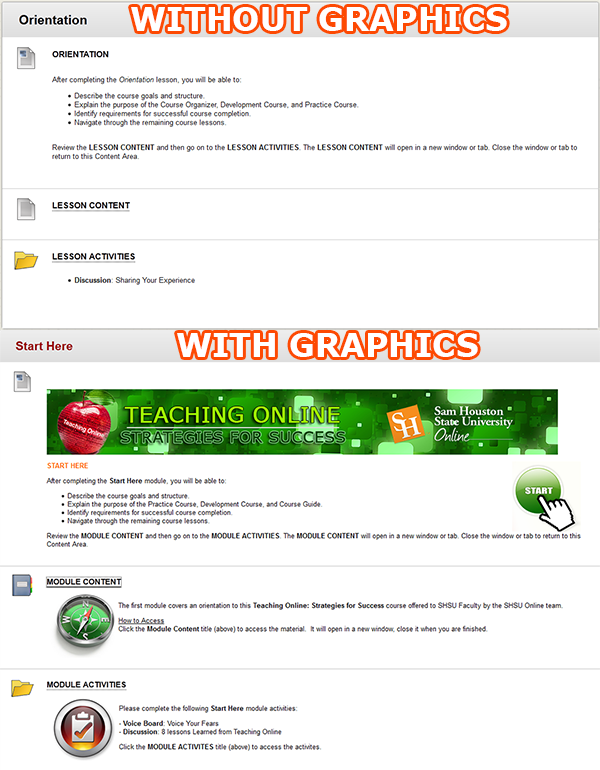
Below are examples of a Blackboard content area without graphics and a content area with graphics.  Which one looks better?  Which one would you rather read?

Blackboard Course Content Area Examples
In this example the graphics are more of the decorating variety, but they do add color and continuity to your course.  Imagine having your course banner at the top of every major content area in your course.  In this case there are examples of images in a content item, learning module and content folder descriptions. Almost anywhere you use the content editor in Blackboard, you can place an image.

Inserting an Image

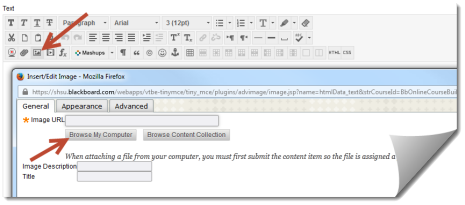
  1. Click the Insert/Edit Image button on your content editor.
  2. Browse to where your image is saved and attach it.
  3. Type an Image Description (for screen readers).
  4. Click the Insert button.Insert Image dialogue

Editing an Image (Alignment, Spacing and Size)

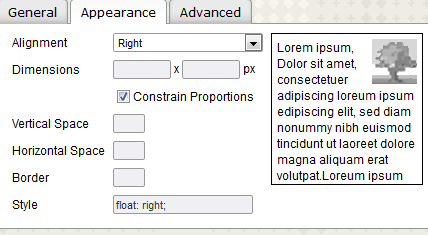
  1. Click on the image you have placed in the Content Editor.
  2. Click the Insert/Edit Image button.
  3. Click the Appearance tab.
  4. Adjust your Alignment, Spacing and Size.
    Insert - Edit Image - Appearance Tab

With a few clicks of your mouse, your Blackboard course can go from black and white text to a colorful tapestry of text and images that convey meaning to students in a number of different ways!

Resources – Free Images For Your Courses

Teaching Online – The Middle Distance

Long Road Ahead PhotoWhen running a race, it is easy to think of it in three parts. First, there is the start, where you build slowly all the while being excited about the journey you are on. Then, there is the finish, where your goal is in sight and you race to the end of your journey. The bulk of the time of your race is spent in the middle distance, where you are trying to put one foot in front of the other and keep your eyes on the prize.

If you think about it, teaching an online course can be broken up into the same three categories. The start builds slowly as the students and instructor develop the routines they will follow as they move through the course. The finish is completed in a mad frenzy as students race to deliver classwork and submit end-of-course assessments. The majority of the course is handled in the middle distance, where students work to meet weekly objectives and make their way through the course.

For a runner, the middle distance can be the toughest part of the race. For an online instructor, the middle distance of a course can be just as challenging. However there are some strategies/practices you can put into place to make this part of the online course easier to handle.

Keep the Pace

paceIn order to stay on track for a strong finish it is important to pace yourself when running any race. Going too slow can dramatically affect your finishing time and going too fast can burn you out so that you don’t finish strong or for that matter, finish at all.

Pacing yourself as you teach an online course is just as important. Going too slow for your students can disengage them from the course and from meeting learning objectives. Conversely, blowing through course materials is also detrimental for your students’ comprehension and retention. Establishing a pace that keeps all parties engaged and involved while not leaving folks behind is a great best practice when teaching an online course.

Stay Engaged

Student EngagementAs you move through the long stretch of any race it is easy to lose focus, lose track of what your goal is and just disengage from what you are trying to do. Staying checked in while you run ensures that you know where you are, what you are doing and where you need to be to complete the race successfully.

Staying engaged is possibly the most important thing you can do as an online instructor. Though it may seem monotonous at times, checking in and interacting with your course can mean the difference between student success and failure. If you know how your students are doing (because you are engaged), then you know what course corrections to make, what affirmations to give, and how best to direct your students as they move through the course.

Be on the Lookout for Obstacles

ObstaclesAs you move through any run, it is important to keep an eye on the road in front of you for any obstacles that may trip you up. Getting tripped up can reduce your pace and disengage you from your plans for the run. Listening to fellow runners and race officials can help you in this regard. Having a lay of the land can also be a tremendous asset.

Obstacles can be just as problematic in an online course. Keep an ear to the ground with your students through discussion forums and e-mails to help them work around any roadblocks that may occur. Keep in touch with “race officials” aka the support desk or LMS administrators so that you and your students are aware of what is on the road in front of you. Knowing what course activities might cause issues for your students (third-party tools, multimedia or new software) can help you be sure your students are prepared for any issues that arise.

Whether you are at the middle distance of running a race or teaching an online course, keeping pace, staying engaged and being on the lookout for obstacles can help you be successful and finish strong!

Help your Students be Reflective with Journals

Merriam Webster defines a journal as:

a book in which you write down your personal experiences and thoughts

Backboard JournalPutting down those thoughts and experiences that impact us can be an important tool in personal growth and development. Journals don’t have to be limited to the “Dear diary” entries you make at your beside table.  They can be used in courses you teach as well. In online courses journals can be used as a mechanism for communication between a faculty member and a student, or as a reflective tool for students as they work to absorb what they are learning.

Benefits of using a journal include but are not limited to:

  • Teaches students to communicate their thoughts on the subject matter
  • Forces students to be on the lookout for journal material (actually paying attention in the course)
  • Helps students to remember what they have learned
  • Keeps a record of ideas, concepts or structures that are important
  • Lets students create without fear of judgement from peers
  • Allows students to take first level thoughts to the next level – idea expansion

Creative writing teachers can benefit from using a journal.  Students can post their entries and instructors can make comments as needed.  Journals can also be used to drive home what the student has studied over the week.  Think about the reinforcement that happens when a student submits an assignment, discusses with his or her peers, takes a quiz and then puts it all together in a journal entry for the week.  Finally, journals are ideally suited for formative assessment.  Get the student’s temperature by asking them to write about their highs and lows as it relates to the course during the week.  If something comes across that is legitimate, feel free to make course corrections for the benefit of all of your students.

Here at SHSU we utilize the Blackboard LearnTM learning management system, which has a journal tool as part of it’s feature set.  Journal assignments can be placed anywhere in the course and are accessible with click of the mouse. Learn more about implementing journals in your Blackboard course.

While you are thinking of ways to ensure your students are getting what they need on their learning journey, consider reflecting on the added value of implementing journal activities to your courses.


Connect your Online Course – Give Students a GPS for Course Content

Connect Your CourseWhen you travel somewhere for the first time, doesn’t it seem to take a little bit longer to get there than it does to return home? Whether it is unfamiliar surroundings, difficulty reading the map or the GPS isn’t up to date, it can be frustratingly slow to travel to new places.

Think of your online course as that new destination for your students. How would they describe their navigation experience? Would they say that once they travel into your course that it is difficult to find their way back? Would they say that the course links were easy to find and use? Would they be frustrated trying to make it to their “destination”?

Even when we try to organize the course so it is organized into more digestible “chunks” for the students, we can make it hard to maneuver. Imagine a student lost in a Escher print of folders within folders within folders.

Connecting your course by organizing, clearly naming your navigation elements and providing an “escape route” will save your students and ultimately you time when putting together your online course.

Below are steps you can take to connect your course and save time for you and your students:

  • Use Dividers and Subheaders to visually organize your course’s navigation menuCourse Menu
  • Append the text (Click the title above to Open) on descriptions for folders, learning modules, lesson plans, web and course links.
    Click to Access text
  • Make the content item Blue if you want your students to click it
  • Chunk your course content as you would teach it in your face-to-face course.  For example: Put all Chapter content in chapter folder with different sub-folders for each chapter.
  • Provide an Escape Route by placing a Course Link at the bottom of a unit of study so that the student can navigate back to where they were before easily.Course Link

Promote Student Engagement by ‘Personalizing’ Your Online Course

Personalized Learning

The Glossary of Education Reform defines student engagement as:

the degree of attention, curiosity, interest, optimism, and passion that students show when they are learning or being taught, which extends to the level of motivation they have to learn and progress in their learning

Personalized LearningIf the above is true, then there are many ways an online instructor can impact the attention, curiosity, interest, optimism, and passion of students.  This particular blog post deals with how personalizing an online course can increase student engagement.  When an online instructor and students can invest more of themselves in on online course, the satisfaction levels reported by those same students will go up.

This particular view of online course personalization will be broken into 5 areas:


Placing Yourself in the Course

Place Yourself in the CoursePrevious posts on this blog have focused on instructor presence in the online course.  We’ve talked about establishing routines to ensure prompt feedback and instructor availability.  This particular practice revolves around something a little more superficial, but important nonetheless.

Students in an online course like to feel that they know who you are.  A text-based introductory paragraph or post in a “getting to know you” discussion forum may not fully encompass who you are to the student.  Why not take one small step and add a picture of yourself to the course.   You may already be familiar with the best practice of establishing a Virtual Office in your course where you can answer student questions.  Why not add your photo and contact information in this same area and personalize your office.

Here at SHSU, Blackboard allows you to set up a Social Profile that places your picture wherever you interact in a course (discussions, blog & wiki posts, grade center etc..). If your students feel like they “know” you, they are more likely to reach out to you and less likely to drift off into obscurity.

The logical next step in this progression is for you to utilize video to connect yourself to your course and your students, but that is a post for another time.


Allowing Students to Place Themselves in the Course

Online StudentsIn online courses it is easy for students to believe that they operate in a vacuum.  They punch their ticket fulfill obligations, and never get a good look at who is on this learning journey with them.  Allowing students to place themselves in your online course begins to build that learning community that encourages students to be successfully engaged.

Why not have your student find a way to place their image in your course.  Have them attach/upload/insert their picture as part of an introductory activity.  Some Learning Management Systems like Blackboard, allow students to create their own Social Profile that includes an image and biography.  After the profile is created the student’s face appears in the course roster, grade center and course activities (blogs, wikis, discussions, group activities etc..).

Having student/faculty images in your online course allows a more cohesive integration of group activity and shared learning.


Allowing Students to Personalize Their Learning

Personalize We know that student satisfaction goes up when they feel like they have some “skin in the game” when it comes to their learning experience.  The challenge for many online instructors is figuring out how to incorporate student content-building or contributions to the online environment.

A good first step is to find out what they know and what they want to know more about.  You as the instructor will define the boundaries from which they will pick, but a survey or KWL* assignment is a great way to start out a course.

*KWL – What do you know?  What do you want to know?  What have you learned?

You can also provide an element of continuous improvement in your courses by having your students journal each week or at an interval of your choosing.  The journal entry could serve 2 purposes:

  1. Provide a graded assignment where the student reflects upon what they learned during the week.
  2. Allow the student to tell you what the high points and low points were of the previous unit of study.

The journaling activity will allow you to make course corrections (pun intended) during the course rather than finding out where you might have some issues when the course is finished and evaluations are in.

There are other methods for involving your students in this process. The scenarios are numerous, but here are a few ideas:

  • Have your students come up with the academic integrity policy for the course to increase buy-in.  They can use a wiki or discussion board to share ideas around defining plagiarism and academic honesty.
  • Create an assignment dealing with constructing a study guide for the final and allow your students to contribute questions.
  • Use peer evaluation as a method for grading discussions and other assignments.


Feedback Early, Feedback Often

FeedbackProbably the most important way to ensure your students believe that you are personally involved in their learning is to provide prompt and frequent feedback.  Think about how you feel when someone gives you kudos on a job well done or even coaching on a subject where you might need assistance.  You feel like someone took a personal interest in something that you were doing, right?  Students feel the same way about the feedback you provide via the course.

Here are some options:

  • Make feedback part of your daily routine as an online instructor
  • Change up how you provide feedback (text/audio/video)
  • Post a weekly announcement recapping the last week’s activities and previewing the current week.
  • Too many students to reply to discussion posts?  Provide 1 summary post per discussion giving kudos and challenges when needed.
  • Schedule “office hours” where you can provide synchronous feedback a ’la chat or webinar when needed.


Personalization without Confusion

Sometimes in our desire to create a learning environment that is personal and engaging for the learner, we can add a layer of confusion that can separate the student from the learning experience we are trying to create.

So before we go tech-crazy or jump into a fun idea feeding frenzy take the following into account:

  • The Main thing is to keep the main thing the main thing.  If the personalization/engagement does not comport to the learning objective, then don’t do it!
  • Keep it simply single. Add one new wrinkle to your experience at a time. Don’t heighten student anxiety by adding lots of tools/tech that they’ve never seen before.
  • Don’t play Hide & Seek with course content and activities.  If you started out putting content and activities in a certain order, stick with it!

Here are some quick and easy ways to provide personalization without confusing the issue:

  • Use images to introduce content/topics and break the monotony of the text monopoly!
  • While keeping the same routine/order of a unit of study, utilize different activities to differentiate the way students interact with the course.
  • Change up how you deliver content to students.  Introduce a discussion activity a ‘la webcam recording or provide an audio introduction with assignment instructions that contain bonus points for those who listen.

These five methods of personalizing the online learning environment don’t have to all be done at once. As with most of the best practices on this blog, we encourage you to take it one step at a time.  Remember if you feel overwhelmed, then odds are your students will too!  Hopefully you will find your students paying more attention, being more curious, showing more interest, bubbling over with optimism and being passionate about their learning.

#bestpracticemonday – Netiquette for the Online Course

NetiquettePart of setting your students up for success in any course is to create a culture of success.  We create a culture of success by ensuring students know what is expected of them and in some cases involving them in coming up with some of those expectations.  Online students come into a course with their own thoughts and musings how about the course should operate and how they should interact with others.

Being proactive in establishing a positive culture of communication can mean the difference between student satisfaction and student frustration.  A great way to encourage positive interactions in your course is to establish Netiquette or Internet Etiquette expectations for your online course.

This blog post will cover four different types of Netiquette for the online course.  It is not an exhaustive list, but a great starting point or template from which to work.  We will look at the following four areas:

  1. Netiquette – General Guidelines
  2. Netiquette for Discussion Forums
  3. Netiquette for E-mail
  4. Netiquette for Chats/Webinars

GuidelinesNetiquette – General Guidelines

  • Keep caps lock at a minimum for emphasis: IT MAKES YOU LOOK LIKE YOU ARE YELLING
  • Be careful when using humor or sarcasm as much can be lost in translation and give offense in the online environment
  • All communication should be at a college level and include correct spelling and grammar
  • Treat fellow students and instructor with respect in all types of online-communication (e-mail/chat/discussions/web meetings)
  • Use clear and concise language (e-mail does not easily reflect your implied meaning)
  • Avoid text speak and slang (sorry, no LOL, ROFL, LMBO or IMHO)
  • Use standard fonts and font size: Arial/Times New Roman, 11-12 pt font
  • Only use emoticons when appropriate ☺

Discussion Forums GraphicNetiquette for Discussion Forums

  • Review and edit post BEFORE posting
  • Spell-check, Spell-check, Spell-check
  • Stay on Topic
  • Cite any sources you reference in your post
  • No flaming or personal/insulting remarks
  • Provide well thought out replies to thread postings, “I agree” and “Great Post” are unacceptable
  • Be respectful of others’ opinions
  • Read previous messages in a thread BEFORE replying
  • Don’t regurgitate someone else’s post, make your own

E-mailNetiquette for E-mail

  • Include your name and return address in the e-mail signature
  • Be brief: Don’t try and write the sequel to War & Peace
  • Make your subject line descriptive
  • Limit the use of Reply All, does everyone need to see your response?
  • Be forewarned about “forward”:  Be sure the original author is okay with you passing his/her e-mail on

WebinarNetiquette for Chats/Webinars

  • Don’t play with the whiteboard tools unless directed to do so by your instructor
  • If you are sharing your desktop be sure only topic appropriate windows are open
  • Use a headset/microphone combo, online meeting attendees don’t want to hear themselves through your speakers
  • Do not talk over others
  • Wait your turn to speak/use web cam
  • Make sure everything works BEFORE the session begins don’t try and get technical support in the middle of a lecture
  • If using a webcam be sure you have appropriate lighting, appropriate attire and limit distractions (pets, spouses, roommates, children)

#bestpracticemonday – Increase Student Engagment by Encouraging Interactions in Online Discussions

Encouraging InteractionsHave you ever felt left out of a discussion? When you are contributing to an effort, how does it feel to not be recognized for that contribution? Recognizing the contributions of the students in your online classes is key to increasing their participation. Here are some strategies for success:

  • Reply to a handful of discussion posts for each forum picking different students each time
  • Give Kudos and Challenges (recognize the contributions and offer challenges to encourage your students to reach beyond)
  • For larger classes do one summary post for each discussion mentioning students by name

If students believe you are actually reading their contributions they will work harder to ensure quality and quantity of their efforts.

Embed Twitter Streams/Conversations in Your Blackboard Course

Embedding TwitterThis blog post covers putting your live Twitter feed in Blackboard.  Basically you can place your feed anywhere you can edit text in the Blackboard Learn System.  That means it can go in a discussion, a blog post, a wiki page, a content item, test instructions or anywhere the text editor exists in Blackboard Learn.

Embedding your Twitter feed or a Twitter conversation will drive student engagement by putting information you want students to be familiar with, where they spend the most time.  Students can actively extend class discussions, research topical information and affirm each others posts with Twitter and embedding the feed or #hashtag search can prompt them to do so.

Here are the steps:

Visit Twitter.com and click the Settings wheel at the upper right-hand side of the screen, then click the word Settings.

Twitter Settings

Once on the Twitter Settings page, click the Widgets area on the left-hand side, then click the Create New button.

Twitter Widgets

Under the User Timeline tab be sure your Twitter handle shows up in the Username field.  Select your display options and then click the Create Widget button.

User Timeline Widget

Copy the widget code from the box at the bottom of the Edit Widget page.

Copy embed Code

Next you can Paste the code in HTML view of any Blackboard Text editor.  Start by clicking the HTML button of your content editor in Blackboard (remember this can be within any discussion, blog post, item, folder etc..).

Html Button in Content Editor

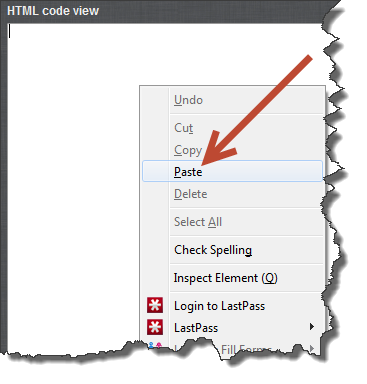
Right-click and paste or, CTRL/CMND V and paste the widget code.

Paste into HTML Editor

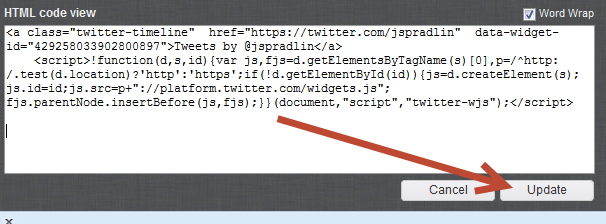
Click the Update button on the HTML view window and then click Submit.

Update

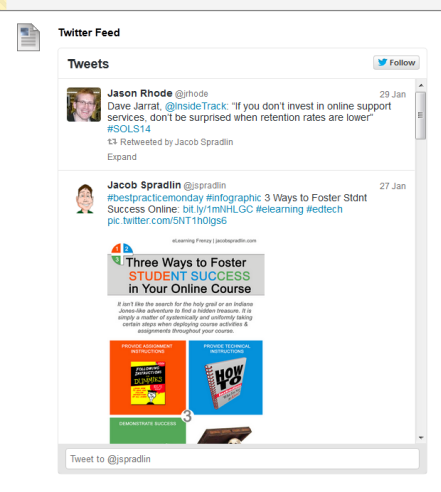
Your Twitter Feed will now display in Blackboard where you put it:

Embedded Twitter Feed

When you create your widget you can also embed a conversation that your class is having our that is happening in the Twitter-sphere. Simply use the Search tab when creating the widget and search for the #hashtag that you are using in your twitter conversations.

Twitter Conversation - Hasthtag Stream

3 Ways to Foster Student Success in Your Online Course

Create a free website or blog at WordPress.com.

Up ↑