Search

eLearning Frenzy

eLearning is like a sewer, what you get out of it depends on what you put into it.

Tag

Blackboard

Being Ready for Finals in an Online Course

ReadinessWith finals fast approaching, your students should be dutifully studying up on course materials, completing academic research and course activities that will help them be able to handle the questions and concepts they come across during end-of-semester assessments.   Your course materials have covered topics large and small that will help them make appropriate inferences, connect the dots and generally understand the subject matter they have been interacting with over the course of a semester.

Even when hitting all of your targets academically speaking, your students may have problems when it comes time for finals in an online environment.  We all know that technology failures operate under the “when, not if” principle, but there are strategies and practices that your students can put into place that will help them surmount any obstacle thrown their way.  The following practices will benefit your students when it comes to the end of year exams:

BEFORE STARTING THE EXAM

Power Up!
Plug your laptop into the power outlet unless you are absolutely certain that your laptop has enough battery power to last for the duration of the test.

Tether Up!
If you have the option, turn off your wireless connection and plug your laptop into the nearest available network port or use your desktop computer if available.  Wireless issue can cause your exam to disconnect and your instructor may not be fond of resetting your exam attempt for the umpteenth time.

Go Solo!
Close down any other programs that my distract you from the test or interfere with your network connection.  Having only one active program ensures your computer will be running at its best.

Idle Computers are the Devil’s Playground
Check your laptop idle time to make sure that it will not go into sleep mode prematurely and sabotage your assessment attempt midway through.

Be Up for Pop-Ups!
Disable all pop-up blockers. These blockers come installed in the latest versions of Internet Explorer and Firefox, in third-party toolbars such as Google and Yahoo, and they can come with utility software such the Norton products from Symantec.

Get Patched Up!
Ensure that your laptop has the latest Operating System (e.g., Windows) patches. Automatic updates can disrupt your current browser session or make your laptop very slow.

Are You Compatible?
Use a web browser that is compatible with or certified to work with the current version of your Learning Management System.

Using Special Software?  Practice, Practice, Practice!
If you are using a lockdown browser or special proctoring software, be sure to download and install it BEFORE you take the exam. Your instructor may provide a practice assessment that will let you make sure you are familiar with the special software involved.

DURING THE EXAM

Don’t Get Click Happy!
When beginning the quiz/test, click the quiz link ONLY ONCE and wait at least a minute for the quiz/test to load.. Do not keep clicking on the quiz/test/test link. Clicking on the quiz/test link two or more times may trigger a message saying you already took the quiz/test. If, after clicking once and waiting the full minute nothing happens, contact your instructor or test proctor immediately.

Leave-off of Leaving
Once you have started the quiz, do not leave the quiz/test page for any reason. Using the browser’s back and forward buttons to move to and from the quiz/test will end the quiz prematurely and prevent you from further access until your instructor clears the attempt. If you are permitted to view other online resources during the quiz/test, open a new browser to view them.

Problem?  Reach out and Touch Someone
In case of computer problems during the test notify your instructor as soon as possible. He or she will reset your quiz/exam attempt or authorize a designee to do so. Your instructor may have policies on if they allow you to reattempt the quiz at all.

Sizing it up BEFORE You Begin!
Do not resize or refresh your screen after loading the quiz/test. Make sure the screen is the size you want before going into the quiz/test. Most browsers refresh the page when you resize the screen so the browser will try to reload the quiz/test if you resize/refresh.

New Semester? Check Your Course Before You Wreck Your Course!

Check your CourseAnother new semester has arrived at my workplace and Alma mater. We are just days(2) away from the start of a the fall 2014 semester. Many of us have moved last fall’s content over or re-purposed course materials from last spring. Copying course content from previous semesters saves us time and effort that we would otherwise spend re-inventing the wheel.

As you prepare to unleash your online course resources to your students via a course in your Learning Management System, you will need to take some things into consideration to ensure a smooth start to the semester.

Here are a few steps you can take to help guaranty a good start for you and your students:

  1. Get your course’s dating life straight. – Content Availability & Due Dates
  2. Take….these Broken Links! – Check Your External Content
  3. Get a second opinion! – Is Your Course Navigable?

Get Your Course’s Dating Life Straight
(Content Availability & Due Dates)

Date AdjustmentNothing can be more frustrating for your students than having an assignment that is due in the syllabus but unavailable in your Blackboard course.  Obviously this is not done on purpose to confuse the students.  Some content from a previous semester could have been date specific and so a new semester needs new availability dates.  Checking your due dates is also an important part of getting your course’s dating life straight.  Not only to ensure that you have days and dates mentioned correctly throughout your course, but you want to ensure you don’t have things due on holidays etc..

This date checking session also provides you with a good opportunity to make changes for the better.  Think back to your previous semester when you taught the course.  Maybe there wasn’t enough time to complete an assignment, or maybe there was too much.  Make changes to this semester’s calendar based upon issues or opportunities from the previous semester.

Blackboard provides a great tool for date management inside your course.  The Date Management tool can be found here: Control panel>Course Tools>Date Management. The tool allows you to change dates based upon:

  • Using the Course Start Date
  • Adjust by number of Days
  • List all Dates for Review

Being aware of your course’s dating life will greatly benefit you and your students.

Take….these Broken Links!
(Check Your External Content)

One of the primary benefits of posting files and content in Blackboard or any Learning Management System is that you can feel very secure in the knowledge that within reason, your content/files will always be accessible.  This is NOT true with links to external content.  Whether you are linking to an Internet article, a YouTube video, a SlideShare presentation or some other external content, you never know when that content might disappear.

This is why it is uber-important for you to check links to external content prior to releasing it to your students.  This means checking prior to the start of the semester as well as just before your students have to use the content.  Ensuring that links to external content work before your students need them will help reduce pain and frustration within your Blackboard course.

Here is a helpful (and funny) eLearning Best Practice music video to help you remember to Take….these Broken Links!

Get a Second Opinion!
(Make Sure Your Students can find Their Away Around)

So, you have dotted your i’s and crossed your t’s.  Your course dates are adjusted and your links have been checked.  You’ve even read through your course and feel pretty good about it. There is another best practice you can use to help ensure success for your students when it comes to your Blackboard course.

Why not have a colleague, a friend even a family member read through course instructions to make sure they make sense?  Unfortunately ‘they’ haven’t invented a pill that conveys all knowledge of how to operate inside a Blackboard course yet so the importance of contextualized mechanical & academic instructions is key for any LMS-based course.  Layering instructions throughout your course will help your students feel like they have way-points to guide them as they move along through their learning journey. 

Your course might make sense to you the twelfth time you’ve read through it, but there might be some obstacles that people who have never seen it before could come across.  So getting a fresh perspective on your course is always a best practice.  Ask a colleague, your instructional designer, a family member, heck even your son or daughter could help in this endeavor. 

These three steps can go a long way toward reducing consternation and frustration for both you and your students as they and you move through your Blackboard course.

The Best Browser for Blackboard Learn

Jacob and his MinionSo last week I went on a trip to visit a very good friend of mine.  He can’t see very well and he is addicted to wearing overalls, but he is a great dancer and is the life of the party wherever we go (especially with the younger set).  Any-who, we were walking down Fremont street together and he asks me a fairly straight forward question.

“Jacob, what is the best browser for Blackboard Learn?”

I smiled back at my friend the minion and told him that was a question we get often at our Technology Support Desk for SHSU Online. We strolled along together while I tried my best to answer his question. Well, my friend the minion liked the answer so much he asked me to share it with you.  So, with this blog post, I shall attempt to do so.

Traditionally our support desk has leaned heavily toward one particular browser, Mozilla Firefox when answering this question.  While I still think that Firefox is probably the best answer from a stability and fails-the-least-with-all-of-Blackboard’s-bells-and-whistles standpoint, the real answer is more nuanced than that.

While visiting with the minion last week in Las Vegas, I had the occasion to make a small side-trip to the Blackboard World 2014 (#BbWorld14 – for those that tweet) conference.  One of the sessions I attended on supporting Blackboard’s user community was put on by the University of Knoxville, Tennessee.  During the session they stated something that we here at SHSU Online always knew, but never put into words:

“The best browser for Blackboard is every browser.”

This zen-like statement on viewing Blackboard via the lens that we call our Internet browser is almost mind-blowing. It seems like something that “the Dude” would have uttered.  If you think about it though, it is true.

Internet browsers are on an accelerated development schedule.   They receive updates sometimes weekly in order to be sure that they are safe & secure to use for netizens across the globe. Blackboard, on the other hand, receives updates officially twice a year for the most part (not counting any cumulative patches your institution decides to apply).  The update disparity here is clear. You can already see where the pain points might happen when a browser is updated as often as they seem to be.  If one browser’s update messes with how you interact with Blackboard Learn, then try another.

Sometimes you may be on a deadline and “It’s my Blackboard and I want it now!”  In this case, just being able to launch another browser rather than making sure you clear your cache, delete your cookies and cleanse any temporary Internet files, makes life easier.

This is why it is important to have a stable of tools you can turn to when the need arises.  For PCs, your browser list for Blackboard should be: Internet Explorer, Mozilla Firefox & Google Chrome.  For Macs: Safari, Mozilla Firefox & Google Chrome.

Blackboard even provides a supported browser list that will work with your particular version of Blackboard Learn.

Well, the minion and I had a great visit.   I also visited a few more of my friends and they too had some questions that might interest you, but I’ll save those for another blog post.

BbWorld14 Session Blog – Being Present & Engaging Students Online Using Video Everywhere

Murano 3304
Jason Rhode
Director, Faculty Development and Instructional Design Center
Northern Illinois University

One instructor’s use of YouTube’s free and easy-to-use features incorporated into Blackboard for recording, editing, captioning video in YouTube will be provided as well as examples of various approaches.

jasonrhode.com/bbvid – link to presentation and Jason’s Blog.

Outline – Steps(Recording, Editing, Captioning, Embedding) Examples (approaches for incorporation), Feedback(from students – lessons learned), Q&A

Considerations for using Video in Teaching –

Why not?

  • Want to keep course materials accessible
  • Don’t want videos public
  • Use alternative text & audio communications
  • Haven’t tried before

Online Instructor Roles – Pedagogical, Social, Managerial, Technical ( 4 key roles)

Community of Inquiry – Total Educational Experience (Social presence, Cognitive Presence, Teaching Presence) As a teacher you are always working in one or more of those areas.  Video crosses all three.

Why Video?

  • Web Based (no special software)
  • Accessible
  • Embeddable
  • Quick
  • Shareable
  • Human
  • Easy

Why YouTube?

  1. Free
  2. Accessible
  3. Embeddable in LMS

Where?

  • Blog Entries
  • Discussion Boards
  • Journals
  • Instructor Feedback
  • Wikis

Steps

1. Clarify Purpose

  • Why are you using Video in Your Course?
  • *What current communications are you augmenting or replacing
  • Are students allowed to incorporate video into their discussions and assignments
  • How ill you gauge effectiveness of using video? (mid-course survey)

2. Setup YouTube Account

  • Use personal account or setup academic account (up to you)  If you use personal you can permission individual videos
  • Edit Your Profile (put links to other social media accounts, edit privacy settings

3. Verify Your Account youtube.com/verify

  • Gives you a few additional settings (Put in custom thumbnail image for videos)
  • Get longer videos

4. Record

  • Video everywhere is on every textbox so you can record in Bb
  • Doing video recording in YouTube you get larger screen and easier to deal with (then use video everywhere to browse for previously recorded video
  • Students can do the same

5. Preview & Upload

  • Don’t Fret over video, doesn’t have to be perfect
  • Put in custom title/description/tags
  • Privacy settings (choose Unlisted – others can’t find it)
  • Advanced Settings – Share video using Creative Commons licencse
  • Default Settings are as public as possible so PAY ATTENTION

6. Add Captions

  • Youtube captioning is not perfect (really)
  • You can transcribe and sync video yourself via captioning screen (hit play and type along video will pause as you type)**
  • When you are finished transcribing, click sync
  • CC button shows captions

7. Save Transcript as Text File

  • Stay accessible

8.  Embed the video

Setup a Youtube Playlist for Your course – organize all videos for the course into one list that students can subscribe to outside of the LMS.  Students received notification upon addition of new recordings.

Examples

  • Welcome Video(tour de course) in Start Here (served as course course homepage) [Put in player controls in settings for video everywhere gives users more ability to start/stop video.
  • Instructor Info page (another video about Professor) (keep player controls)
  • Video in Announcements – Quick Video just like talking to them class, no rehearsal (umms and ahhs are okay)
  • Welcome Video to Each unit – Things to look forward to, preemptive advice etc..
  • Video Resources (youtube videos)  (Pirates of the Carribean for Bloom’s Taxonomy)
  • Video in Groups Home Page (in Description Area)
  • Videos in Discussion Instructions
  • Video Discussions – accessibility aide for learning disabilities
  • Video Journal – Reflect on Learning Journey option for text
  • Video Feedback in Grade Center

Feedback from Students

  • Unit Introduction Videos – most viewed in Unit
  • Students loved the videos
  • videos gave clear expectations

Lessons Learned

  • Students find the helpful
  • Videos don’t have to be polished to work
  • Transcription features are easy
  • Auto captioning has some issues

Keep your Videos Quick and Dirty, Under 10 Minutes, Record in Quite location, Use consistent Volume Level, Embed Videos in LMS!

BbWorld14 – Certified Trainer Summit

I had the good fortune to attend the Bb Certified Trainer summit pre-conference workshop as a Bb Certified Trainer.  I was invited to present by my mentor and 2013 CTP facilitator Craig Agneberg from Blackboard.

1st Presentation – Lessons Learned From the Trenches – Online Faculty Certification
Jacob Spradlin | Assistant Director of Training & Developemnt | SHSU Online

My presentation consisted of Lessons we learned in Implementing our Teaching Online with Bb Faculty Certification cohort. In the interest of brevity, I’ll skip all the introductions and get right to the lessons.

Lesson 1: Do Chunk it ‘Like A Boss
Packing almost everything you’ve wanted to know about Blackboard, but were afraid to ask” into 8 weeks, you need to find ways to make the material digestible. Our certification is chunked across 4 courses:

  1. Blackboard Learn – Course Building
  2. Blackboard Learn – Communication
  3. Blackboard Learn – Assessment
  4. Teaching Online – Strategies for Success

Each course is divided into no more than 7 and no less that 5 modules that covers topics. Each Module is divided into Objectives, Content (Learning Unit) & Assignments (Content Folder).

*One of the big lessons learned for us is to “chunk” the cohort by doing more than one section of each course if the enrollments get to high.

Lesson 2: Don’t Always use the Same Feedback
Engaged your participants in different ways by using different feedback methods:

  • Audio/Video (in Grade Center and throughout the course)
  • Weekly Announcements/E-mails summarizing what they went over and previewing what comes next.
  • Summary Discussion Posts
  • Chat Sessions
  • Peer Feedback
  • Text

Lesson 3: Don’t Assume They Won’t Enroll if it Isn’t Mandatory

How did we garner enrollments?

  • Peer Pressure (Beta Cohort with early adapters, and “Squeaky Wheels”) They went out and sold it for us
  • Certificates & Badges – Certificate for completing cohort and badges upon each course completion.
  • Partner With HR – We use Talent Management and faculty can record external training for PD.
  • Positive Attitude – Work on Relationship with Faculty/Departments/Deans get them excited about the prospect

Lesson 4: Don’t Assume Tech Fluency

Your faculty, just like your students, don’t come into Blackboard with the same technical skill sets. Find ways to make the process of navigating and using Bb tools “snag free” by providing:

  • Mechanical Instructions – How to use the Tool
  • Contextual Instructions – Place academic and mechanical instructions at the point of the assignment as well as in your syllabus
  • Demonstrate Success – Show the participants what success looks like upon assignment completion.

Lesson 5: Be Present in the Course

  • Have Virtual office Hours
  • Be more than text on a screen – Ensure your photo is in your courses, place yourself in audio an video in your courses and interact with your students (Its not correspondence!)
  • Give individual Feedback (Use Student Names)

Lesson 6: Develop a Routine

  • Use Expectations to let students know how often you will be in the course
  • Check your course before you wreck your course!
  • Check your Virtual Office
  • Limit your Availability (you need time for you)
  • Grade Turnarounds
  • Give individual feedback but not on everything
  • Leverage canned generic text where you can place student name

2nd Presentation – Faculty Training Evolution: An Institution Case Study
Kesha James | Instructional Technologist/Director of Distance Learning
Lawson State Community College

(Ice Breaker)
Handing out Pennies as an ice breaker – say something interesting that happened during the year on the penny.

Kesha described how her office/job formed and how the evolution of faculty training has grown from hey we probably need to do this, to creating a position/department that handles it.

To help bootstrap her way into the game Kesha earned a Certificate in Distance Learning – University of West Georgia, leaned on the resources of the Instructional Technology Council.

Where to Begin – Needs Assessment (Survey)
From the survey, they found the courses that they were lacking and placed them into a Summer Bb Insitute (2 month)

Planning – ADDIE Analysis, Design, Develop, Implement, Evaluate

Preparation – Training Material, Eventbrite (Scheduling Registration Software)

Go to Bb to update Materials. (Purchased training materials from Bb)

3rd Presentation – Is Your Course “Badge Worthy” – Rita Thomas, Frostburg State University

Objectives


  • Understand Evolution of Teaching Online Training at FSU
  • Produce & Discuss creative motivators (group activity)
  • Understand need to develop cert. process
  • Review the rubric to evaluate a course at fSU

Background –

F.O.C – Faculty Online Certification
(stipend) after completing cert
Hotel California Feeling – You can enter but you can never leave

How to get faculty to keep improving their courses & to eventually develop courses according to Quality Matters rubric? Credentials?
What happens after Certification? What’s Next?

Faculty have to apply to attend Online Cert. Training
Badging for Tech Evaluations –

Put Badges on course banner, badges for competency, skill/ability/knowledge

4th Presentation – Tech Tools I (We) Cannot Live Without – Melinda Rhodes-DiSalvo, University of Cincinnati

Can’t live without iPad

  • 1to1 iPad requirement
  • Closed Operating system,
  • industry leading battery life,
  • app volume purchasing program,
  • revoke and reuse app redemption code
  • mobile device manager – give out apps at scale
  • Standardized suite of apps, (Apps organized by Bloom’s)
  • apple tvs everywhere – wirelessly project ipad change dynamic of classroom freedom from lectern
  • Content Delivery with iTunesU (optimize content for ipad)

redid content with iBooks – everything that was PowerPoint was redesigned in multi-touch ibook – SAMR MODEL technology driving toward

Every student has a virtual computer (remote access) – students purchase IPAD as part as program – Devices managed – air watch $100 in apps.

Can’t live without Technology kits for faculty (using faculty development dollars)
eLearning backpack – Apple TV, iPad Air, intelligent backpack, wacom tablet (Kahn academy videos), styles, wireless usb mic, wireless headset, camtasia studio (about $2000 in equipment) (20 hours of consultant who work with faculty)

I Can’t Live Without
Snagit, Camtasia – Scorm Created Objects, Webcam, Wireless headset/Mic (explain everything – Videos) $5 dollars, (Jott Stylus)

Fight Unit Fatigue – Chunk it Like a Boss

Chunk It Like a BossWe have all experienced a first glance at what looks like an insurmountable obstacle in our learning endeavors. Maybe is was the practicum for your Masters degree, maybe it was your dissertation, maybe it was all the grading you had to catch up on after you returned from vacation.

Undoubtedly, there are strategies that we as instructors can employ to make the amount of material seem less ominous. Whether we distribute our course across, weeks, units, topics or lessons, chunking our content makes it more digestible for our students.

In this day and age many of our students are viewing courses through the lens of multiple devices, many of those with the display real estate of a tablet or smart phone. Why not take the extra step and chunk our units as well?

I like to take the extra step to organize my units across a content item and 2 content folders (depending upon the amount of coursework). Each of my units contains three things:

1. Unit Objectives
2. Unit Content
3. Unit Assignments


Example of Chunking It Like A BossObjectives (Content Item)

The objectives are a great way-stone for my student in the course. They remind the student why they are learning what they are learning and what they should be getting out of each unit. The objectives are generally a content item that the students see immediately upon entering the unit, so they don’t have to dig any deeper to see what they will be learning about.

Unit Content (Content Container)

The Unit Content container contains all of the readings, videos, articles, links and lecture materials for the particular unit. Putting them in the same spot each time leaves no room for second guessing by my students as to where the content will reside. I also place a download link at the end of the container for students who don’t like to read content on a computer/device.

Unit Assignments (Content Container)

The Unit Assignments container contains all of the assignments for a particular unit. I do this to avoid having the assignments show up at the bottom of a long list inside a unit. It allows me the flexibility to order my assignments as I see fit and utilize more folders if the assignments include large projects that work through multiple submissions. By chunking the assignments, the students will see 2 or three assignments per unit rather than 3 assignments added to what may be up to 9 other content items from readings/lectures.

At the end of each of the Unit Content and Unit Assignment container, I provide a link back to the main unit page in case the students need it.

I know that multiple clicks can turn off some students, but have found via student feedback that they appreciate this layout and are secure in the fact that they always know where to look in my online courses for course materials.  Hopefully after reading this you may want to start Chunking it – Like a Boss!

What I’m hoping to get from Blackboard World 2014

What do I hope to get from #BbWorld14 this July? Well, aside from the endorsement deals, the hefty signing bonus and the fame and fortune that comes along with attending eLearning’s premier event, I hope to get the following:

1. The Ability to Share
2. The Ability to Learn
3. The Ability to Connect
The Ability to Share
shareThe first benefit from my attendance seems obvious, right? We are supposed to share when we attend #BbWorld14.  After all, even the Care Bears thought that “sharing is caring”.  This year i am very fortunate in that I get to share not only in conversations I have with colleagues across the country, or Twitter back-n-forths.  I get to present TWICE.  This is my first time to really present at Blackboard’s premiere event.  I’ve presented as part of a panel, but never on my own, so I feel privileged.  I have the good fortune of being able to stand in front of my peers and present information that i believe is important to the eLearning sphere.

I will be presenting as part of the Certified Trainer Summit during Bb’s pre-conference workshops (frankly this one scares me because I will be presenting in front of people who do exactly what I do at their institutions) and I am pumped for it.  I’m also presenting on the last day of the conference on how we managed to put our Faculty Certification Online with an assist from the good folks at Blackboard.  I am so jazzed that i will be able to share our successes and even our mistakes with the community!
The Ability to Learn
learnThis is possibly the main reason I come to Blackboard World each year since around 2000.  I learn so much!  Learning at the feet of luminaries that present at our keynotes as well as colleagues and thought leaders who present at all the sessions is a gift that I will never be able to fully repay.  Information that I can pass on to my constituencies about the direction Blackboard is going is also key to getting faculty excited about eLearning where I work.
I take copious notes at the sessions that I attend and bookmark the blogs and presentations of others I could not so that it can benefit my people back at home.  These nuggets of wisdom, methods of learning and best practices that I can absorb will be shared with my local community for the benefit of our students.
The Ability to Connect
connectHow often do you get the chance to talk to thought leaders in your field? Yea, sure you may be able to have a Twitter discussion on occasion where you get one or two sentences in, but that isn’t all you want, right?.  Imagine a five minute sit-down with one of them.  Blackboard World affords us that opportunity.  But, even more important that that, it allows us to sit down with our counterparts at other institutions.  We can find out what they are doing and share with them what we are doing.  How cool is that?
This professional learning community that meets once a year all together is possibly one of the worlds greatest versions of a “cognitive surplus” to quote one of your keynotes from last year.
I have made friends at this event that I will be able to stay in touch with beyond the scope of a once-a-year conference.  Connections forged at Blackboard world not only benefit us professionally, but personally as well!  I look forward to affirming those connections this year as well as making new ones.
I hope these few words start to shed some light on what I’ll be hoping to receive when I attend #BbWorld14!

Want to take your Blackboard Course to Next Level? Be Graphic!

bestpracSo, you’ve been at this Blackboard thing for a couple of semesters and you are starting to feel comfortable with the learning management system.  You’ve mastered the art of uploading and attaching files to content.  The discussion board is your boon companion and you are collecting assignments digitally from your students via the assignment tool.  Navigating the grade center is like riding a bike and you feel good about it!

What now?  Learn a new tool or technology? Live inside your course for the next 6 months?  Well, you could do those things, but let me suggest a slightly different approach.  Have you considered adding an important layer to your Blackboard course by inserting images?

Importance of Images

  • Convey course information in an alternate method.
  • Students pay more attention to articles/readings with graphic content.
  • Breaks up monotony of “text-only” Blackboard pages.
  • Increases student engagement by making them use a different part of their brain.
  • It just looks better!

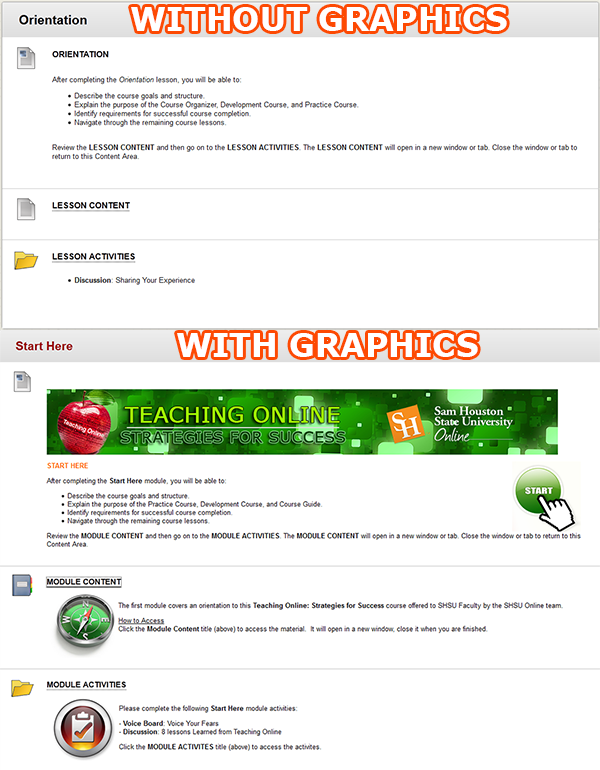
Below are examples of a Blackboard content area without graphics and a content area with graphics.  Which one looks better?  Which one would you rather read?

Blackboard Course Content Area Examples
In this example the graphics are more of the decorating variety, but they do add color and continuity to your course.  Imagine having your course banner at the top of every major content area in your course.  In this case there are examples of images in a content item, learning module and content folder descriptions. Almost anywhere you use the content editor in Blackboard, you can place an image.

Inserting an Image

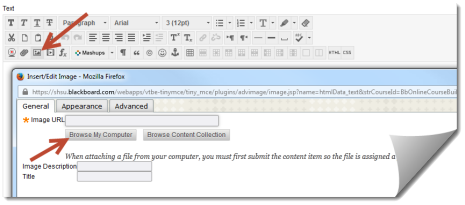
  1. Click the Insert/Edit Image button on your content editor.
  2. Browse to where your image is saved and attach it.
  3. Type an Image Description (for screen readers).
  4. Click the Insert button.Insert Image dialogue

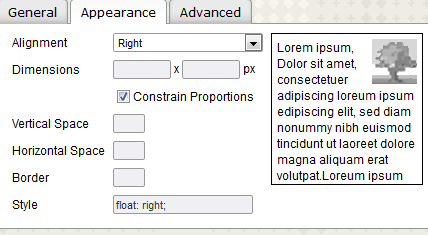
Editing an Image (Alignment, Spacing and Size)

  1. Click on the image you have placed in the Content Editor.
  2. Click the Insert/Edit Image button.
  3. Click the Appearance tab.
  4. Adjust your Alignment, Spacing and Size.
    Insert - Edit Image - Appearance Tab

With a few clicks of your mouse, your Blackboard course can go from black and white text to a colorful tapestry of text and images that convey meaning to students in a number of different ways!

Resources – Free Images For Your Courses

Help your Students be Reflective with Journals

Merriam Webster defines a journal as:

a book in which you write down your personal experiences and thoughts

Backboard JournalPutting down those thoughts and experiences that impact us can be an important tool in personal growth and development. Journals don’t have to be limited to the “Dear diary” entries you make at your beside table.  They can be used in courses you teach as well. In online courses journals can be used as a mechanism for communication between a faculty member and a student, or as a reflective tool for students as they work to absorb what they are learning.

Benefits of using a journal include but are not limited to:

  • Teaches students to communicate their thoughts on the subject matter
  • Forces students to be on the lookout for journal material (actually paying attention in the course)
  • Helps students to remember what they have learned
  • Keeps a record of ideas, concepts or structures that are important
  • Lets students create without fear of judgement from peers
  • Allows students to take first level thoughts to the next level – idea expansion

Creative writing teachers can benefit from using a journal.  Students can post their entries and instructors can make comments as needed.  Journals can also be used to drive home what the student has studied over the week.  Think about the reinforcement that happens when a student submits an assignment, discusses with his or her peers, takes a quiz and then puts it all together in a journal entry for the week.  Finally, journals are ideally suited for formative assessment.  Get the student’s temperature by asking them to write about their highs and lows as it relates to the course during the week.  If something comes across that is legitimate, feel free to make course corrections for the benefit of all of your students.

Here at SHSU we utilize the Blackboard LearnTM learning management system, which has a journal tool as part of it’s feature set.  Journal assignments can be placed anywhere in the course and are accessible with click of the mouse. Learn more about implementing journals in your Blackboard course.

While you are thinking of ways to ensure your students are getting what they need on their learning journey, consider reflecting on the added value of implementing journal activities to your courses.


Blog at WordPress.com.

Up ↑