Search

eLearning Frenzy

eLearning is like a sewer, what you get out of it depends on what you put into it.

Tag

Blackboard

Online Course Weight Loss Plan

Online Course Weight Loss Plan Banner

There are many good reasons to keep your course from growing too big for its own britches. A large course could impact your student’s learning experience because:

  • The size of course intimidates your students.
  • The same document in multiple places takes up space and clutters the course.
  • Large images take forever to load and..
  • Take up valuable visual real estate on handheld devices.
  • The more items in your course and LMS, the slower it operates.

Keeping these things in mind there are steps you can take to manage your online courses so they don’t become overwhelming, unnavigable, burdensome and out of control.

Step 1: Keep your course organized.

One of the easiest ways to think about your online course’s health and well being is to keep it organized. Traditionally when we think about our courses being held in an LMS, we think of our course as having large containers that hold different types of content like assignments, tests and course materials.

Course Bucket Organization

This can be an easy way to think about organizing at the beginning, but the end result is that over time, these buckets become catchalls or laundry lists of everything you’ve ever added to your course. This causes your students to suffer from over scrolling and to constantly search for important information and activities. Another side effect of this particular organizational method is that it causes the instructor to have trouble determining whether or not they put “that file” in the course.

Instead of large “buckets of information”, why not think of chunking them across topics, or by time. That way, all of the information and activities that a student will need to interact with during a specific week or around a particular topic is located in the same space.

Course Organization Example - By WeekBy organizing your content, you make it easier for you and your students to find what you are looking for and reduce the ‘laundry list’ effect.

Step 2: Use Course Links to cut down on content cloning.

linkThe next step in our online course weight loss plan covers the use of one particular document in different places throughout your course. Whether it is a special rubric, a project guideline or just something you want available easily for your students, it is natural to just want to add the document where you need it. Over time, you create multiple versions of the same document that just adds extra weight to your course and makes your list of course files hard to deal with from a file management perspective.

Most learning management systems provide a way for you the instructor to “link” to the document in question wherever they are in the course. Here at Sam Houston State University, we use Blackboard and it provides this ability via the Course Links content item. Course Links allows instructors to link to files, content items and course activities anywhere in their course.

This way, an instructor only has to add 1 instance of whatever it is they want to use throughout the course and link to it from other course areas.

Step 3: Reduce the size of images BEFORE placing them in your course.

By now, we are all familiar with the fact that adding contextually relevant images to your course is a best practice. Course images engage your students, stimulate different parts of the brain and break up what would otherwise be an ocean of Times New Roman or Arial text.
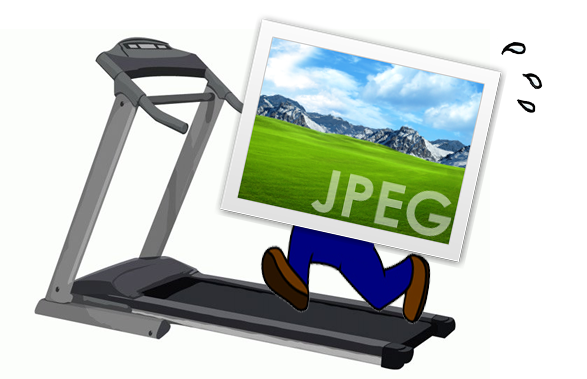
Picture of a Graphic Icon on Treadmill

The issue for instructors is that the learning management system does not provide a way to reduce the size and weight of the image prior to placing it in a course. It does not allow you to change the “visual appearance” of an image by resizing how the image looks, but this DOES NOT reduce how much space the image takes up in your course or how long it takes a student on their computer or mobile device to see the image.

The good news is that almost every computer comes with a software that will help you change the size and weight of images before you place them in the course. In most cases, once you are in the software reducing the size of the images automatically reduces how much drive space they takes up. Below we will provide a few links to helpful how-tos on the Internet, but you can always google the topic and find what works for you.

Step 4: Use streaming services and Internet links for videos rather than uploading them directly to your course.

streamingOne of the most effective ways to engage your students online is to employ videos along with learning activities throughout your course. Videos add another dimension to your course that connects with your students and can be viewed on whatever device they may be utilizing.

The best practice for how to leverage videos in your online course is to host them with a streaming service or link to videos already hosted elsewhere. Burdening your LMS with Gigs of video files will have a direct impact on your students, because the way they are hosted/loaded is not ideal for streaming on mobile devices or even computers. Also the more large files you add to your learning management system the more you can affect its performance.

Fortunately, there is a great way for you to utilize video in your online courses while following the best practice. Just use other video hosts and provide links and embeds in your online course. Here at SHSU, Blackboard has the ability to directly embed YouTube videos in your course while leaving them hosted in YouTube. It does this via the YouTube mash-up and the Video Everywhere tool. We also utilize Kaltura for video/lecture capture and screen recording. Blackboard employs a Kaltura mash-up and content building tool to place these videos/screen recordings directly in your course content.

Teaching an online course can be intimidating in its own right. Make it easy on yourself. Keep your course in “eLearning shape” by ensuring your course is properly organized, providing links to course documents you want to use in multiple places, reducing the size of graphics and pictures before you insert them in course content, and using streaming services and internet links rather than uploading heavy video files directly to your course.  These aren’t the only steps you can take, but they are a great place to start.

NBC Learn on Blackboard – Adding a Media Rich Resource to Your Courses

NBC Learn on Blackboard


One of the best things about the connectedness of the web space is the ability to find media rich content to supplement or enhance course activities and materials.  The beauty of this particular medium is that it is not just left to the instructor to utilize this media.  Students can now liven up online discussions, assignments, projects and more with historical, current or relevant video or audio media.   YouTube has long been a mainstay in this arena, in that it’s API allows for easy integration and everyone is familiar with what it does.  However, there are other vast collections of resources out there that are relatively untapped by the student/faculty population.  One of these curated resources is NBC Learn.

NBC Learn is a rich and unique resource that provides thousands of historic news reports, current event stories, original content, primary source documents, and other digital media specifically designed to teach and engage students.  NBC Learn content can easily be downloaded for offline use or connected to your institution’s Learning Management System, which in my case is Blackboard.

The content is also fully accessible it allows for keyboard navigation, assistive technologies(works with screen readers), support for deaf and hard of hearing.  http://www.nbclearn.com/accessibility

NBC Learn Portal

You can Browse NBC Learn, and see the Collection of all NBC resources within the NBC Learn environment.  You can browse by category that best matches your field of study or just Search NBC Learn via keyword.

Each video has its own CueCard with metadata like source, date, description, keywords, & citation (allows students or faculty to include citation in posting), as well as transcript tab for full transcript.

NBC Learn Cue Card

  • Each video can be saved to your personal playlist within NBC Learn.   You can also print a 2 dimensional version of the CueCard.
  • Download:  You can choose a quality version and save it locally to your computer. (You will need administrative access to your computer as the download will be an executable NBC Learn player)
  • Videos can be sorted for easier searching. (Title, Date, Story Date, Alphabetic, Recently Updated)
  • Don’t see your category? NBC Learn allows users to “contact us” and add comments/suggestions in terms of new categories for the NBC learn site.

NBC Learn on Blackboard


NBC Learn & Blackboard – Working Together

There are a couple of ways to add NBC Learn content to your courses:

  1. Employing the Mashups button anywhere you use the Blackboard text/content editor (items, folders, discussions, etc…)
    Adding NBC Learn to Blackboard

    This particular option allows both you and your students to build context around the video.  Whether you are introducing a unit or your students are adding to a vibrant online discussion, using the Mashups button in the content editor can add rich media throughout your Blackboard course.

  2. Accessing the Mashups area under Build Content and selecting NBC Content (places content directly in content area as it’s own item).NBC Learn Mashup Item

    The beauty of this option is that the media itself becomes a piece of course content.

*Depending upon your institution’s setup, you may be able to leverage a NBC Learn content module that will allow you to display categories of videos like: NBC Learn Science, History, News, Social Studies etc…

NBC Learn and Blackboard have integrated and that is a win for Blackboard instructors and students.  Now course content and contributions can become more rich, relevant and engaging!

BbWorld15: Increasing Student Engagment with Digital Badges – Session Blog

Speakers:
Megan Cole – Head of Marketing at Badge Labs
Dr. Melissa Stange – Lord Fairfax Community College
Richard Shelton – Coordinator of Academic Services Northeastern State UniversityDonna Shelton, PHD – Professor of Spanish, Northeastern Oklahoma


Badge Labs – Consulting and Development term for Open Badges

Open Badges Ecosystem:

What are open badges?
Representing skills that are real based on real tasks and work.  Employers are willing to pay for hire for and give credit for real results.

can be used to:

  • recognize learning
  • Assessment learning
  • Motivate learning
  • Study learning

Badge anatomy: name, description, criteria, issuer, evidence, date issued, standard, tags

Badges can

  • capture complete learning path,
  • build maps of learning and pathways & opportunities of more learning,
  • build and communicate reputation & identity,
  • foster an ecosystem that is connected,
  • signal learning to key stakeholders & potential employers.

Building an Open Badges Ecosystem: Openness, Learner Agency, Innovation (Blackboard, IMS Global, Mozilla, Badge Labs, digitalme, Pearson, concentric sky)

We will be at 10million badges issues by 2016.

Lord Fairfax CC Digital Badge Pilot: 1 f2f two online courses 74 students in total, badges & certificates possible, adding a “My Badges” button, Mozilla backpack.

Students didn’t know how badges apply to them after they left college.  Had to educate the students while they educated us.  Credly was more preferred to backpack.  GPAs went up.   Badges were a motivator

Results

– Retention rate went up
– More uploads to backpack if extra credit given
– Increased quality of learning
– increased faculty discussion of badges
– Improved collaboration in online courses
– Expanded learning opportunity – e portfolio
– Provided discussion between curriculum advisors & college
– CBE moving forward got approved
– nationally accredited badge

Lesson’s learned

  • If only content is copied between courses, the trigger rules are lost
  • If content is not included in a copy or export/import achievements are not export
  • select both content & adpative release rules to get copied correctly
  • Bb admins have to set up goals before faculty can add as an alignment to get on goal coverage report
  • Had to add extra content (lecture) to explain badging & badge backpack
  • Takes time to setup initially
  • Learning terminology
  • triggers elements not changeable, recreate
  • No direct path to change rewards

Next Steps

  • Continue data collection
  • expand badges in computer science
  • continue to work with deans for faculty adoption
  • Submit badge research and pilot finding for publication in system journal
  • Assist knowledge to work CBE team to create new national credential badge
  • Develop System-wide badges in conjunction with articulation agreements
  • Work with local industry
  • Continue to participate in the IMS global networking CBE group

Richard Shelton – Northeaster State University

  • Achievements to recognize all learners: students, faculty, staff community
  • First introduced in individual courses
  • In near future expanding to faculty and staff
    – Faculty Professional Development
    – Human Resources Training
  • Continued Education

Use in course projects – series of milestones awards: submissions and completely and grade they received.

used to increase motivation to submit assignments and to improve submission rate

Encourage students who enjoy gamification (used in university studies course)

Positive anecdotal results.

Sequential online instructor training courses – used to promote awareness of badges.

Next Steps:  Moving to University-level achievements.

Continuing education – Police Officers seem to like badges.

Donna Shelton:

CAEP is new version of NCATE -CAPE go throuth SPAs to evaluate various groups

Digital badge use through Blackboard to be implemented in fall 2015 as key element of new program.

New digital badge based assessment eight aligned ACTFL Standard 6, Professional Development, Advocacy and Ethics

Standard 6: candidates engage in ongong professional development opportunities that strengthen linguistic, culture and pedagogical competencies.

– Series of conferences with program faculty (educate about badges)
– Course embedded and extracurricular opportunities to earn badges: 3 badge categories, acceptable performance level: two badges in each category
– Reflection essay in last half of student teaching semester

Badge Types and example Tasks:

Language Proficiency, Cultural Knowledge and Pedagogy

Why?

  • help with motivation
  • recognition for extra-curricular activites
  • tracking accomplishments, help with resume
  • educate badge consumers
  • marketing with badge images

Custom achievements, badge icon creation, use Organizations to track across courses, Upgrade will include portfolios that go across courses.

Challenges:

  • students as earners – educating
  • Issuers (faculty) – educating
  • University as issuer – logistics, rules etc..
  • Outside issuers – local industry, cont. ed, professional development, HR
  • School districts as consumers.

BbWorld15: Blackboard Learn Top 10 for Faculty – Things You Can Use Today and What’s Coming Down the Road – Session Blog

Speakers
Wade WeichelSenior Product Manager
Blackboard INC.


11. Tool Integrations LTI – (Learning Tool Inneroperability) at course level

10. Date Management – the ability to manage due/availability dates across your Bb course on from one page.

9. Student Preview – ability to view your course as student, all the way down to My Grades

8. Bb Grader – iPad app that allows an instructor or evaluator to review submitted assignments.

7. Retention Center – allows faculty to track student risk indicators without difficult setup/configuration.

6. Grade Center – Grade History – track grade center interactions over time

5. Test Power Features (significant digits, test exceptions, Access Log [lets you see in timestamped way that student’s interaction with a test], IP Address Filters (assures integrity in high-stakes testing environment]

4. Authentic Assessment (Large projects, capstone portfolio – complex set of work, direct assessment, generally not an exam.  (extensive feedback)  [Assignment Tool, Portfolio assignments, Wikis, use of Rubrics, SafeAssign, non-electronic observations…]

3. Delegated & Anonymous Grading – good for high-stakes testing for anonymity for delegated graders as well as students, large course section grading of assignments can be distributed.

2. Goal Alignments to Question Items and Individual Rubric Criteria

1. Goals Manager – Mapping Tool – ability to update content alignments

What is Bb Working on?

  • New Student Dashboards (Competency Based Education)
  • Workflow Improvements & Usability (thread navigation in discussion board grading)
  • Simpler posting of grades to the SIS
  • BbGrader grows to BbIsntructor fully fleshed out.
  • Bb Ultra improvements including calculated column formula builder

BbWorld15: Blackboard Collaborate Road Map – Session Blog

Speakers:

David Hastie Sr. Dir. Product Management
Carl Marrelli Sr. Product Manager


**Some these are forward thinking statement and may or may not end up being in the final product.

Collaborate Ultra has been out for a couple of months and the initial feedback has been super positive!

3 objectives in Collaborate redesign:

  • Simple – easy entry into sessions, browser based, sleek intuitive interface
  • Modern – Cutting edge media technology, accessible, Mobile
  • Focused – Designed for education, varied instructional strategies/methods, Deeply integrated with the LMS

Highest level of quality and innovation – enhancements andmaintenance more quickly released with zero downtime

Key Benefits

  • HD Video & Audio Puts you right in the Center
  • A world class user experience to encourage use
  • Supporting Asynchronous learning models, native mp4 recording and playback
  • Web-Based – get started immediately no need for java or downloading launchers.

Available no in all regions and in 26 languages.  Application is responsive adjusts based upon the format of device that you are viewing it on! Also adaptive based on type of content.

Current use Cases:

  • office hours
  • group collaboration
  • teaching & learning

Learn 9.1 – If you use you can use new Collaborate Ultra with B2. New Collaborate B2 Supports session in old and new collaborate experience. Allows for piloting while still using old system.

Chat panels pop out when in use!

Sharing file interface is simple and easy to add and annotate! Several annotation tools with several colors.  Either on top of images or files like powerpoint, pdf, jpg.  Sharing Browser instances as well.  Things you share are easily identifiable.

Records whatever is being actively shared + Audio. Conference members can live-caption or translate a session!

Mobile: Collaborate is directly integrated into Bb Student. Is currently in Beta. Should be available soon.

Collaborate functionality allows for students to be presenters. Moderator can make student presenters as well! Application sharing is so much better.  Moderators can easily stop student sharing.

Future Capabilities:

If you need the alternative to be better than the status quo from the start, you’ll never begin!

  • Mobile experience
  • Polling
  • Feedback Mechanism
  • Breakout Rooms
  • Phone Conferencing – telephony integration
  • Moodlerooms Integration

BbWorld15: Best Practices for Implementing Blackboard Communities – Session Blog

Speaker
Adam Voyton
Wilmington University

Once you get the license, what do you do with it?  Customize interface to engage students and faculty across your institution.

Customization:

  • Create tabs, sub-tabs, and modules
  • each tab, sub-tab can be configured to appear to users that are assigned to a particular role
  • A module is bascialy a box that can contain: text, video etc..

Primary Roles are Students, faculty, staff.

For tabs or modules that have information relevant to students and or faculty in certain department, we set up college-specific institutional roles.

Student/faculty login has generic content and customized content.  Advertising, Marketing, Student Life

Students: Top layer tab has student services tab – links to student service pages, Jobs for Kats as Top Layer Tab
Faculty: (Faculty services tab – centralizes info that was scattered across website)  My media module (Kaltura)

Subtabs – Tech Support/Resources (support desk hours) (clean up My courses video), Kaltura subtab, My media and faculty repository on it along with self-help for Kaltura.  Blackboard Collaborate  subtab(embed the webpage), Blackboard subtab for IM.

Wilmington uses colleges on Top lvl tabs that contain info that they may want behind a login.  Each of these tabs have subtabs with more info   (question, how do you envision having 6 tabs one for each college).  Tabs to other systems

Things to Keep in mind:

*Tabs don’t open up in new browser tab.
*when embedding content use HTTPS*Have rules and policies for what content can go where (Governance)
*Set up a calendar to manage/schedule the content
*keep MY Courses at top right and announcements at top center

Blackboard Organizations

Bulk of orgs are Academic in nature, a fair amount of student orgs, smaller honor societies and departments.

Come up with and keep up with a naming convention.

Implementing Communities  (Organizations Subtab with “My Organizations” module)  Contains video explaining what orgs are and how they work. Including support documentation.  (Have an org catalog), link to a request form.

3 ways to enroll users into orgs: 

  • Self Enrollment – No level of privacy
  • Manual Enrollment – Leader has complete control, but has to do it all themselves.
  • Automatically adding someone who meets a certain criteria (SIS Based), some people may not want to be enrolled. (come up with un-enrollment process – place a default link in orgs with instructions to e-mail leader etc..) come up with code of conduct link for orgs as well.

Tips to Increase Students Use of Organizations (Require leaders to go to training)

– Make registration process simple
– Put out a press release on ORGS (get the word out)
– Videotaping campus events or use collaborate
– have student representatives talk for them

Online Student Association – Blackboard Org  (Engaging Online Students) – automatically add every student taking an online course.

  • Discussion board of the month – “What can we do to engage our online students at homecoming?”  small giftcard or prize of randomly selected participant
  • Online Student of the Semester – (we can use our ads)  Short little bios, students can apply we can focus on them.
  • Introductions Discussion Board (Networking)
  • Have video and webpage about this organization

Remind your constituencies what Blackboard Communities does for them. Press Releases, videos etc…  Target program chairs about Bb Orgs.

Lessons Learned:

– Get Departmental Involvement
– Dedicate a staff member to serve as community admin- Audit content every year
– People that do not have a Bb Login will not be able to access any content in Orgs

BbWorld15: Leveraging Blackboard to Introduce New Faculty to Essential Technologies – Session Blog

Speakers
Kimberly Evans
Joey Robinson
Reynolds Community College

TTS 101 Orientation to Essential Tech is an online orientation designed to streamline the on-boarding process and acclimate newly hired faculty to various technologies and services.  A collection of modules are housed within Blackboard introducing faculty to the wide range of tech resources they will be expected to use.

Upon hire faculty are automatically enrolled and through Blackboard complete each module.  They will remain enrolled for 1 year.  Once completed, deans and chairs are notified and they receive 1.5 hours of professional development.

Information is distributed at faculty orientations, convocation.

Orientation contains:

  • brief video of objectives
  • self-guided activities
  • self-assessment
  • resources

Each of the modules use adaptive release to move faculty on to the next module when they complete the previous one.

Menu: Possibilities: (Start Here, E-mail, Computer account, SIS, LMS etc..)

Exit survey posted at the end of session to measure effectiveness of orientation.  (It is not mandatory to complete training)

Reynolds looked at helpdesk tickets (Logon Concerns, Email, Software) they all decreased over time with implementation of orientation.

Don’t ask, just congratulate when welcoming.  Not “Would you like to participate?”, but “Congratulations, you’ve been enrolled..”

‘Twas the Week Before Blackboard World’

‘Twas the week before Blackboard World,
not much longer will we wait.

Thinking about multi-booked sessions

for which we’ll be late.


Meeting with vendors, colleagues and more,

Technology experts and topics to explore.

Pre-conference workshops to jumpstart our brains

learning best practices on which we will train.


I’m interested in training, f2f and online,

so many sessions, so little time!

T-Bug, best practice, pedagogy first,

networking with colleagues, you work up a thirst!


Vendor exhibits, giveaways galore,

Or maybe a door prize of which we will score!

We will listen, we will talk, we will soak up the knowledge,

and share our experiences with private sector, k-12, or college.


We look to return come Friday next week,

loaded with the knowledge we strove to seek.

So I say to you all, let’s learn without fear,

for if we want more, we wait ‘till next year!

Course Banners are NOT just for Course Landing Pages

Since the early days of Blackboard and other Learning Management Systems in the field, Course Banners have been a great way to personalize the online or web-enhanced learning environment. Instructors could differentiate any course by starting it out with a graphic or photo of their own choice/making. Course Banners have been used far and wide since then to add flare and personalize the online and blended environment.

Course with Banner ScreenshotFor years, instructors who used Blackboard have been operating under the assumption that a Course Banner could only be used on the landing page of a Blackboard course.  Well guess what?  Course Banners can be placed almost anywhere in an online/web-enhanced course. Check out this before and after photo of a Blackboard content area, in this case Lesson 1:

Before and After - Adding BannersWith just the addition of a few graphics, a theme change and a Banner image, we can add continuity to the course as well as make it more engaging.

How do you do it?

Show Text OnlyFirst, you will want to give yourself more real estate in the Content Area where you will be placing the Course Banner.  You do this by changing your page options to show text only.

  • Ensure your Edit Mode is on.
  • Click the contextual menu next to your page title and select Page Options.
  • Click Show Text Only.

This gives you more space for your graphic to live in the content area where you place it, by removing the icon that shows up next to your content title.

Note: It is also a good idea to make your Course Banners in the subsequent course content areas a little bit smaller. This cuts down on load time as well as screen resolution issues.

Add ImageNext, add/edit a Content Item on your page and add an image to the top.

  • Add/Edit a Content Item.
  • Click the Add Image button.
  • Browse and Attach your Banner.
  • Click Submit.

You will now have a content item with a banner graphic that is placed at the beginning of the content area, folder or module of your choice:

Adjusted Content Item ExampleThis practice will add a layer of continuity and engagement to your course. If your students feel like they are in a familiar place and are engaged while browsing, their satisfaction levels will increase. Consider adding more Course Banners to your online/web-enhanced courses today!

Create a free website or blog at WordPress.com.

Up ↑